
















Article Contents:
- Why a wall panel cannot be modeled as random relief
- Real SKU first, then the 3ds Max scene
- What to lock in before modeling
- Master panel — more than just modeling convenience
- Check after import
- Why you cannot just set Scale to 120%
- Pivot, local axes, and assembly point
- Transform hygiene before creating an array
- Instance or Copy
- Array as a layout tool
- Width, gap, and pitch are different values
- Panel vs. individual slat: why you can't mix two systems
- Option 1 — individual slats
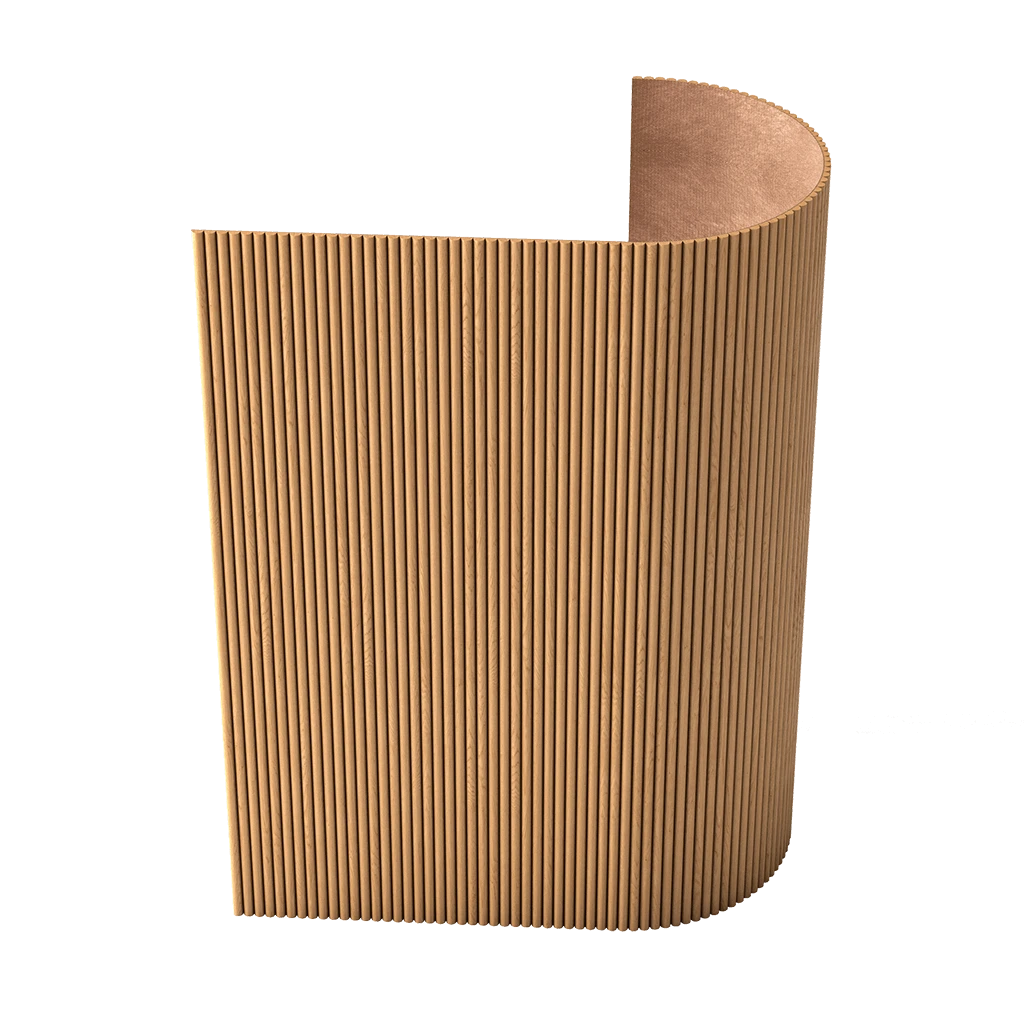
- Option 2 — ready-made panel
- Scenario 1. The end module is trimmed
- Scenario 2. The remainder is split between two edges
- Scenario 3. The layout starts from the architectural base
- Scenario 4. The module changes
- Formula for the number of modules for the first check
- Edge case: the remainder is less than the allowable visual width
- Multiple walls of the same room
- When symmetry is useful
- When it is better to start from the edge
- Base selection matrix
- End panel — the ultimate reality check for the entire system
- Why the remainder must be resolved before lighting and materials
- Inside corner
- Outside corner
- Niche
- Panel deeper than the casing
- Hidden door
- A socket as a check of the modular grid, not a separate problem
- Separate project variants instead of destroying the master
- What to show in the scene
- Practical scenario
- Project cuts: the master panel must not be destroyed by Boolean operations
- Working scheme
- Reset XForm and modifiers
- TV Area
- Headboard
- Cabinet
- Panel, skirting board and ceiling: the vertical junction must not be left abstract
- At the floor
- At the ceiling
- Wooden panel material: UVW must convey the real scale, not just a beautiful wood grain
- Fiber direction
- UVW Map and Unwrap UVW
- Do not try to “fix” the geometry with a texture
- MDF for painting: the material is simpler, the geometry becomes more noticeable
- Color does not change the geometry SKU
- Material ID for a complex module
- Texture repeatability across instances
- Where variation is harmful
- Four lighting scenarios
- Grazing light reveals more than just beauty
- Overall render and detail view: they test different things
- Overall view
- Oblique angle
- Detail
- Performance budget for the wall
- When proxy is truly useful
- When proxy only complicates the project
- What to do
- What must not be lost
- Proxy and SKU
- Naming and metadata: how to link the scene to project documentation
- Why the object name matters
- 3D does not replace a physical sample
- Correct Sequence
- After APPROVED, SKU cannot be changed silently
- Revision control in the scene
- Source of truth between files
- What needs to be transferred to DWG
- Source of truth
- Calculated Qty and Order Qty
- Calculated Qty and Order Qty for a modular wall
- Module table for the wall
- Why area is only a control value
- Step 1. Check the master panel
- Step 2. Check System Units
- Step 3. Build four full modules
- Step 9. Check the lighting
- Step 10. Produce two renders
- Step 11. Lock in APPROVED
- Step 12. Transfer to DWG
- Step 13. Count the quantity
- Step 14. Create the order
- Second example: wall with a door and an asymmetrical base
- Third example: headboard panel
- Matrix of typical errors before final render
- Test “delete camera”
- Product
- Scene
- Layout
- Nodes
- Material
- Approval
- DWG
- Specification
- What to hand over to the specification specialist along with the specification
- What to check after the commercial proposal
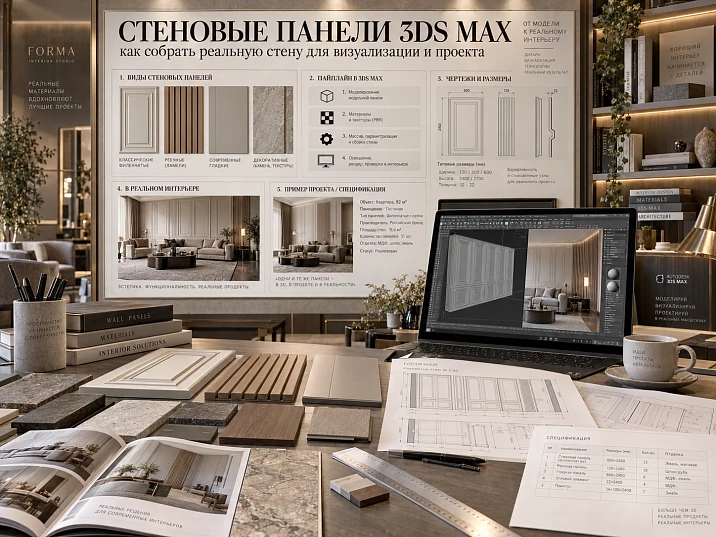
A wall made of panels can easily look convincing in a render while being technically impossible. It is enough to repeat a beautiful relief using bump, displacement, or a set of conditional slats — and the frame already seems finished. But as soon as the project moves to working documentation, questions arise that such a model does not answer: which SKU is this, what is the real module width, where does the outermost panel end, what happens near the door, how does the socket pass through the relief, and how many physical panels need to be ordered.
For project visualization, this is not enough.
If the wall system is to be implemented, 3ds Max must work not with a “similar surface,” but with a real product module. Then the wall model becomes not a decorative background, but a digital prototype of the future layout.
Work sequence:
Panel SKU → real dimensions → System Units → master module → Instance / Array → modular grid → edge elements → doors / sockets / furniture → UV / material → light → render → APPROVED → DWG → specification → Order Qty.
The main focus of this article is simple: it is not about where to download a 3D model of a single slat. The goal is to assemble an entire wall system from a real module and preserve it without substitution, from the 3ds Max scene to procurement.



Why a wall panel cannot be modeled as random relief
A visually similar surface can be achieved in dozens of ways:
- bump;
- normal map;
- displacement;
- procedural texture;
- conventional slats;
- an arbitrary high-poly object;
- geometry from a third-party library.
For a concept, this is sometimes enough.
For a working design project, it is not.
The panel has physical properties that affect the entire assembly:
- the actual width;
- thickness;
- height or length;
- module;
- internal rhythm;
- edge;
- the material;
- method of adjoining.
If a conditional surface is used in the render, the designer does not see how the wall will actually end. The camera can hide an inconvenient remainder, but it will still appear on site.
Let's imagine a wall 4230 mm wide. If the visualizer simply repeated the texture, the surface will look perfect from edge to edge. A real module, for example conditionally 1000 mm, immediately raises the question: what to do with the remaining 230 mm?
This is where design begins.
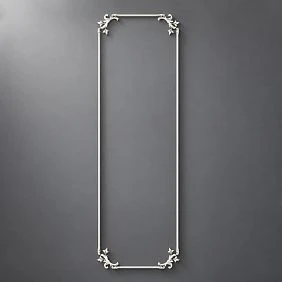
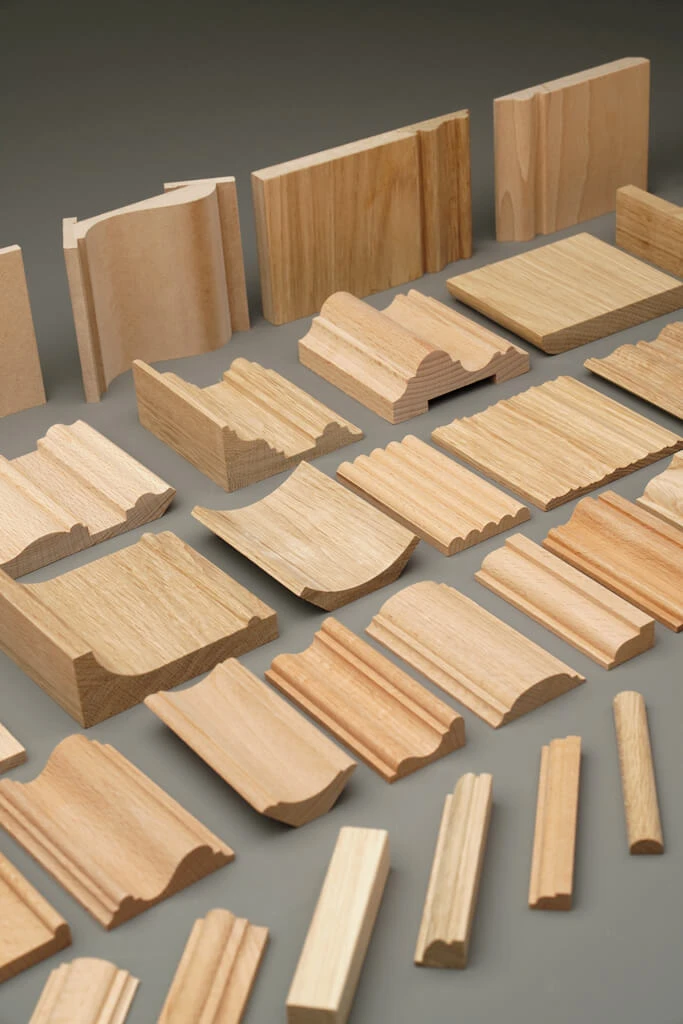
To choose a real system, you can use STAVROS wall panels и Slatted wall panels.


First the real SKU, then the 3ds Max scene
A reliable scheme:
catalog → SKU → actual dimensions → master panel → wall.
A weak one:
random model → beautiful render → search for a similar panel after approval.
In the second case, the real product appears too late.
If the found panel differs in width, the entire layout shifts. If it differs in thickness, the joint with the casing changes. If the module contains a different internal rhythm, the outlets, furniture, and wall edge look different.
Therefore, a project asset must have product identity even before the final render.
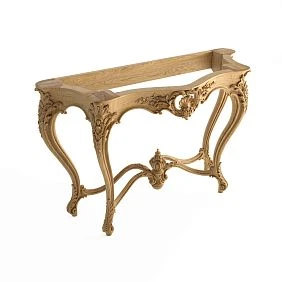
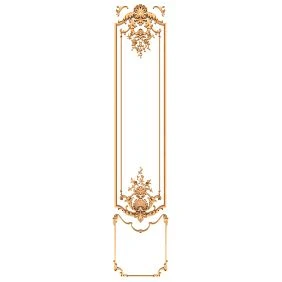
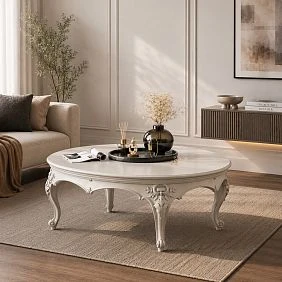
Our factory also produces:




What to lock in before modeling
Minimum:
| Field | What to store |
|---|---|
| Manufacturer | STAVROS |
| SKU | specific |
| Type | panel / slatted panel |
| Width | actual |
| Thickness | actual |
| Length / Height | actual |
| Material | MDF / wood / other real |
| Finish | Project |
| 3D | file |
| DWG | file |
| Status | CANDIDATE / SELECTED |
If a value is missing from the source data, it should not be invented. The position remains a candidate until verified.
Get Consultation
Master panel — not just a modeling convenience
One correct object becomes the source for the entire wall.
For example:
PAN-01_MASTER
It should contain:
- real geometry;
- correct pivot;
- correct units;
- the material;
- SKU;
- clear name.
Only after that can it be propagated.
System Units: why scene setup should be the first technical check
A unit of measurement error is especially dangerous with repeated modules.
If one object is imported slightly incorrectly, the error will be repeated dozens of times.
For an interior design project, it is more convenient when the physical meaning of the units is unambiguous. Most often, work is done in millimeters or correctly configured metric units.
What is critical is not the interface choice itself, but the actual correspondence to the product dimensions.
Check after import
After loading the model, measure:
- width;
- the depth;
- length / height.
Verify at least one key dimension against the product data.
Do not trust the file name.
A file may be named correctly but contain the wrong scale due to export, import, or unit settings.
Why can't you just set Scale to 120%?
If the real panel has a specific width, stretching along X creates a different module.
The specification will keep the original SKU, while the visualization will show a product that no longer exists.
Acceptable:
- optimize the mesh;
- use proxies;
- simplify invisible parts.
Not allowed:
- change the width;
- change the thickness;
- stretch the rhythm;
- distort the end face;
- keep the old SKU after such deformation.
If the size does not fit, you need to change the layout or the product.
Master module, Instance and Array: how to build a wall without discrepancies
Pivot, local axes and assembly point
The master module must have a predictable pivot. It is best when it is tied to a geometrically clear point: the lower left corner of the mounting plane, the center of the module, or another base accepted in the project.
The random pivot problem does not manifest on a single object, but when:
- Array;
- Align;
- replacing a SKU;
- moving to another scene;
- linking to a DWG;
- building a wall from a specified coordinate.
If one module is centered by geometry, while another is centered by a random pivot far outside the object, the same commands produce different results.
Working rule:
the pivot should help build the modular grid, not hinder it.
For a vertical wall, it is useful to decide in advance:
- local X — the direction of the wall set;
- Y — depth;
- Z — height.
Then the distances between instances and the Array direction are read unambiguously.
Transform hygiene before creating the array
Before duplicating the master panel, it is useful to check:
- Scale = 100%;
- Rotation — as expected;
- pivot position;
- absence of random non-uniform scale;
- orientation of local axes.
If the master already contains non-uniform scale, subsequent modifiers and UVs may behave unexpectedly.
Fixing this after 40 instances have been created is far more unpleasant than before the first Array.
After checking the master object, wall assembly begins.
It is better to use a single source of geometry.
Instance or Copy
For repeating identical panels, it is preferable Instance.
The reason is not only performance.
If the master module is updated, all instances receive the same geometry.
With independent Copy you can easily end up with a situation:
- 14 panels are already new;
- 2 remain from the previous SKU;
- one accidentally scaled.
In the scene, this is not always visible.
In the specification — even more so.
Array as a layout tool
Array is useful when the step is known and uniform.
But before using it, you need to understand what exactly repeats.
If the panel is a ready-made module, the module repeats.
If the project works with individual slats, the slat repeats.
These are different models.
Width, gap, and step are different values
For a separate slat:
Step = Width + Gap
if the system requires a separate gap.
For a ready-made panel, the internal rhythm is already built into the module.
You cannot repeat individual conditional lamellas on top of a ready-made modular panel: this creates a double logic that does not correspond to the product.
Panel and separate slat: why two systems cannot be mixed
A slatted wall can look visually identical in two variants.
Variant 1 — separate slats
Base unit:
one lamella.
The designer sets:
- spacing;
- gap;
- edge margins;
- quantity;
- length.
Option 2 — ready-made panel
Base unit:
ready-made module.
It already has:
- full width;
- internal structure;
- thickness;
- edge.
The layout is built according to the module width.
This difference affects:
- 3D;
- DWG;
- calculation;
- quantity;
- trims;
- purchase.
Therefore, an article about 3ds Max wall panels should keep the ready-made product module at its center, not an abstract slat.
How to assemble a wall of exact width and handle the remainder
Let's take a conditional example:
Wall Width = 4230 mm
Panel Module = 1000 mm
Four full modules:
4 × 1000 = 4000 mm
remains:
4230 − 4000 = 230 mm
You cannot install a fifth panel and "crop it with the camera."
A real design solution must be adopted.
Scenario 1. The end module is trimmed
If the system allows trimming, it must be shown in 3D.
Then one instance becomes project-modified.
It is important not to break master.
Better to use:
PAN-01_MASTER
and a separate instance:
PAN-01_CUT_R
Scenario 2. The remainder is split between two edges
If the composition is symmetrical:
230 / 2 = 115 mm
of the outer field on the left and right.
But here you need to check whether such a cut can physically be made on a real module.
Scenario 3. The layout starts from the architectural base
For example, from the door.
Then the remainder can go to the opposite edge.
Scenario 4. The module changes
If the edge turns out to be too inconvenient, the selected SKU may not be suitable for this wall.
This is a normal design conclusion.
Not every panel suits every geometry.
Formula for the number of modules for the first check
For a simple wall without openings, you can start with:
n = floor(W / M)
Where:
W— net wall width;M— module width;n— number of full modules.
Remainder:
R = W − n × M.
Next, the project decides what to do with R.
For a symmetric scheme:
Left = Right = R / 2.
This is only a geometric check. It does not say whether the panel can physically be trimmed in exactly this way. But it quickly shows how well the selected module actually fits the wall width.
Edge case: the remainder is less than the minimum acceptable visual width
Let's imagine, hypothetically:
W = 3180 mm
M = 1000 mm
Three full modules give:
3000 мм
Remainder:
180 мм.
Symmetrically:
90 мм per side.
Mathematically, everything adds up.
Visually, a 90 mm edge may look like a random strip.
Then there are options:
- do not center;
- choose a different start;
- use a different SKU;
- change the architectural boundary of the field;
- add a meaningful filler section.
This is where the difference between pure arithmetic and design layout becomes apparent.
Multiple walls of one room
If panels transition from one wall to another, each surface cannot be calculated in isolation.
You need to decide:
- whether the module is preserved through the inner corner;
- where the rhythm is "reset";
- which angle serves as the architectural base;
- whether the edge elements align;
- whether the transition is visible from the main viewpoints.
Sometimes it is better to finish with a full module on the main wall and start a new layout on the adjacent one. Sometimes — to continue the rhythm around the corner.
This design decision must be identical in 3D and DWG.
Symmetric and asymmetric layout: you need to choose the base, not a beautiful remainder
Centering often looks natural for:
- TV areas;
- headboards;
- console;
- a symmetrical niche.
But the central axis is not always the main one.
When symmetry is useful
If the furniture and architecture already set the center, equal outer margins support the composition.
For example:
bed axis → wall axis → symmetrical outer panels.
When it is better to start from the edge
If the wall has:
- door;
- column;
- built-in furniture;
- a niche;
- a transition to another material.
Then a clean start or end is visually more important.
Let's imagine a wall: a door casing on the left, a cabinet on the right. The mathematical center of the entire wall is almost no help here. It is better to choose the base based on the visible part of the surface and the nodes.
Base selection matrix
| Condition | Layout base |
|---|---|
| TV strictly centered | TV axis |
| bed centered | bed axis |
| door dominates | edge / opening axis |
| wardrobe covers part of the wall | visible edge of the wardrobe |
| two equal edges matter more | geometric center |
| the outer corner must be clean | Angle |
| the niche defines the composition | niche axis |
This choice must be the same in 3D and DWG.
The end panel is the main reality test of the entire system
The middle of the wall almost always looks good.
The correct module repeats there.
Problems are found at the edges.
Check:
- width of the edge remainder;
- end face;
- trimming;
- the direction of the pattern;
- adjacency to the wall;
- plinth;
- ceiling;
- adjacent material.
If the edge panel looks awkward, don't hide it with furniture just for the sake of the render.
3D should reveal the problem, not mask it.
Why the remainder must be resolved before lighting and materials
Until the geometry is approved, setting up complex materials and rendering is premature.
Otherwise, the designer wastes time on a beautiful scene that then has to be rebuilt because of a single edge module.
Working order:
geometry → edges → joints → materials → lighting.
Inner corner
For the inner corner, you need to check:
- which panel comes first;
- where the visible seam is;
- whether the rhythm is preserved;
- whether both modules need to be trimmed;
- how the end face behaves.
If both walls are visible at the same time, a random step break is especially noticeable.
External corner
An external corner is more difficult because the end face becomes part of the interior.
Checked:
- panel thickness;
- geometry of the end face;
- possible profile;
- continuation of the material onto the adjacent wall;
- pattern matching.
In a frontal render, an external corner often "disappears." That is why an angled view is needed.
Niche
In a niche, four boundaries appear at once:
- left;
- right;
- top;
- bottom.
You shouldn't automatically pull the main modular grid inside if it results in awkward cuts.
Sometimes a niche is logically a separate zone with its own layout.
Doorway, casing, and panel edge
A door is one of the most challenging junctions for a panel.
Need to check:
- where the last module ends;
- whether the edge remains exposed;
- how the panel meets the casing;
- do the depths match;
- what happens at the baseboard;
- does the panel pass above the door;
- is a separate slope element needed.
A front render can hide everything except the nice line next to the door.
An angled view shows the actual step.
Panel deeper than the casing
If the surface protrudes beyond the casing, this needs to be resolved in advance.
Options:
- increase the offset;
- change the panel;
- change the door casing;
- create a separate end profile;
- reconsider the composition.
This cannot be left to installation.
Hidden door
If a wall system passes through a concealed door, you need to model the actual door leaf assembly, not a "flat wall".
Checked:
- opening line;
- gaps;
- rhythm;
- trims;
- mounting;
- alignment of modules on the moving and fixed parts.
Sockets and switches: why the actual module is needed before rendering
A socket as a check of the modular grid, not a separate problem
If the engineering unit regularly ends up in inconvenient places, it is a signal that the base layout may have been chosen poorly.
You need to look not just at one conflict, but at the entire wall:
- how many sockets fall on the boundaries;
- how many switches cross the relief;
- where the cable outlets run;
- whether fixing one node creates a new conflict in another.
Sometimes shifting the entire grid by 50–100 mm solves several problems at once.
Separate project variants instead of destroying the master
If there are three different cutouts on one wall, it is convenient to maintain variants:
PAN-01_MASTER
PAN-01_CUT_SOCKET_A
PAN-01_CUT_SWITCH_B
PAN-01_CUT_CABLE_C
Then the specification still refers to a single SKU, while the DWG shows different installation modifications.
This is especially useful for repeated rooms: you can see which panels are standard and which require individual trimming.
The electrical installation block is one of the best tests for the correctness of the layout.
It can:
- land on the rail;
- end up in a groove;
- cross the boundary between two modules;
- end up too close to the edge;
- conflict with the relief.
If the wall in 3D is made texture-only, the designer may not see this at all.
What to show in the scene
For each group of sockets:
- actual dimensions of the frame;
- height;
- X-position;
- connection with furniture;
- panel module;
- relief.
Practical scenario
Let's imagine that a 210 mm wide socket block falls on the boundary between modules.
There are several solutions:
- shift the layout;
- move the electrical installation, if permissible;
- choose a different wall start;
- use a separate cut.
The point of 3D is to see this conflict before installation.
Design cuts: the master panel must not be destroyed by Boolean operations
One of the common mistakes is making the cutout for the socket directly in the master module.
After that, the cutout appears in all instances.
Or you have to convert some of the instances, breaking the system.
It is better to separate:
product geometry
и
a project modification of a specific instance.
Working scheme
PAN-01_MASTER
— an immutable real panel.
PAN-01_INST_01
PAN-01_INST_02
— regular instances.
PAN-01_CUT_SOCKET
— a separate project copy with the cutout.
This way it is always clear:
- what constitutes a product;
- what constitutes a mounting cut;
- what changes need to be transferred to DWG.
Reset XForm and modifiers
If an object has been transformed, it is useful to monitor the transform state before complex work.
But the technical cleanliness of the scene should not replace the main question: the dimensions of the product geometry must remain physically correct.
Built-in furniture, TV and headboard: the panel should be designed together with the objects in front of it
A wall system rarely remains completely open.
It is closed by:
- cabinets;
- kitchen;
- TV cabinet;
- bed;
- headboard;
- a console;
- shelves.
If the panel extends behind furniture to a place where it is never visible, the visualization may not show the problem, and the purchase volume will increase.
TV area
Check:
- TV axis;
- nightstand;
- Outlets;
- cable outlets;
- panel boundaries;
- end modules.
If the TV sets the center, it often becomes the basis of the layout.
Headboard
Check:
- the axis of the bed;
- nightstands;
- wall lamp;
- Outlets;
- panel height;
- the upper boundary.
Wardrobe
If the wardrobe goes to the ceiling, you need to decide whether the panel continues behind it at all.
Here, project savings begin not with a discount percentage, but with eliminating unnecessary area.
Panel, baseboard, and ceiling: the vertical junction cannot be left abstract
A wall has a lower and an upper end.
They need to be shown.
At the floor
Options:
- panel down to the floor;
- panel above the skirting board;
- skirting board over the panel;
- skirting board flush;
- hidden bottom profile.
Which one is correct depends on the actual system.
The 3D should show the selected scenario.
At the ceiling
Checked:
- panel height;
- cornice;
- shadow profile;
- stretch / suspended ceiling;
- LED;
- top edge.
If the panel ends 30 mm below the ceiling, this strip becomes a noticeable architectural element.
It should not appear by accident.
Wooden panel material: UVW should convey a realistic scale, not just attractive wood
Even correct geometry can look artificial if the material is set up incorrectly.
The main criterion for a wood panel:
the texture scale must be physically plausible.
Do not allow:
- giant fibers;
- the same section of wood on each module;
- random rotation;
- different scale on adjacent panels.
Grain direction
A vertical panel should usually maintain a logical texture direction.
If the pattern within a single module is set by the manufacturer, this must be taken into account as part of the product.
UVW Map and Unwrap UVW
A simple UVW Map is suitable for regular geometry.
Unwrap is needed where:
- complex end face;
- multiple material IDs;
- non-standard relief;
- a close-up requires seam control.
The tool is secondary.
The main thing is to preserve a convincing physical scale and direction.
Do not try to "fix" the geometry with texture
If the real module has deep slats, the normal map should not replace the physical profile in close-up.
A texture-only solution is suitable for distant views or concept work, but not for checking an edge, a socket, or side lighting.
MDF for painting: the material is simpler, the geometry becomes more noticeable
For a paintable MDF panel, wood texture is not needed.
What comes to the forefront:
- color;
- roughness;
- reflection;
- relief;
- chiaroscuro;
- edge quality.
If the surface is matte, too strong a mirror will make the render unrealistic.
If roughness is excessive, the relief may visually "dissolve."
Color does not change the geometry SKU
It is useful to distinguish:
Panel SKU
и
Project Finish.
If the designer changes the RAL, the product geometry may remain the same.
This simplifies revision control.
Material ID for a complex module
If a single panel contains multiple surfaces — for example, the face, groove, base, and edge — it is more convenient to define material IDs in advance.
This helps:
- separate finishes;
- change color without editing geometry;
- manage edges;
- do not create dozens of duplicate materials.
The main thing is that the material structure matches the real product and does not invent non-existent combinations.
Texture repeatability between instances
Instances repeat the geometry, but visually the wood should not look like a copy of the same fragment on every module.
There are several approaches:
- variation via UV offset;
- several prepared material variants;
- controlled randomization;
- different maps within a single material.
At the same time, the scale and direction of the grain must remain physically plausible.
Where variation is harmful
If a material has a repeating industrial pattern, excessive randomness will also be a mistake.
The visualizer's task is not to make the surface "richer," but to reproduce the character of the real material.
Light as a relief test: why grazing light matters
Frontal lighting hides depth.
Light traveling along the surface reveals:
- protrusions;
- grooves;
- the depth;
- edges;
- spacing;
- uneven scale.
This is one of the best ways to check whether a wall system works as a physical object.
Four lighting scenarios
It is useful to see the wall:
- under frontal daylight;
- with side daylight;
- in the evening;
- with local built-in lighting.
The same panel can be calm during the day and very active in the evening.
Grazing light reveals not only beauty
It can reveal:
- too deep relief;
- illogical edge;
- incorrect normal;
- UV repeat;
- an artificial step between modules.
That is why light in design visualization is also a diagnostic tool.
Overall render and detail view: they check different things
One frame is not enough.
Overall view
Checks:
- scale of the wall;
- relationships with furniture;
- rhythm;
- composition;
- dominance of the panel.
Oblique angle
Shows:
- thickness;
- ends;
- the depth;
- chiaroscuro;
- junctions.
Detail
Checks:
- the texture;
- edges;
- joints;
- trimming;
- Material quality.
If a project is approved based only on an overall frontal frame, some physical problems remain invisible.
How not to overload the scene: Instance, Proxy, and levels of detail
Performance budget for the wall
Before the final render, it's useful to classify objects:
| Level | Where it is used | Geometry |
|---|---|---|
| LOD 0 | large detail | Maximum |
| LOD 1 | main angle | optimized |
| LOD 2 | background | Simplified |
| Proxy | many repeats | external link / proxy |
This doesn't have to be a formal LOD system from a real-time pipeline. Even a simple split by purpose helps avoid keeping high-poly relief where it occupies just a few pixels.
When a proxy is actually useful
Proxy is justified if:
- high-poly panel;
- the same geometry is repeated many times;
- there are several rooms;
- the render starts hitting memory limits.
But a proxy must not break the link to the SKU.
A good naming scheme:
PAN-01_MASTER
PAN-01_PROXY
PAN-01_LOW
Three files — one product.
When a proxy only complicates the project
If the wall is small, the geometry is simple, and the scene is light, a proxy can add unnecessary complexity without benefit.
Optimization should solve a real problem, not be applied automatically.
Wall systems can quickly increase the scene size.
Especially if:
- multiple rooms;
- high relief;
- many slats;
- high-poly bevels;
- complex materials.
Optimization is needed, but it should not change the product.
What to do
Use:
- Instance;
- Proxy;
- lightweight versions for distant shots;
- reasonable polygon count;
- hiding invisible elements;
- XRef / reference workflow, if it is adopted in the team.
What must not be lost
- dimensions;
- module;
- silhouette;
- thickness;
- main relief.
Low-poly must remain the same panel.
Proxy and SKU
The object name must preserve the product link.
Good:
STAVROS_PANEL_[SKU]_PROXY
Bad:
Object_0287.
If the scene is opened again after three months, it should be clear which product was used.
Naming and metadata: how to link the scene to project documentation
For the master object, a scheme is useful:
STAVROS_PANEL_[SKU]_[MATERIAL]
For example, the name structure rather than a specific real product code:
STAVROS_PANEL_PANXXX_OAK
Additionally, you can store:
- Manufacturer;
- SKU;
- Size;
- Material;
- Product URL;
- Revision;
- Status.
Why the object name matters
A 3D scene often lives longer than a single render.
It can be used:
- during revision;
- for a new angle;
- when handing off to another visualizer;
- for checking against DWG;
- during specification.
Name panel_final_v7 almost useless.
The name with SKU restores product identity.
3D does not replace a physical sample
Even a good model does not convey everything.
3D shows:
- geometry;
- scale;
- rhythm;
- light.
The sample shows:
- actual color;
- the texture;
- surface;
- wood shade;
- edge quality;
- tactile perception.
For final approval, you can use STAVROS product samples.
If samples of slatted panels are available in a specific category, it is useful to compare them after the digital shortlist.
Correct sequence
3D shortlist → physical sample → APPROVED SKU.
Not the other way around.
3D helps filter out an unsuitable module by geometry.
The sample confirms the material.
After APPROVED, the SKU cannot be changed silently
If the panel changes, re-check:
- module;
- thickness;
- edge;
- 3D;
- DWG;
- quantity;
- Material.
The replacement must receive a new revision.
Revision control in the scene
If the SKU changes after approval, it is useful not to silently overwrite the old model.
Working note:
REV01 — PAN-01 = SKU A
REV02 — PAN-01 = SKU B
The reason could be:
- module changed;
- item is unavailable;
- material changed;
- assembly fails;
- the customer chose a different texture.
After changing the SKU, re-check:
- Array;
- edges;
- Outlets;
- Doors;
- UV;
- quantity;
- DWG.
In other words, changing the panel is not just a swap asset.
Source-of-truth between files
A good scheme:
- 3ds Max — visual model;
- DWG — precise layout;
- Spec — product line item;
- master-spec — status/revision/order.
All four sources must align on Project Code + SKU.
If they don't align, the project is not yet ready for procurement.
3ds Max and DWG: one wall, two different representations
3ds Max shows:
how the system looks.
DWG:
how it is positioned and what size it is.
They must describe the same wall.
After the render is approved, the layout is transferred to the working documentation.
What needs to be transferred to DWG
Minimum:
- Project Code;
- SKU;
- module;
- direction;
- first axis;
- last axis;
- edge cuts;
- a doorway;
- Outlets;
- height;
- elevations;
- furniture boundaries.
If the 3D shows a symmetrical layout, but the DWG starts from the left corner, these are already two versions of the project.
Source of truth
It is useful to define in advance:
- 3D — visual check;
- DWG — geometric reference;
- Spec — product identification;
- master-spec — status and purchase quantity.
Then the data does not conflict with each other.
How to link the scene to the specification
Minimum line:
| Field | Value |
|---|---|
| Code | PAN-01 |
| Manufacturer | STAVROS |
| SKU | specific |
| Size | actual |
| Material | MDF / wood |
| Room | Bedroom |
| Zone | Headboard Wall |
| Calculated Qty | By layout |
| Order Qty | after checking the cutoffs |
| 3D | name of the master object |
| DWG | sheet / reference |
| Status | APPROVED |
| Revision | REV02 |
| URL | Product |
It is important that PAN-01 in the scene meant the same product as PAN-01 in DWG.
Calculated Qty and Order Qty
3D helps you see how many real modules are on the wall.
But the purchase may differ.
For example:
- part of the panel is trimmed;
- one module is needed to make up the difference;
- there is a technological reserve;
- several walls use the leftovers differently.
Therefore, two fields are needed separately.
Calculated Qty and Order Qty for a modular wall
The 3D shows the approved layout, but the quantity in the scene does not always equal the quantity to purchase.
It is useful to distinguish:
Calculated Qty — how many modules the wall geometrically requires.
Order Qty — how many physical items need to be ordered after accounting for trims and the possibility of using leftovers.
For example, conditionally:
- 8 full panels;
- 2 edge cuts;
- one of the cuts can be obtained from the leftover of another panel.
Then the scene may show 10 geometric sections, but the purchase does not necessarily mean 10 separate full-size items. The final answer appears only after checking the physical cutting layout.
The reverse situation is also possible: visually there are 9 panel sections on the wall, but because two cuts cannot be obtained from one commercial panel, Order Qty there will be more.
3ds Max provides the geometry here. Purchasing logic requires a separate check.
Module table for the wall
For a complex wall, it is useful to temporarily put together a simple schedule:
| Position | Source SKU | Width in scene | Type | Procurement note |
|---|---|---|---|---|
| P01 | PAN-01 | full | standard | full module |
| P02 | PAN-01 | full | standard | full module |
| P03 | PAN-01 | cut | left edge | check offcut |
| P04 | PAN-01 | cut | socket | project cut |
| P05 | PAN-01 | cut | right edge | check offcut |
Such a table is especially useful if the scene has many project-cuts. It shows that different geometric objects still come from one commercial SKU.
Why area is only a control value
For a modular panel, the wall area can be useful for a preliminary comparison.
But an order usually needs to know the physical product units.
If the wall is 12.4 m², this does not yet answer:
- how many modules;
- how many cuts;
- what leftovers;
- how many actual panels to buy.
Therefore m² must not automatically replace Order Qty.
Practical example: accent wall 4230 mm in 3ds Max
Below is a hypothetical scenario. The dimensions are provided only to explain the method.
Initial Data:
Wall Width = 4230 mm
Wall Height = 2800 mm
Module Width = 1000 mm
On the wall:
- TV in the center;
- pedestal;
- two groups of sockets;
- door on the right;
- plinth;
- ceiling line.
Step 1. Check the master panel
Import the real asset.
Verify:
- width;
- thickness;
- height;
- Material.
Name:
PAN-01_MASTER.
Status:
SELECTED.
Step 2. Check System Units
The reference dimension must match the product.
If the model was imported at a different scale, correct the units before building the wall.
Step 3. Build four full modules
Step 9. Check the lighting
Create a general and a side scenario.
Side lighting reveals the actual relief and seams.
Step 10. Produce two renders
General — for scale.
Detail — for the end face and material.
Step 11. Lock in APPROVED
After the sample:
PAN-01 = APPROVED.
Step 12. Transfer to DWG
In the working layout, lock in:
- wall width;
- TV axis;
- panel start;
- edge cuts;
- Outlets;
- door;
- plinth;
- height.
Step 13. Count the quantity
From the scene it is clear:
- four full modules;
- one or two trimmed sections, depending on the chosen layout.
But the final Order Qty is determined by the physical layout and the ability to use offcuts.
Step 14. Placing the order
The supplier receives:
- the specific SKU;
- quantity;
- the material;
- area;
- revision.
Not:
"panels as in the render".
This is exactly the difference between a beautiful visualization and a design 3D model.
Second example: a wall with a door and an asymmetrical base
Let's imagine, hypothetically:
- wall width — 5100 mm;
- a 900 mm wide door is offset to the right;
- a large visible wall section remains on the left;
- on the right — a narrow section;
- panel module — 600 mm.
If you center the layout across the entire wall, the door breaks the modular rhythm in an awkward place.
Another approach:
- treat the left visible wall section as the main architectural zone;
- start the grid from the left corner;
- extend full modules up to the doorway;
- handle the short section on the right separately;
- check whether the same module is even needed there.
So the asymmetry of the wall turns from a problem into a clear compositional logic.
Third example: panel behind the headboard
Conventionally:
- bed 1800 mm;
- wall 4200 mm;
- panel module 600 mm;
- two bedside tables;
- two wall lamps.
If the system is centered on the bed, you get:
3 modules = 1800 mm
exactly behind the headboard.
But if the decorative panel needs to be wider than the bed, you can use 5 modules:
5 × 600 = 3000 mm.
Then what remains is:
4200 − 3000 = 1200 mm
that is, 600 mm of clear wall on each side.
This is already an architecturally clear composition.
3D lets you quickly compare both scenarios before a variant is chosen for DWG.
How to buy panels after 3D approval
The commercial stage begins after the SKU and layout have already been approved.
To choose, you can go to:
For project work — 3D models and DWG and section STAVROS for designers and architects.
Queries like "buy MDF wall panels", "MDF wall panels buy", "buy slatted panels", "buy wooden wall panels" make sense exactly here: not before modeling, but after the project has defined a specific product system.
Matrix of typical errors before the final render
| Symptom | Reason | What to fix |
|---|---|---|
| the last module looks too narrow | the layout was built without checking the remainder | recalculate the base and edges |
| the socket sits on the relief | engineering added after the panel | include the electrical installation in the modular grid |
| the panel "cuts into" the casing | depth not checked | make a section and change the node |
| the wood looks toy-like | incorrect UV scale | bring the texture to physical scale |
| each panel looks identical | one UV fragment is repeated | add a controlled variation |
| several panels have a different size | Copies with manual Scale are used | restore master + instances |
| one rhythm in the render, another in the DWG | different layout bases | lock a single axis / start point |
| the wall is heavy for the scene | too much unique high-poly | instances / proxy / LOD |
| after replacing SKU, the edges don't line up | old Array saved | rebuild the grid using the new module |
| specification doesn't match the scene | SKU is not stored in the object | link Project Code + SKU + Revision |
This table is useful specifically before final approval. Most defects are easier to fix before setting up the final light and materials.
"Delete camera" test
A good check for a design 3D model: mentally remove the render camera and look at the wall as a geometric system.
If it's still clear without the flattering shot:
- where the layout begins;
- where it ends;
- how the edges are resolved;
- what happens to the sockets;
- how the cuts are constructed;
- which SKU is used,
the model is already close to working.
If the correctness of the wall exists only from one point of view — most likely, some problems are hidden.
Final wall checklist before handing over to the working project
Product
- a real SKU is selected;
- dimensions confirmed;
- material specified;
- URL preserved;
- 3D refers to the selected panel.
Scene
- System Units verified;
- master module has correct scale;
- pivot is clear;
- Scale does not distort the product;
- instances are correct.
Layout
- module repeats correctly;
- layout base is defined;
- edge panels resolved;
- cuts marked;
- symmetry or asymmetry is intentional.
Nodes
- door checked;
- door casing checked;
- sockets and switches checked;
- baseboard checked;
- ceiling checked;
- furniture accounted for.
Material
- UV scale is realistic;
- fiber direction checked;
- roughness / gloss match the finish;
- side lighting verified.
Approval
- overall render available;
- detail available;
- sample verified, if required;
- Status
APPROVED; - revision is up to date.
DWG
- the SKU matches;
- module specified;
- edge cuts shown;
- first and last axes clear;
- doors and sockets marked.
Specification
- Code;
- Manufacturer;
- SKU;
- Size;
- Material;
- Room;
- Zone;
- Calculated Qty;
- Order Qty;
- Status;
- Revision;
- URL.
If this data matches, the 3D scene no longer merely illustrates the interior. It becomes a working digital prototype of the wall system.
What to pass to the order assembler along with the specification
If the panel system is complex, a single line PAN-01 — 12 pcs. is not enough.
Useful kit:
- approved general render;
- edge detail;
- DWG layout;
- SKU;
- Order Qty;
- material / finish;
- project-cuts list;
- revision;
- comment on which offcuts are planned to be used.
The procurement specialist does not need to understand the structure of the 3ds Max scene. But they do need to understand why the purchase quantity differs from the visual number of panel sections.
What to check after the commercial proposal
A commercial proposal should not automatically be considered correct just because it contains the right name.
Verify:
- SKU;
- quantity;
- the material;
- finish;
- unit of supply;
- order composition.
If the supplier proposes a replacement, it must return to the project cycle:
candidate replacement → 3D/DWG check → new revision → approval.
You cannot substitute an approved panel only at the procurement stage without checking the geometry.
3ds Max wall panels: final logic
A technically correct wall in 3ds Max is not built from a texture or a beautiful reference.
First, a real SKU is selected.
Then the units and dimensions are checked.
A master panel is created from the correct module.
After that, the modular grid is built, and the edges, doors, sockets, furniture, and ceiling assembly are resolved.
Only then does it make sense to set up the UV, material, and lighting.
After approval, the same system moves into DWG, the specification, and procurement.
Final chain:
SKU → SYSTEM UNITS → MASTER PANEL → INSTANCE / ARRAY → MODULE GRID → EDGE PANELS → DOORS / SOCKETS → MATERIAL / UV → LIGHT → RENDER → APPROVED → DWG → SPEC → ORDER.
It is precisely this specialization that distinguishes 3ds Max wall panels from the general topic of 3D models of decorative slats: here, what is designed is not a separate element, but the entire modular surface as a realizable architectural system.