




























Article Contents:
- What an Architectural Décor Specification Is — and What It Is Not
- A specification does not replace a finish schedule
- A specification does not replace a quantity takeoff
- A specification does not replace an estimate
- Each source has its own function
- When System/Assembly is especially useful
- String uniqueness in the specification
- Why Room and Zone are separate fields
- Why URL is an auxiliary field
- Calculated Qty and Order Qty
- Ceiling Cornice
- Why a single SKU is better to first count by zones
- Decorative appliqués
- L/R should be tracked separately
- Reserve for piece items
- Pilaster
- Column
- Portal
- When a single "set" line can be left
- Product Material and Project Finish
- Sample Status
- What exactly the sample confirms
- How to store the link
- 3D shows perception
- DWG shows precision
- What to do if the product changes
- CANDIDATE
- SELECTED
- APPROVED
- FOR ORDER
- ORDERED / DELIVERED
- What should be included in the order
- SKU replacement = design change
- Change Log
- If only the finish changes
- Piece decor
- Trim
- L/R
- Composite systems
- Why zone distribution must not be lost
- What can be added to the procurement version of the specification
- Why it is useful to keep the specification separate from the commercial proposal
- Why SKU matters more than URL
- URL cannot be used instead of an article number
- Clean links
- One SKU in multiple rooms
- Typical architectural nodes
- What should not be combined in a master-spec too early
- Step 1. Create an Assembly
- Step 2. Assign Project Codes
- Step 3. Link codes to real SKUs
- Step 4. Check completeness
- Step 5. Check 3D and DWG
- Step 6. Determine quantity
- Step 7. Check material and finish
- Step 8. Sample
- Step 9. Assign status
- Step 10. Generate purchasing view
- 1. Product identification
- 2. Architectural reference
- 3. Digital consistency
- 4. Quantity
- 5. Material and finish
- 6. Revision
- 7. Procurement readiness
- Table of common mistakes
- Before the commercial request
- After the order
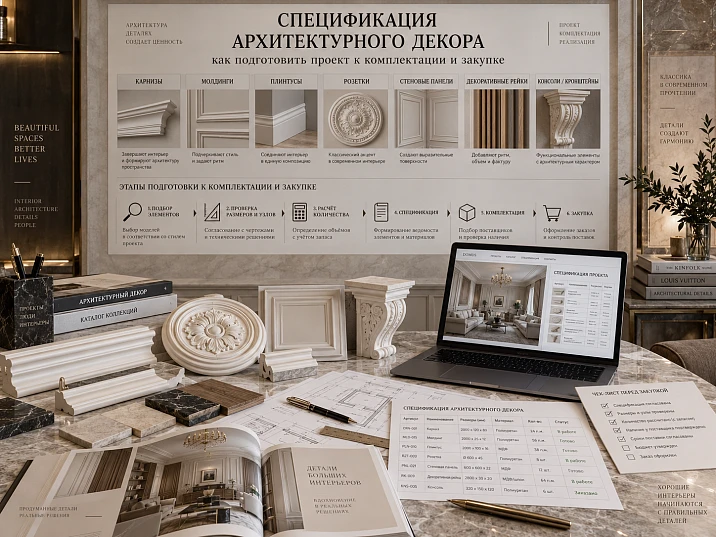
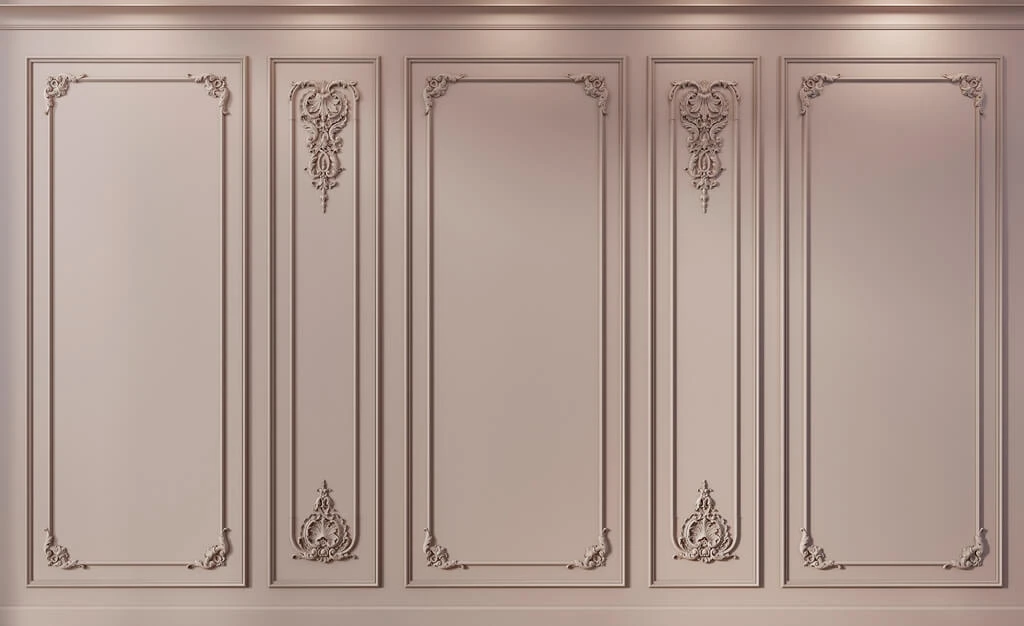
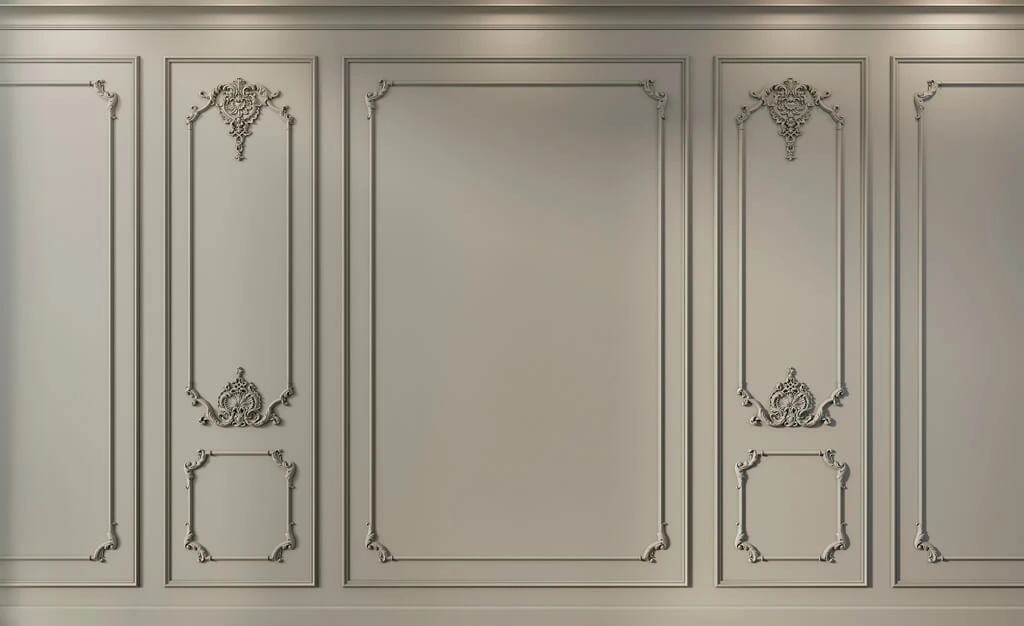
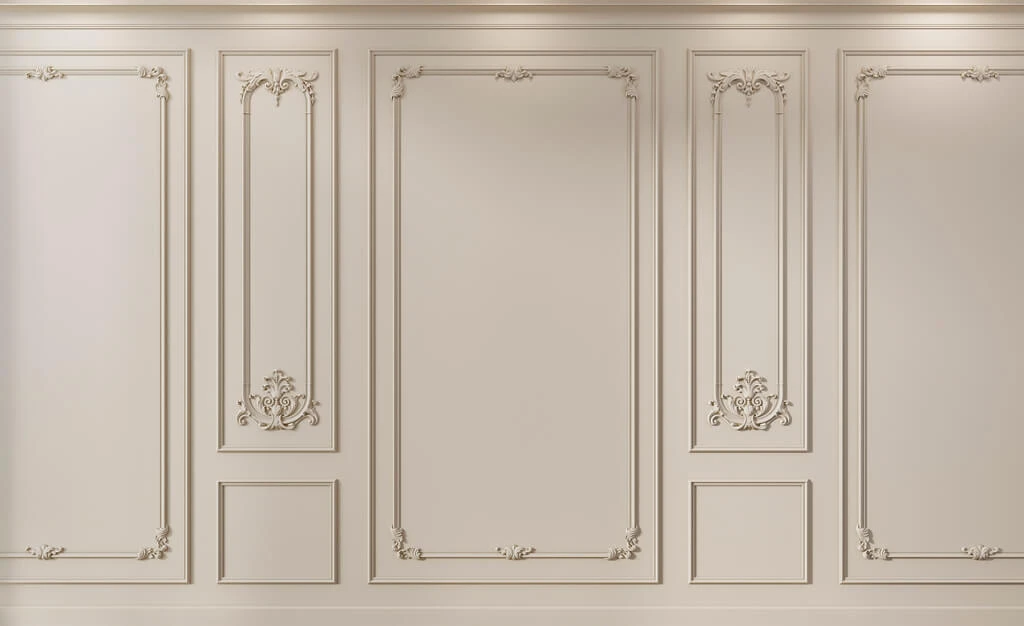
The architectural system has already been approved: moldings are placed on the elevation, the portal is assembled from pilasters and a top element, the ceiling medallion is tied to the light fixture, and everything is coordinated in 3D. But the specifier opens the project and sees PL-01, ML-02, DEC-04-L. For the architect, these codes are clear. For procurement, they are not yet.
It is precisely at this transition that the connection between the project and the actual product is often lost. The visualization shows one element, the working drawing calls it by an internal code, and the commercial request is already being formed from a description like “classic pilaster, four pieces.” This is not enough if the system consists of a base, a shaft, and a capital, and the left and right decor have different item numbers.
An architectural decor specification is needed to close this gap. It turns an architectural composition into an unambiguous list of purchased products and maintains a single data chain:
architectural node → design code → specific SKU → system composition → size → material → orientation → quantity → status → revision → URL → order.
A person who did not design the interior should be able to open the document and, without verbal explanations, understand: what is used, where it is located, which product items it consists of, how many are needed, and what exactly to order.
This is no longer an article about choosing decor. The choice has been made. The task now is to properly document the approved architectural system so that the design, specification, and actual order contain the same products.





What an architectural decor specification is — and what it is not
A specification is not a catalog of liked elements and not a retelling of the elevation in tabular form. It is a document of product identification and configuration.
It must link three levels:
- design — where and why the element is used;
- product — which specific SKU is selected;
- purchasing — in which physical unit and in what quantity it must be ordered.
For example, the entry:
PL-01 — pilaster — 4 pcs.
may be visually understandable, but weak for procurement. It is unclear whether it is PL-01 a single finished product item or an architectural assembly that consists of several SKUs.
The working structure should answer the question:
PL-01— what is this in the project, and which specific item codes make up this system?
If a pilaster consists of a base, shaft, and capital, the specification should show each purchased item separately.
There is another practical boundary: a specification line should correspond to the purchased entity, not the visual object.
For example, in a visualization a pilaster is perceived as a single architectural element. But if the supplier ships the base, shaft, and capital separately, one line “pilaster” does not correspond to the reality of procurement. Similarly, a frame composition may look like a single decorative object, but consist of:
- moldings;
- four corner elements;
- central overlay;
- two paired L/R parts.
The specification must reflect not only the architectural perception but also the structure of the actual order.
A convenient test:
if the order assembler can send a single line to the supplier and receive an unambiguous item in the required unit, the line is formed correctly.
If understanding a line requires opening a render, correspondence, and manually reconstructing the assembly's composition, the document is not ready yet.


The specification does not replace the finish schedule
The finish schedule answers primarily the question of where the material is used: room, wall, ceiling, zone.
The architectural decor specification answers a different one: what exactly is being purchased within the architectural system.
The documents can be combined in a single table, but the fields must preserve both logics.
Our factory also produces:


The specification does not replace the quantity calculation
The calculation answers:
how much is geometrically required by the project and how this translates into a physical quantity of goods.
The specification already stores the result of this logic — Calculated Qty, Order Qty, the unit of measurement, and the link to the SKU.
Get Consultation
The specification does not replace the estimate
The estimate answers:
how much the approved volume costs.
The specification answers:
what exactly is included in this volume.
The price appears after the product line has become unambiguous. Otherwise, the estimate is calculated based on positions that may still change.
Why one visualization and one unfolded view are not enough
A render excellently shows the composition. It helps evaluate scale, rhythm, light and shadow, and the relationships between elements. But from an image, one cannot reliably reconstruct:
- SKU;
- exact size;
- the material;
- commercial length;
- L/R orientation;
- composition of the architectural assembly;
- purchasing unit;
- quantity;
- current revision.
Even if the 3D model is built from a real product, this link must be recorded in the specification.
The exploded view solves another part of the task. It may contain codes:
ML-01
PL-01
ROS-01
But the drawing itself does not explain which article is hidden behind each code.
The working chain looks like this:
drawing → Project Code → specification → Manufacturer + SKU.
For example, on the exploded view the architect sees ML-01. In the specification, the line ML-01 must unambiguously lead to a specific product.
For professional work with digital files, you can use DWG of architectural decor and the same section as a source 3D models of architectural decor.
Each source has its own function
It is useful to determine in advance which document is the main one for a specific type of data:
| Data | Main source |
|---|---|
| Already ready | 3D / approved visualization |
| Position | DWG / unfolded view / plan |
| size and detail | DWG / section |
| product identification | Specification |
| Quantity | quantity takeoff / specification |
| Status | master-spec |
| Price | commercial calculation |
If the same parameter lives in five files and no one knows which one is the master, a discrepancy is inevitable.
Project Code, SKU, and System/Assembly: three different levels that must not be mixed
The project code and the manufacturer's part number serve different functions.
For example:
PL-01
— a convenient project code.
a specific STAVROS SKU
— a product identifier.
The project code is convenient on drawings because it is short and readable. The SKU is needed to order exactly the product that was specified.
Combination:
PL-01 → STAVROS → specific SKU
must be stored in the specification.
But architectural decor often requires another level — System / Assembly.
It describes not a single product item, but an architectural assembly that combines several SKUs.
For example:
PILASTER-A
may consist of:
PL-01-A — base
PL-01-B — body
PL-01-C — capital
Then PILASTER-A — is an assembly, and lines A/B/C are actual purchased items.
The reverse situation must also be considered: a single SKU may appear in multiple architectural systems.
For example, the same molding is used:
- в
PORTAL-01; - в
WALL-FRAME-A; - в
PILASTER-Aas a top termination.
It is one product, but the design functions differ.
Therefore, at working stages it is useful not to merge rows by SKU alone. Context is preserved first, and a separate procurement view already sums up the total Order Qty.
Thus, a master spec can have two forms:
Design View — shows Room, Zone, Assembly, Code, and SKU in detail.
Procurement View — consolidates identical purchased SKUs and shows the total volume.
This reduces a typical mistake: trying to make one table simultaneously as convenient as possible for the architect, installer, and procurement specialist.
When System/Assembly is especially useful
- pilasters;
- columns;
- half-columns;
- portals;
- complex wall compositions;
- repeating architectural nodes;
- systems made of molding + corners + overlays.
The specifier receives two logics at once:
what is being purchased — specific SKUs;
what it is assembled into — an architectural system.
Uniqueness of a row in the specification
It is useful to consider a row unique not only by SKU, but by a set of fields:
Project Code + SKU + Assembly + Orientation + Finish + Revision.
The same SKU can be used in two nodes, but with different orientation, finish, or status. If these differences matter for installation and purchasing, they must not be thoughtlessly merged ahead of time.
What fields a working specification should contain
The base table may look like this:
| Field | What to store |
|---|---|
| Project Code | PL-01-A |
| System / Assembly | PILASTER-A |
| Manufacturer | STAVROS |
| SKU | specific SKU |
| Category | pilaster / base / capital / molding |
| Collection | if applicable |
| Material | wood / PU / MDF |
| Size | actual |
| Unit | pcs. / m / strip / set |
| Calculated Qty | planned quantity |
| Order Qty | Purchase quantity |
| Room | Room |
| Zone | specific area |
| Orientation | L / R / N/A |
| Finish | design finish |
| Sample Status | sample status |
| Status | APPROVED / FOR ORDER |
| Revision | REV03 |
| DWG | link / file name |
| 3D | link / file name |
| URL | Product |
Not all projects require twenty columns. But you should only delete a field after answering the question: where will that information be stored then?
It is separately useful to store Source / Reference — where the product data was confirmed from.
This could be:
- product page;
- official DWG;
- manufacturer's 3D file;
- approved catalog;
- technical PDF;
- sample.
The field does not have to be a separate column in the compact version of the specification. But for critical projects, it helps to understand why exactly this size or material value is specified in the row.
For example, if an old render contains one geometry and a fresh card contains another, the team must understand which source is considered current.
It is useful to establish a priority rule in the project:
official current product information → approved specification → DWG / 3D → auxiliary images.
This is especially important during a long project cycle, when files are collected on different dates.
Why Room and Zone are separate fields
Room = living room
is too general a value if the room contains:
- portal 01;
- pilaster P3;
- ceiling rosette;
- cornice;
- frame composition.
Better:
Room = living room
Zone = portal 01
Or:
Room = hall
Zone = pilaster P3 near the entrance.
This makes it easier to:
- assemble;
- distribute goods across rooms;
- supervise installation;
- conduct author's supervision;
- find the source of the error.
Why URL is an auxiliary field
The main product identifier is the SKU.
A URL is additionally needed:
- quickly check the product page;
- open the product during order assembly;
- simplify reordering;
- check the current description.
If the URL changes, the SKU should not change just because of that.
How to specify linear trim: moldings, cornices, and skirting boards
Linear trim cannot be recorded as a single line:
molding — 63 m.
You are not purchasing an abstract meter. You are purchasing a specific profile in physical product lengths.
for of polyurethane moldings it is useful to store in the specification:
- SKU;
- section size;
- the depth;
- commercial length;
- the material;
- finish;
- net linear meters;
- Order Qty in bars;
- room;
- zone;
- assembly, if the profile is part of a portal or another system.
Calculated Qty and Order Qty
Let's imagine a hypothetical example.
The drawing provides:
Calculated Qty = 42.3 m.
This is not yet an order.
The next chain:
segments → cutting → commercial length → whole bars → reserve → Order Qty.
Therefore, it is useful to store both values in the specification:
Calculated Qty = 42.3 m
Order Qty = N bars.
Number N appears only after cutting to the actual commercial length of the selected SKU.
For linear stock, it is useful to store not only the total linear meters, but also a Cutting Reference — a link to the cutting map or the calculation sheet number.
This is especially useful when a profile is used in dozens of frames. Then Order Qty = 28 bars you can verify not only by the final figure, but also by the origin of the calculation.
Another useful column — Waste / Reserve Reason.
For example:
2 plan reserve — long uninterrupted sections
or
1 plan reserve — ornamental repeat alignment.
The reason for the reserve is more important than the percentage itself.
If the layout changed in the next revision and the reason disappeared, the reserve can be reviewed.
For linear products, it is also useful to separate:
Net Length;Cutting Length;Order Qty.
Net Length shows the geometry of the project.
Cutting Length — the sum of actual segments, if the methodology accounts for them separately.
Order Qty — physical order.
Ceiling cornice
For a curtain rod, in addition to standard product data, it is useful to record:
- height along the wall;
- overhang;
- room;
- ceiling junction;
- curtain niche area;
- transition near built-in furniture.
A curtain rod may be a single SKU throughout the entire apartment, but have multiple application lines if the zones differ.
Why it is better to first calculate a single SKU by zones
Suppose one molding is used:
- in the living room;
- bedroom;
- hallway.
You shouldn't immediately lose the breakdown and leave only the grand total. First, it's useful to keep:
Living room — 12.4 m
Bedroom — 16.1 m
Hall — 13.8 m
and only then consolidate the overall order.
This makes delivery and installation easier to control.
How to specify piece decor: rosettes, overlays, brackets, and L/R
Individual elements are counted not in meters, but by the piece.
for ceiling rose the line must contain:
- SKU;
- size;
- the depth;
- room;
- zone;
- a link to the light fixture;
- quantity;
- status;
- revision.
Entry:
ceiling rose — 3 pcs.
is too general.
Working:
ROS-01 / STAVROS / SKU / living room / ceiling center / 1 pc. / APPROVED
It is more convenient to count individual decor by installation points, not just by the total quantity.
For example, four identical overlays can be placed:
- two in the living room;
- one in the hallway;
- one in the study.
The total order is 4 pieces.
But in design view it is useful to have four applications or three rows by zones. This allows you to verify that each position actually exists on the drawing.
For repeating elements, you can use the field Placement Ref:
A-403 / wall 02 / node D4.
Then, in case of a dispute, the kit assembler can quickly open the correct sheet.
The same applies to ceiling outlets: if one SKU is used in three rooms, you should not lose the link to specific light fixtures.
Decorative inlays
For overlays, specify:
- dimensions;
- the material;
- wall / composition;
- orientation;
- quantity;
- assembly, if the element is part of a frame system.
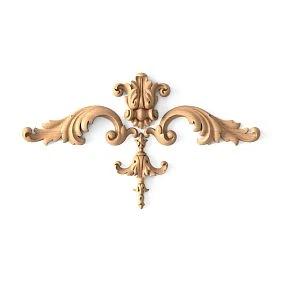
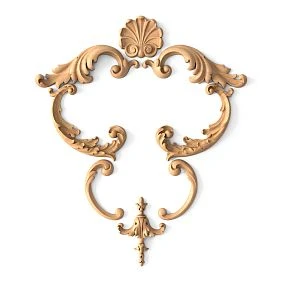
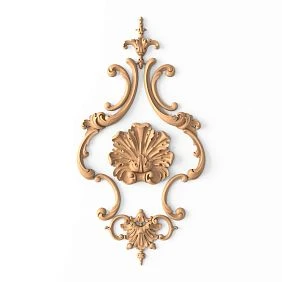
For the polyurethane part of the project, you can use molded decoration made of polyurethane и Wall Decor.
L/R must be tracked separately
If the manufacturer releases the left and right positions as different SKUs, the line:
overlays — 8 pcs.
erroneous.
You need to:
DEC-04-L — 4 pcs.
DEC-04-R — 4 pcs.
Even if they are geometrically mirrored.
Orientation is a product attribute if the manufacturer assigns separate SKUs.
Reserve for piece items
The formula +10% works poorly with small quantities.
6 pcs. + 10% = 6.6.
At purchasing, you need to decide: 6 or 7.
If the seventh item is taken, there must be a reason:
- complex repeat logistics;
- high risk of damage;
- long replenishment lead time;
- project requirement.
Reserve should be deliberate, not a mathematical ritual.
Pilaster, column, and portal: specify an architectural assembly as a SKU system
An architectural element often looks like a single object in a visualization, but is purchased as several line items.
Pilaster
A pilaster may include:
base → shaft → capital.
To select actual product groups, you can use pilasters and columns и Capitals.
If the base, body, and capital have different SKUs, the specification must contain three lines.
For example:
| Project Code | Assembly | Category | Qty |
|---|---|---|---|
| PL-01-A | PILASTER-A | Base | 4 |
| PL-01-B | PILASTER-A | body | 4 |
| PL-01-C | PILASTER-A | Capital | 4 |
This way you can verify completeness before ordering.
Column
For a column, the logic is the same, but additional components are possible.
Checked:
- base;
- shaft;
- capital;
- connecting elements;
- number of identical systems;
- the material;
- orientation;
- nodes.
If four columns have the same architectural scheme, assembly helps you see the full set of each.
Portal
It is convenient to designate a portal with a single system code:
PORTAL-01.
But the purchasing lines within it remain separate.
For example:
PORTAL-01 / PILASTER-L
PORTAL-01 / PILASTER-R
PORTAL-01 / BASE-L
PORTAL-01 / BASE-R
PORTAL-01 / CAPITAL-L
PORTAL-01 / CAPITAL-R
PORTAL-01 / TOP-ELEMENT
PORTAL-01 / MOLDING
This way the assembler understands not only the list of items, but also their belonging to a single structure.
For complex assemblies, a separate Completeness Check is useful.
For example:
PILASTER-A requires: BASE + SHAFT + CAPITAL.
Three flags can be added in master-spec:
BASE OK
SHAFT OK
CAPITAL OK.
Or a single field:
Assembly Status = COMPLETE.
This may seem excessive for a single pilaster, but on a project with dozens of identical systems it helps detect a missing line before ordering.
Completeness should be checked not only by the presence of SKUs, but also by quantity.
If six pilasters are specified:
- bases — 6;
- shafts — 6;
- capitals — 5,
assembly should receive the status INCOMPLETE.
Such an error is easier to spot in the system than in a long general product list.
The same applies to the portal: the left and right sides can be assembled in different orientations, while the top element is a single one for the entire assembly.
When a single "set" line can be left
Only if the manufacturer actually sells the entire system as a single product SKU.
It is not the project that decides whether to consider this a set. This is determined by the actual product unit.
Material, finish, and sample: three different fields
Entry:
STAVROS pilaster
is insufficient if the product is manufactured in several materials.
The actual material must be recorded:
- Oak;
- Beech;
- MDF;
- polyurethane;
- another confirmed option.
Even identical geometry in two materials is not a single product item.
They may differ:
- SKU;
- finishing;
- price;
- installation technology;
- delivery time;
- acceptable finishes.
Product Material and Project Finish
Product material and project finish must be kept separate.
For example:
Material = polyurethane
Finish = project coating
Or:
Material = oak
Finish = approved tinting.
If the color changes, it does not necessarily mean the SKU is replaced.
If the material changes, it almost always requires re-verification.
It is especially important to separate finish from material when the same item is repeated in different rooms with different coatings.
For example, the SKU is the same, but:
Living room — Finish A
Bedroom — Finish B.
The purchasing item may be shared, while the finishing positions differ.
In this case, premature merging of lines by SKU can lose critical information for painting work and zoning-based assembly.
Therefore, merging in Procurement View must not destroy Design View.
Practical principle:
one product item may have one common order, but multiple project applications.
Sample Status
For significant elements, it is useful to add a field:
Sample Status.
For example:
NOT REQUIRED
REQUESTED
RECEIVED
SAMPLE APPROVED
REJECTED.
This is especially useful for wood, painted decor, and relief elements.
For physical verification, you can use STAVROS product samples.
What exactly the sample confirms
A sample does not confirm the same thing as 3D.
It allows you to see:
- the texture;
- real relief;
- surface;
- edge quality;
- how the paint performs;
- the ratio of thickness to adjacent materials.
Therefore APPROVED SKU и SAMPLE APPROVED may be different stages.
How to link 3D, DWG, and the specification into one system
The main rule:
one SKU across all sources.
If 3D uses SKU A, the DWG must describe SKU A, and the specification must reference SKU A.
Prohibited:
3D = A
DWG = B
SPEC = C.
Even if the elements look visually similar.
How to store the link
Useful fields for a specification line:
- Project Code;
- SKU;
- 3D file name;
- DWG name;
- sheet / node number;
- Revision.
For example:
PL-01-B / SKU / 3D: PL01_REV03 / DWG: A-412 / REV03.
This way, when a position changes, it is clear which documents need to be updated.
3D shows the perception
In 3D, the following is checked:
- scale;
- relief;
- chiaroscuro;
- repetition;
- relationships with furniture;
- composition.
DWG shows accuracy
The DWG records:
- the axes;
- dimensions;
- cross-section;
- elevations;
- nodes;
- junctions.
The specification links both documents to the actual product.
It is useful to set up Revision Lock for documents as well.
For example:
3D scene approved = REV03
DWG issue = REV03
Specification = REV03.
If at least one source remains at REV02, the system is not yet synchronized.
Simple check:
| Source | Revision |
|---|---|
| 3D | REV03 |
| DWG | REV03 |
| Spec | REV03 |
| Quantity | REV03 |
All four must match before FOR ORDER.
This does not mean that every file must have the same name. It is important that the documents reference the same approved version of the solution.
For large projects, it is useful to add a field:
Issue Date.
Then, during a dispute, not only the number but also the release date is visible.
What to do if the product changes
If the SKU is replaced, you need to update:
- 3D;
- DWG;
- the specification;
- quantity calculation;
- Order Qty;
- URL;
- revision;
- status.
Replacing just one row in Excel creates a version conflict.
Statuses: which item is already ready to order and which is not yet
Status makes the specification a working tool rather than a static table.
A convenient sequence:
CANDIDATE
→ SELECTED
→ SAMPLE APPROVED
→ APPROVED
→ FOR ORDER
→ ORDERED
→ DELIVERED.
CANDIDATE
The product is under review but not yet approved.
It cannot be included in the purchase as a mandatory item.
SELECTED
The designer has selected the product, but the following may still remain:
- sample;
- final check of the assembly;
- confirmation of the finish;
- customer approval.
APPROVED
Item approved by the project.
But even APPROVED does not always mean “order right now” if the quantity takeoff is not yet complete.
FOR ORDER
The line is fully ready for purchase:
- SKU confirmed;
- quantity determined;
- revision is current;
- substitutions closed.
ORDERED / DELIVERED
These statuses already belong to the procurement process.
Between APPROVED и FOR ORDER it is useful to have a separate Procurement Readiness Check.
It answers four questions:
- Is the SKU definitively approved?
- Is the Order Qty accurately calculated?
- Are the material / finish confirmed?
- Does the Revision match the working documentation?
If at least one answer is "no", the line remains APPROVED, but does not move to FOR ORDER.
This way the architectural team can finish the design earlier than the quantity takeoff or the commercial block.
This is useful on projects where procurement happens in stages: part of the decor is already ready to order, while part is still awaiting measurements or quantity confirmation.
What should be included in the order
Only items with the status:
APPROVED
or, even better,
FOR ORDER.
Neither CANDIDATE, nor the wording "something like this moulding" should turn into a commercial order.
Revision and change control: the specification should show the history of design decisions
Architectural decor rarely goes through a project without changes.
Changes:
- profiles;
- quantity;
- finish;
- nodes;
- orientation;
- contents of the portal.
That is why a revision is needed.
For example:
REV01 — first approved system
REV02 — molding replaced
REV03 — quantity changed after cutting optimization.
SKU replacement = design change
Why?
Because a different profile can change:
- width;
- the depth;
- inner frame field;
- joints;
- quantity;
- cutting map;
- 3D;
- DWG.
Even if the profile looks “almost the same,” the specification must go through revision.
Change Log
A short table is useful:
| Revision | Code | What has been changed | Reason |
|---|---|---|---|
| REV01 | ML-01 | original SKU | approval |
| REV02 | ML-01 | New SKU | the old one does not pass the architrave node |
| REV03 | ML-01 | SKU unchanged, Qty updated | cutting layout clarified |
So two months later you don't have to figure out changes through messages.
Sometimes changing the quantity does not require replacing the SKU, but it still requires a revision.
For example, the portal stayed the same, but after the actual measurement the height changed, and the molding length increased.
The product identity is the same.
The quantity layer changed.
Therefore, it's useful to split the change log by change type:
PRODUCT CHANGE;QTY CHANGE;FINISH CHANGE;LOCATION CHANGE;ASSEMBLY CHANGE.
This makes it clear which documents need to be reviewed.
For example, QTY CHANGE may not require a re-render.
PRODUCT CHANGE almost always requires re-checking the 3D and DWG.
If only the finish changes
This should also be recorded, but the SKU does not necessarily need to be changed if the product item remains the same.
The key is to distinguish:
product change
from
changes to the project finish.
Calculated Qty and Order Qty: how to store quantity without recalculating
It is useful to have two quantities in the specification.
Calculated Qty — how much the project requires.
Order Qty — how much actually needs to be ordered.
These values do not always match.
Piece decor
For sockets, overlays, capitals, bases, and brackets, the primary unit is the piece.
For example:
Calculated Qty = 4 pcs.
Order Qty = 4 pcs.
If a reserve is added:
Order Qty = 5 pcs.
the reason must be clear.
Linear trim
For moldings, cornices, skirting boards:
net length → segments → cutting → commercial length → number of strips.
That is:
Calculated Qty = 63.2 m
does not mean:
Order Qty = 63.2 m.
L/R
Left and right positions are calculated separately.
4 L + 4 R
cannot be converted into:
8 pcs.
if these are different SKUs.
Composite systems
Assembly may have its own number of systems:
PILASTER-A = 4 systems.
But the procurement looks like this:
BASE = 4
SHAFT = 4
CAPITAL = 4.
There is another useful metric — Procurement Unit.
The project unit and the procurement unit may differ.
For example:
- the project counts moulding in meters;
- the supplier ships in strips;
- the project counts panels in m²;
- the order is formed in pieces;
- an architectural unit is counted in sets;
- the order consists of individual SKUs.
That is why the fields Unit и Procurement Unit do not always match.
Example:
Calculated Unit = m
Procurement Unit = pcs (planks).
This very gap explains why Calculated Qty cannot be sent to the supplier without conversion.
Why zone distribution must not be lost
Even if the total for the SKU has already been calculated, you need to preserve where it is used.
For example:
living room — 8 pcs.
hallway — 6 pcs.
staircase — 4 pcs.
Total:
18 pcs.
This makes it easier to control delivery and installation.
Specification and estimate: where the architect's document ends and cost begins
Requests around the estimate and procurement are similar, but the documents serve different purposes.
The specification answers:
what to buy?
The estimate answers:
how much does it cost?
The price should appear after freezing:
SKU + Order Qty.
If you add the price too early, it starts to "float" with every product change.
At the estimate stage, it is useful to keep a Cost Basis — what exactly the cost is calculated for.
For example:
REV03 / Order Qty = 24 planks.
If after a geometry change the Order Qty becomes 27, the old line price no longer describes the current project.
This is especially important when commercial proposals arrive at different times.
A price without reference to revision and quantity quickly becomes misleading.
Therefore, in large projects you can store:
Price Revision;Price Date;Qty Basis;Supplier Quote Ref.
But this is already the procurement layer, not the architectural core of the specification.
What can be added to the procurement version of the specification
After FOR ORDER you can extend the table:
- Unit Price;
- Line Total;
- Supplier;
- Availability;
- Delivery;
- Order Date;
- Delivery Status.
But these fields must not replace the architectural data.
Why it is useful to keep the specification separate from the commercial proposal
A commercial proposal may change in terms of:
- price;
- timeline;
- availability;
- batches.
The architectural specification should remain the source of truth:
which product the project approved.
If the price has changed, the architectural SKU should not change automatically.
URL and digital traceability: how to quickly get back to a product six months later
After a few months, the name may be forgotten, and the project manager may have changed.
Therefore, it is useful to store:
Manufacturer + SKU + URL.
For a professional page, you can use STAVROS for designers and architects as a general project hub, and in specific rows — direct product pages or categories, if they have already been defined.
Why SKU matters more than URL
The URL may change.
SKU — product identity.
If the link has stopped working:
- do not change the SKU just because of this;
- find the current product page;
- update the URL;
- save the revision only if the product itself or the design decision has changed.
URL cannot be used instead of the SKU
Line:
https://...
without an SKU it is harder to read, harder to verify, and inconvenient for export.
URL — quick navigation.
SKU — identifier.
Clean links
In project documentation, it is better to store clean URLs without UTM and other service parameters. This simplifies reuse and does not tie the specification to a specific marketing session.
Master-spec: how to combine multiple rooms and repeating systems into one document
On a large project, a single specification quickly grows.
Master-spec allows filtering:
Room → Zone → Assembly → Project Code → SKU → Qty → Status → Revision.
This is especially useful for:
- hotels;
- restaurants;
- apartments;
- standard corridors;
- repeating portals;
- identical pilasters;
- serial decorative frames.
It is useful to structure the master spec so that different views can be derived from it without manual copying.
For example:
Architect View
Shows:
- Room;
- Zone;
- Assembly;
- Code;
- SKU;
- Material;
- Finish;
- Status.
Quantity View
Shows:
- Code;
- SKU;
- Calculated Qty;
- Order Qty;
- Unit;
- Revision.
Procurement View
Shows:
- Manufacturer;
- SKU;
- Order Qty;
- Procurement Unit;
- Status;
- URL.
Installation View
Shows:
- Room;
- Zone;
- Code;
- Assembly;
- Qty;
- Placement Ref.
One data source — multiple working views.
This is far more reliable than maintaining four independent tables that gradually diverge.
One SKU in multiple rooms
If one molding is used in three rooms, you don't have to create three different project types.
You can store one ML-01, but multiple application rows:
Living room / wall 01
Bedroom / wall 02
Hall / portal 01.
Then the common Order Qty is aggregated by SKU.
Typical architectural details
For example:
PORTAL-TYPE-A.
First, one portal is fully checked:
- SKU composition;
- orientations;
- dimensions;
- quantity;
- nodes.
After APPROVED It can be used:
PORTAL-TYPE-A × 12.
Exceptions are documented as a separate type:
PORTAL-TYPE-B.
This is more reliable than manually copying 12 nearly identical lines.
What should not be merged into a master-spec too early
Items should not be combined into a single line if they differ in:
- the material;
- finish;
- orientation;
- revision;
- assembly;
- status;
- installation-critical application location.
A consolidated summary for procurement can be obtained later.
Practical example: portal specification from layout to FOR ORDER
Below is a conditional example that demonstrates the workflow. Codes and composition are provided only as an illustration of the methodology and do not describe specific STAVROS products.
The layout includes a portal:
PORTAL-01.
It consists of:
- two vertical systems;
- two bases;
- two capitals;
- top element;
- molding along the upper contour.
Step 1. Create an Assembly
System / Assembly = PORTAL-01.
This is not a product.
This is an architectural node.
Step 2. Assign Project Codes
For example:
PL-01-L
PL-01-R
BASE-01-L
BASE-01-R
CAP-01-L
CAP-01-R
TOP-01
ML-01.
Step 3. Linking codes to real SKUs
For each project code, the following is recorded:
- Manufacturer;
- SKU;
- Category;
- Material;
- Size;
- Orientation;
- URL.
If the left and right elements are different product items, they remain separate.
Step 4. Checking completeness
Assembly should provide a complete list.
If the PORTAL-01 is missing at least one capital, the error is visible even before the commercial request.
It is useful to add a field:
Assembly Check = COMPLETE / INCOMPLETE.
Step 5. Checking 3D and DWG
In 3D — the same SKUs.
In DWG — the same SKUs.
If the molding on the layout is replaced, the specification undergoes revision.
Step 6. Determine the quantity
Piece items:
Calculated Qty = 2 for each paired position.
Molding:
Calculated Qty = geometric length.
After cutting:
Order Qty = N bars.
Step 7. Check the material and finish
For example:
Material = wood
Finish = approved stain
Or:
Material = polyurethane
Finish = project paint.
These are different fields.
Step 8. Sample
If a sample is required:
Sample Status = SAMPLE APPROVED.
If not required:
NOT REQUIRED.
Step 9. Assign the status
After full verification:
Status = APPROVED.
After calculating Order Qty:
Status = FOR ORDER.
Step 10. Form the purchasing view
The assembler sees:
| Assembly | Code | SKU | Orientation | Order Qty | Status |
|---|---|---|---|---|---|
| PORTAL-01 | PL-01-L | specific | L | 1 | FOR ORDER |
| PORTAL-01 | PL-01-R | specific | R | 1 | FOR ORDER |
| PORTAL-01 | BASE-01-L | specific | L | 1 | FOR ORDER |
| PORTAL-01 | BASE-01-R | specific | R | 1 | FOR ORDER |
| PORTAL-01 | CAP-01-L | specific | L | 1 | FOR ORDER |
| PORTAL-01 | CAP-01-R | specific | R | 1 | FOR ORDER |
| PORTAL-01 | TOP-01 | specific | N/A | 1 | FOR ORDER |
| PORTAL-01 | ML-01 | specific | N/A | N strips | FOR ORDER |
This is how an architectural node turns into an unambiguous set of purchased items.
And most importantly: the assembler does not make design decisions. They execute an already approved system.
You can also add a second standard scenario — repeating pilasters in the lobby.
Let's imagine:
PILASTER-A × 6.
Each system consists of:
BASE-A;SHAFT-A;CAPITAL-A.
After checking assembly, the result should be:
BASE-A = 6
SHAFT-A = 6
CAPITAL-A = 6.
If one capital belongs to the right orientation and the rest to neutral, the system cannot be mindlessly summed into one line. Orientation remains part of the uniqueness of the procurement position.
This example illustrates an important principle:
the number of systems is not always equal to the number of product lines.
Six pilasters can turn into 18 application lines and only three final SKUs — or into a larger number if there are L/R, different materials, or finishes.
That is why Assembly and Procurement View solve different tasks.
Pre-release check: QA of the specification
Before handing off to completion, it is useful to go through several layers of QA rather than a general "table check."
1. Product identification
Each line has:
- Manufacturer;
- SKU;
- Category;
- Material;
- Size.
No lines:
classic molding
white pilaster
decor as in the render.
2. Architectural connection
Available:
- Project Code;
- Room;
- Zone;
- Assembly;
- Orientation.
You can understand where the element is located and which system it belongs to.
3. Digital consistency
Check:
- 3D = same SKU;
- DWG = same SKU;
- specification = same SKU.
4. Quantity
Available:
- Unit;
- Calculated Qty;
- Order Qty.
Cutting is performed for the moulding.
L/R quantities are separated.
5. Material and finish
Material and Finish are not mixed.
If a sample is needed — the status is recorded.
6. Revision
Each line refers to the current version.
No old APPROVED items that have already been replaced.
7. Procurement readiness
Only the following are included in the order:
APPROVED
or
FOR ORDER.
Table of typical errors
| Mistake | Why it's risky | Fix |
|---|---|---|
| one Project Code for two SKUs | impossible to tell what was approved | split codes or revision |
| L/R merged | wrong orientation may be ordered | separate rows |
| portal as a single row | completeness will be lost | break down by SKU |
| only net square footage | cannot determine the number of planks | add Order Qty |
| Material is missing | incorrect product modification possible | lock the material |
| 3D and DWG differ | the statement does not match the working documentation | synchronize |
| URL without SKU | link may disappear | store SKU as the primary ID |
| CANDIDATE was added to the order | purchase of an unapproved item | status gate before ordering |
How to move from the specification to the order
The final commercial chain should be short:
APPROVED SPEC → merge identical SKUs → Order Qty → item check → commercial proposal → order.
At this stage, it is already natural to move on to product categories:
- polyurethane relief;
- polyurethane moldings;
- pilasters and columns;
- capitals;
- wooden decorative elements.
Queries like "buy stucco molding", "buy polyurethane stucco molding", "buy polyurethane moldings", "buy pilasters", "buy capital", "buy decorative elements" relate specifically to this stage: the project is no longer choosing a style but ordering approved items.
Before the commercial request
Consolidate identical SKUs, but preserve the distribution by zones.
For example:
SKU X = 18 pcs.
Of these:
Portal 01 = 6
Portal 02 = 6
Hall pilasters = 6.
This way the overall order remains controllable.
After receiving the commercial proposal, it is useful to do a Reconciliation Pass:
- all SKUs from the proposal are present in
FOR ORDER; - the quantity matches;
- the purchase unit matches;
- no unapproved items have been added;
- assembly components are not missing;
- L/R are not merged;
- revision matches.
A commercial proposal is not a source of design decisions. It must be reconciled with the specification, not the other way around.
If the supplier proposes a substitution, it returns to the design workflow as a new CANDIDATE.
Only after verification can a new APPROVED.
After ordering
You can add:
ORDERED
DELIVERED
INSTALLED
but these statuses already relate to procurement and site supervision, not to the selection of the architectural system.
A good architectural decor specification ends design uncertainty even before the commercial request is sent.
Architectural decor specification: the final logic of the document
Once the architectural decor has been selected, the main task is not to look for new options, but to preserve the approved system without substitutions before purchasing.
For this, the specification must simultaneously contain:
ARCHITECTURAL SYSTEM → PROJECT CODE → SKU → SYSTEM / ASSEMBLY → MATERIAL → SIZE → L/R → CALCULATED QTY → ORDER QTY → STATUS → REVISION → URL → ORDER.
Project Code links the item to the drawing.
SKU links it to the catalog.
Assembly shows the completeness of the set.
Material and Finish separate the physical product from the project finish.
Calculated Qty stores the project requirement.
Order Qty converts it into the purchasing unit.
Status shows readiness for ordering.
Revision records changes.
The URL helps you quickly return to the product card.
If all these levels are assembled correctly, the procurement specialist does not "select" the decor anew. They order exactly what the architect specified and approved.
This is precisely the value of the specification: it turns an architectural composition from a set of images and codes into a reproducible purchasing document.