







Article Contents:
- What is a BIM model of interior decor
- Minimum product passport of a BIM object
- Why BIM decor cannot be freely scaled
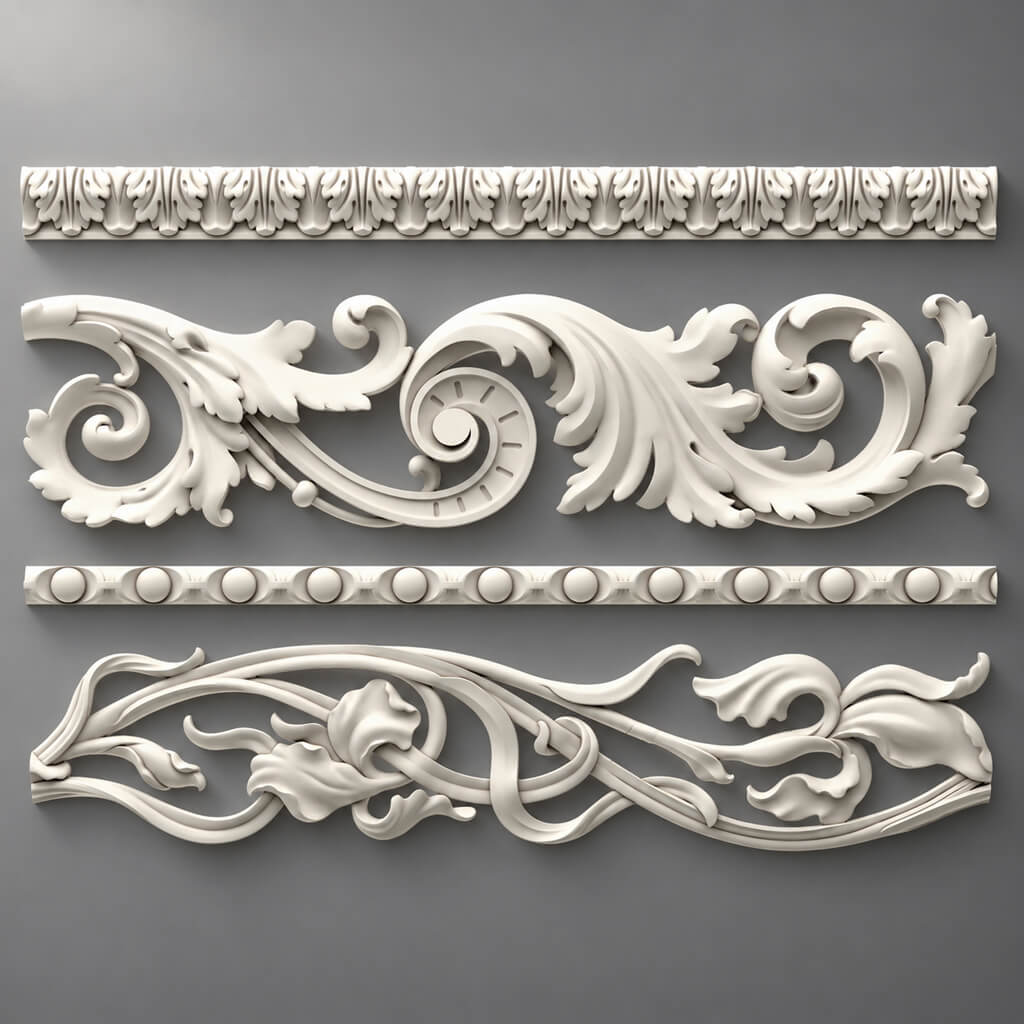
- BIM models of moldings
- BIM models of cornices
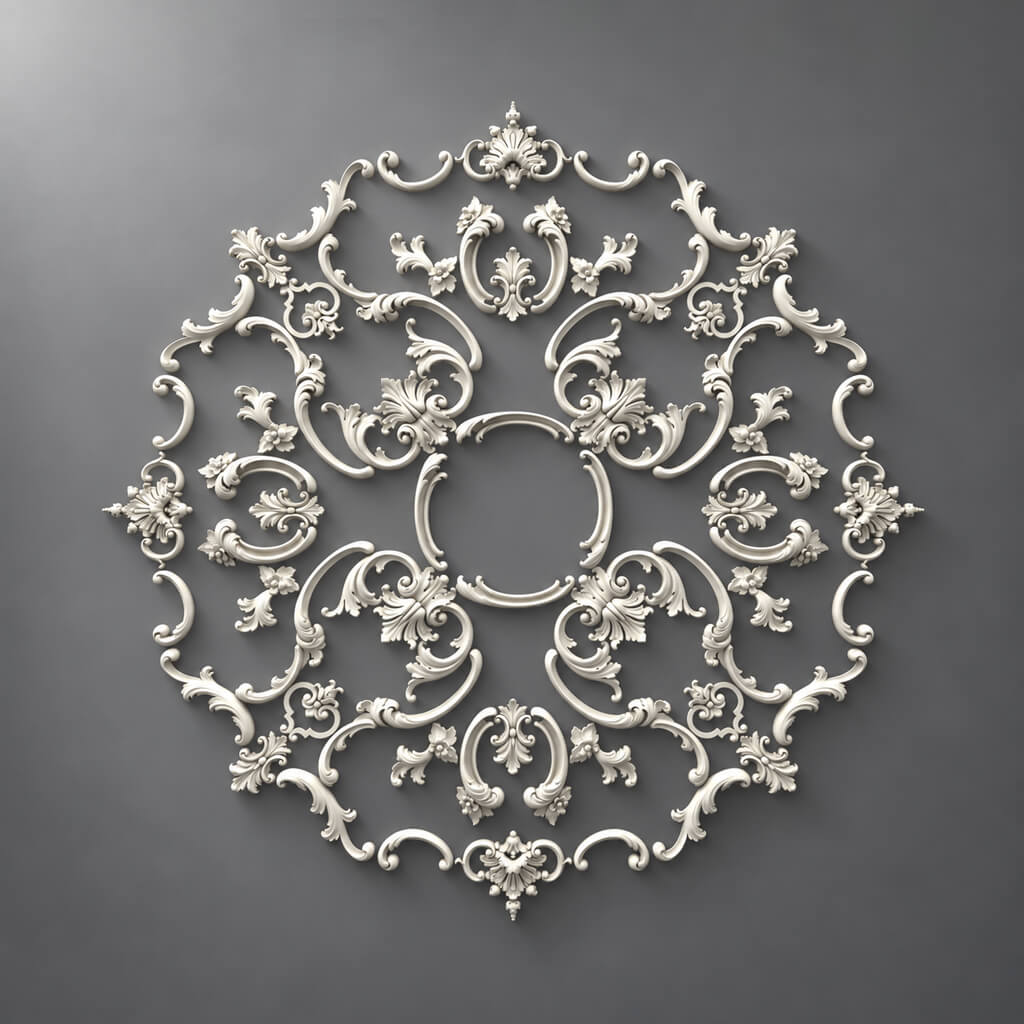
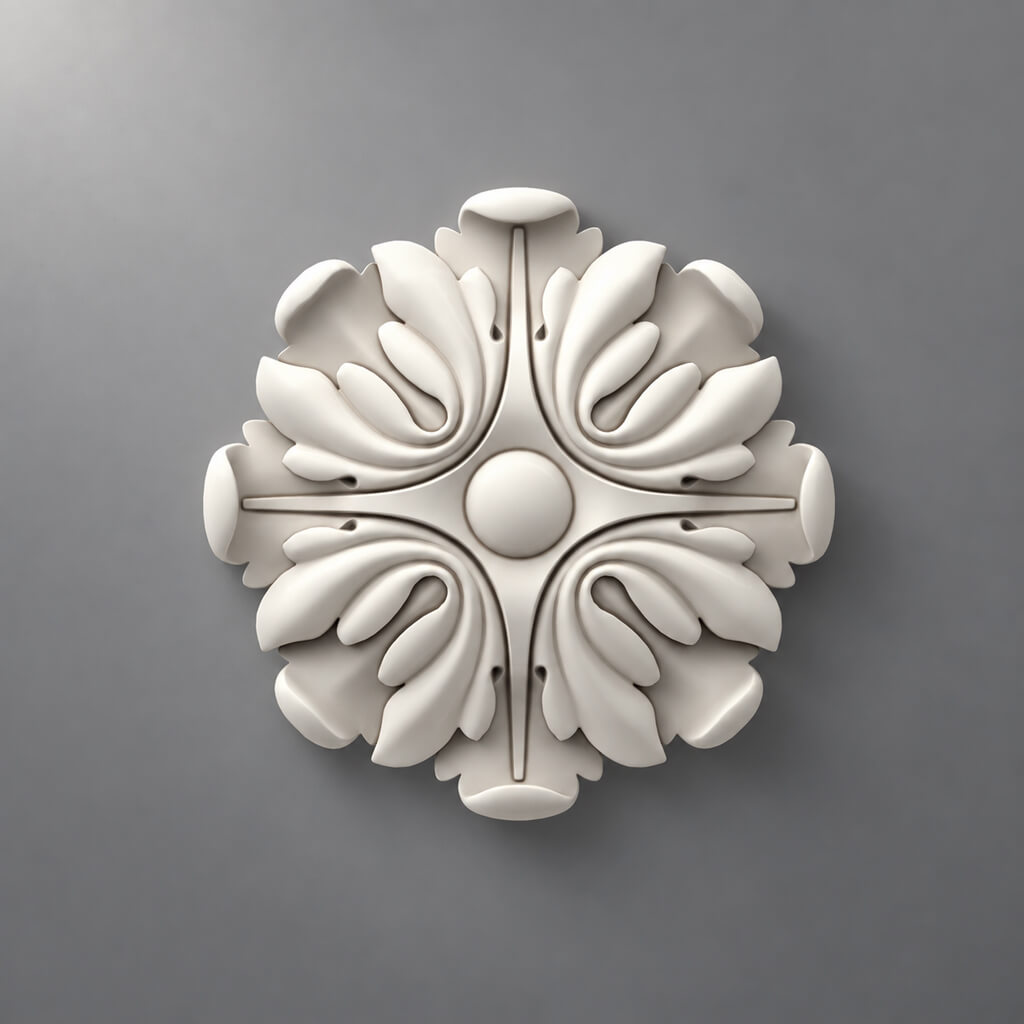
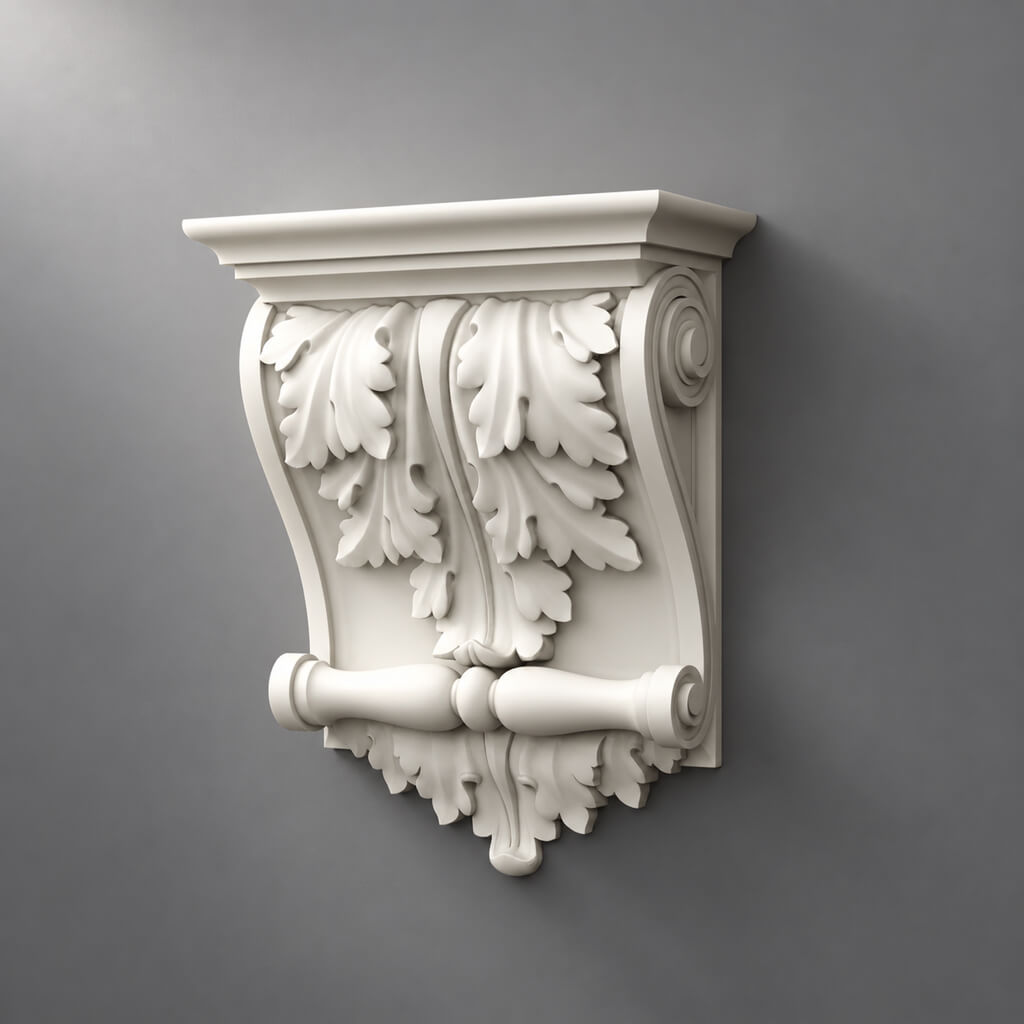
- BIM models of stucco decor
- BIM models of ceiling medallions
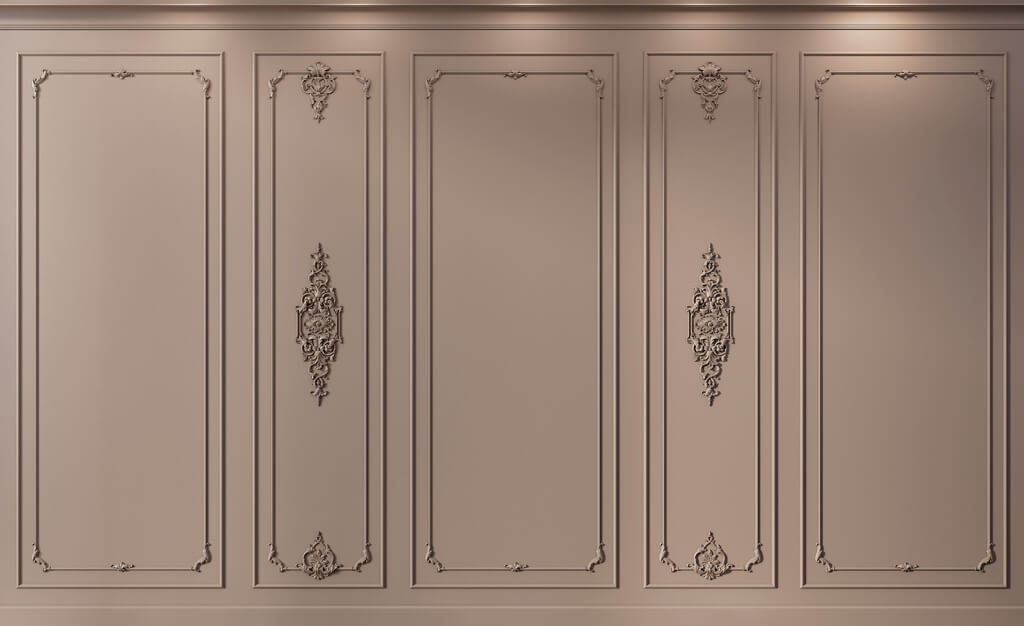
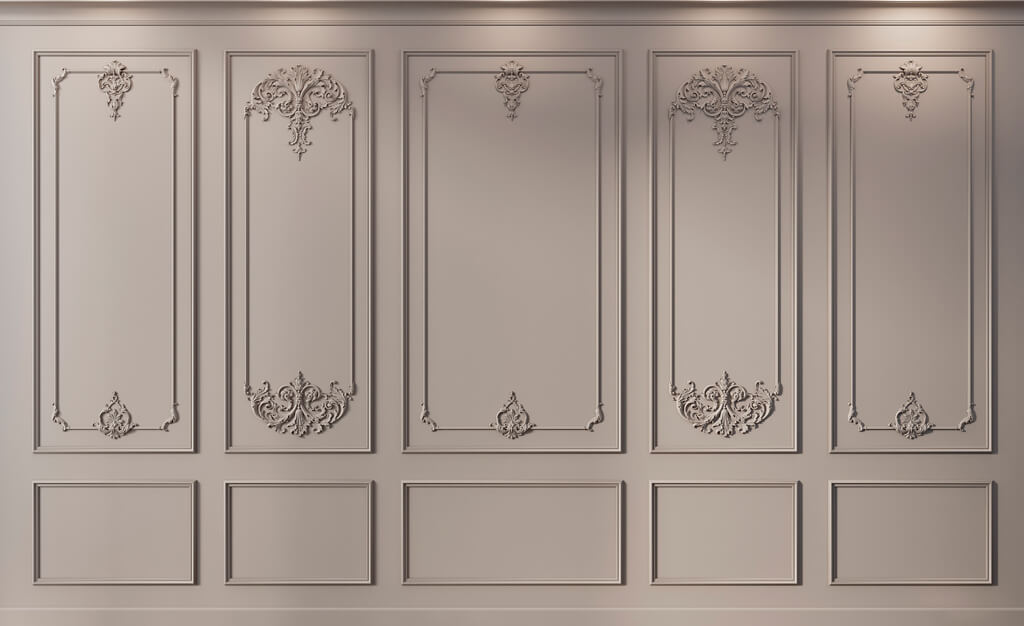
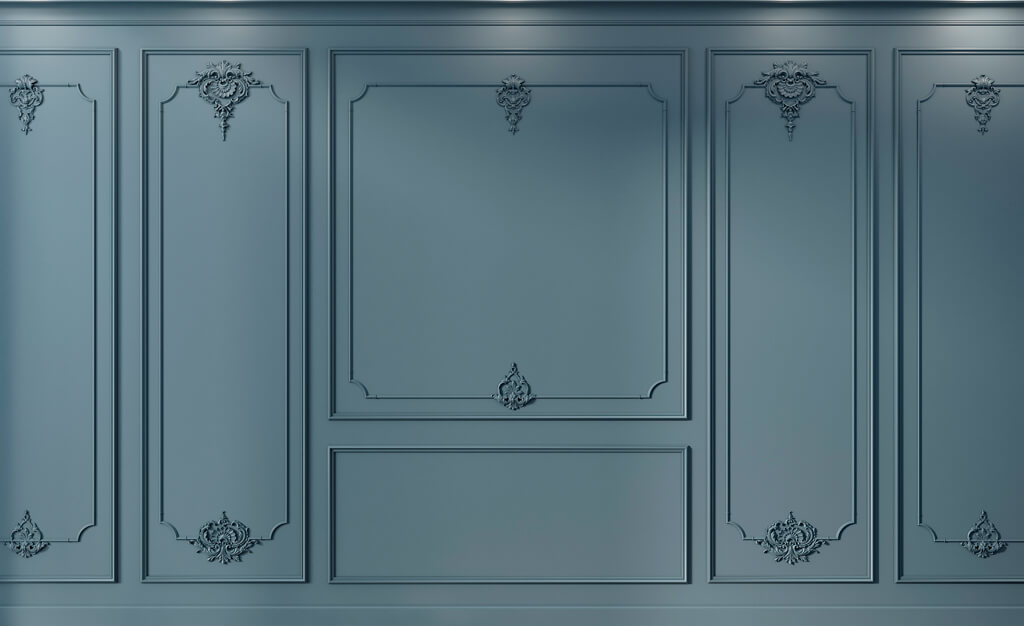
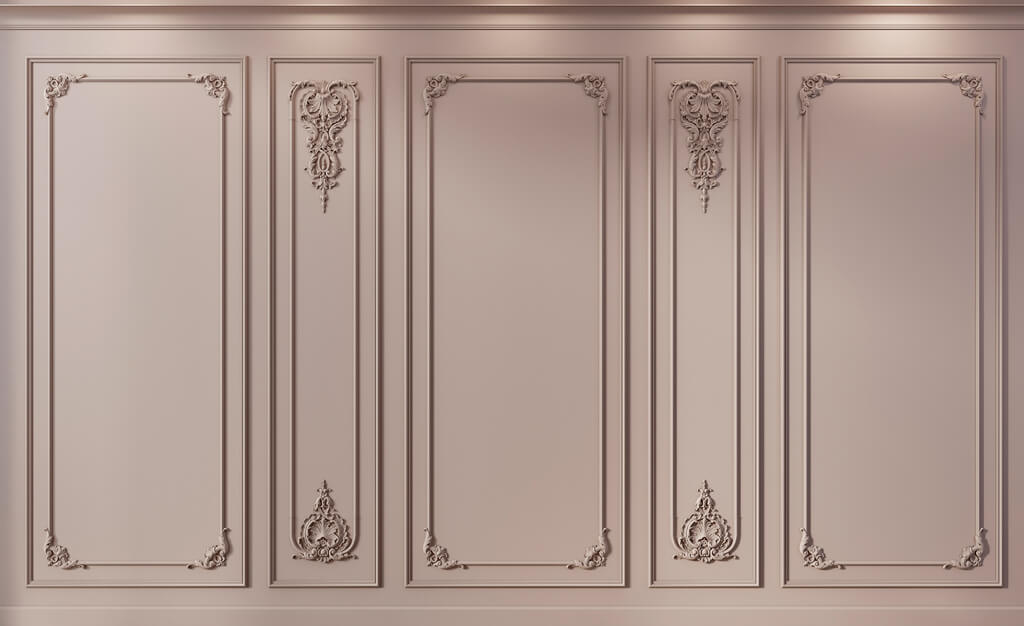
- BIM models of wall panels
- BIM models of wooden decor
- Why SKU should be entered right away
- What to store in type parameters
- What to store in instance parameters
- Real product geometry cannot be changed freely
- Design characteristics can be parameterized
- When standard sizes are acceptable
- Check the section
- Check the wall attachment
- Check the elevation
- Check the corners
- Check the length
- Example of a conflict
- What to record for a cornice
- Scale check
- Engineering check
- When wall material is sufficient
- When geometry is needed
- Module calculation
- Do not import heavy geometry unnecessarily
- Do not build a family by eye
- Script for molding
- Script for rosette
- Script for wall panel
- What to check before import
- What not to transfer automatically
- When 3D matters more than DWG
- When DWG matters more than 3D
- Manufacturer
- Article
- Category
- Material
- Product URL
- Project Status
- Example of a molding schedule
- Why BIM does not replace cutting
- Step 1. Approve the type
- Step 2. Check relevance
- Step 3. Get the quantity
- Step 4. Perform the procurement calculation
- Step 5. Generate the order
- Why the check date matters
- What to store next to the family
- What not to store
- Don't use the words final, final2, new_final
- Separate family and type
- BIM geometry for the project
- High-poly 3D for visualization
- When high detail is needed in Revit
- How to avoid this
- If a more detailed model is needed
- If the item has been replaced
- Valid SKU
- Correct dimensions
- Correct cross-section
- Material
- Category
- URL
- Units of measurement
- Reasonable level of detail
- Specification capability
- Up-to-dateness
- How to link a sample and BIM
- Moldings
- Moldings
- Wall Panels
- Piece decor
- Wooden elements
- A single decorative object in a small project
- A distant element that is not part of any nodes
- Concept stage
- No confirmed SKU
- Why store source files
- Why store the verification date
- Why store a preview
- Catalog as a shortlist
- The control principle
- What is especially important for moldings
- For Panels
- For rosettes
- For wooden decor
- Step 1. Define the base plane
- Step 2. Build or import the geometry
- Step 3. Lock dimensions
- Step 4. Add parameters
- Step 5. Create preview
- Step 6. Check the specification
- Step 7. Test in the project
- Option 1. Conditional material
- Option 2. Separate plane with thickness
- Option 3. Modular geometry
- Example
- Example
- What not to do
- Why this is needed
- Mistake 1. Making the molding fully parametric
- Mistake 2. Importing high-poly without optimization
- Mistake 3. Not storing the URL
- Mistake 4. Not checking units
- Mistake 5. Using Generic Model without a category and parameters
- Mistake 6. Not updating the SKU after replacing decor
- Error 7. Treating a BIM file as a ready-made manufacturer's Revit family
- 1. Export the schedule
- 2. Check that it is up to date
- 3. Verify the samples
- 4. Check the cutting plan
- 5. Check the revision
- 6. Place the order
- Does STAVROS provide ready-made Revit families?
- Where to get source data for Revit?
- Can a 3D model be used directly in Revit?
- Which parameters must be stored?
- Does every decorative detail need to be high-poly?
- How to model molding?
- How to model wall panels?
- Can quantities be obtained automatically?
- Where to find ready-made polyurethane decor?
- How to check the material before ordering?

BIM models of decor are useful to an architect not because a decorative object must necessarily be a complex parametric family. Their main value is linking geometry to a real product. In an information model, it should be clear not only what a molding or rosette looks like, but also its manufacturer, SKU, size, material, and which specification item it belongs to.
The working chain for project decor looks like this:
real product → SKU → dimensions → DWG/3D → Revit object → verification in the project → specification → quantity → order.
Exactly in this context BIM models of decor differ from ordinary 3D objects for visualization. A visualizer only needs geometry and material to produce a render. A BIM modeler needs the object to remain linked to real existing products and to be able to participate in schedules.
At the same time, it is important not to attribute to the manufacturer something it does not officially state. The STAVROS page for designers and architects lists a 3D model database, DWG drawings, and catalogs. A separate ready-made library of Revit families is not indicated on the downloads page. Therefore, the correct path for BIM design is to use the available STAVROS data as source geometry and a source of product parameters, and, if necessary, create the Revit object within the studio.


What a BIM model of interior decor is
For a decorative product, a BIM model is not necessarily a “digital twin” with all technological production parameters. In most interior projects, it is enough for the object to solve three tasks:
- have correct geometry;
- store real product data;
- correctly fit into the specification.
A regular 3D model primarily answers the question:
"What does the object look like?"
A BIM object must additionally answer:
- who is the manufacturer;
- which SKU;
- what are the actual dimensions;
- what material is the product made of;
- which category it belongs to;
- where it is used;
- how much is included;
- where to open the product page.
In this sense, BIM models for architects — this is not a separate aesthetic library, but a project system in which geometry is linked to procurement.

Minimum product passport of a BIM object
For molding, rosette, panel, or overlay, it is useful to store:
| Parameter | What it contains |
|---|---|
| Manufacturer | STAVROS |
| Article | Exact SKU |
| Category | Product type |
| Material | polyurethane / MDF / wood |
| Width | actual width |
| Height | actual height |
| Depth | actual depth |
| Length | length, if applicable |
| Product URL | link to product / category |
| Project Code | code in project |
| Status | selected / approved / ordered |
This alone is enough for the object to stop being nameless geometry.
Our factory also produces:


How BIM differs from a regular 3D model
The difference is easy to show using a single molding.
| Regular 3D model | BIM object |
|---|---|
| Geometry | geometry + information |
| the task is visualization | the task is design and coordination |
| the name may be provisional | a clear SKU is required |
| the scale may be changed accidentally | dimensions must match the product |
| does not have to be included in the schedule | must be specified |
| the color may be provisional | the material must be identified |
| a supplier link is not required | link to the product is required |
The visualizer may name the object molding_final_03.max. For BIM, this is a weak name because it does not help with product selection.
It is more useful:
STAVROS_MLD_Article_Size
or a corporate scheme that preserves the manufacturer, category, and SKU.
Get Consultation
Why BIM decor cannot be freely scaled
If a real molding has a profile of 48 × 22 mm, changing the width to 60 mm in Revit creates an object that is not in the catalog.
For visualization, this may seem harmless. For the specification, it is already an error.
Only what can actually change without changing the product item should be parameterized.
Which decorative elements an architect needs in BIM
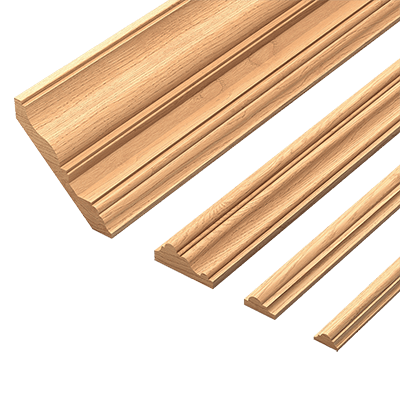
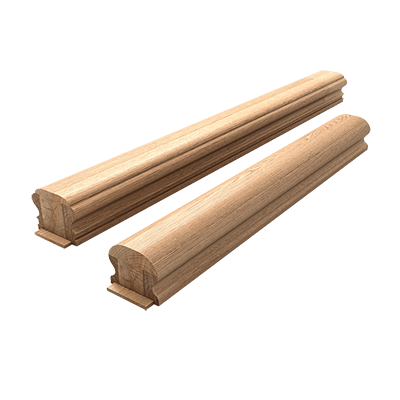
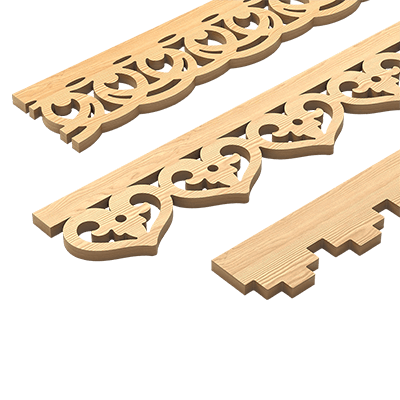
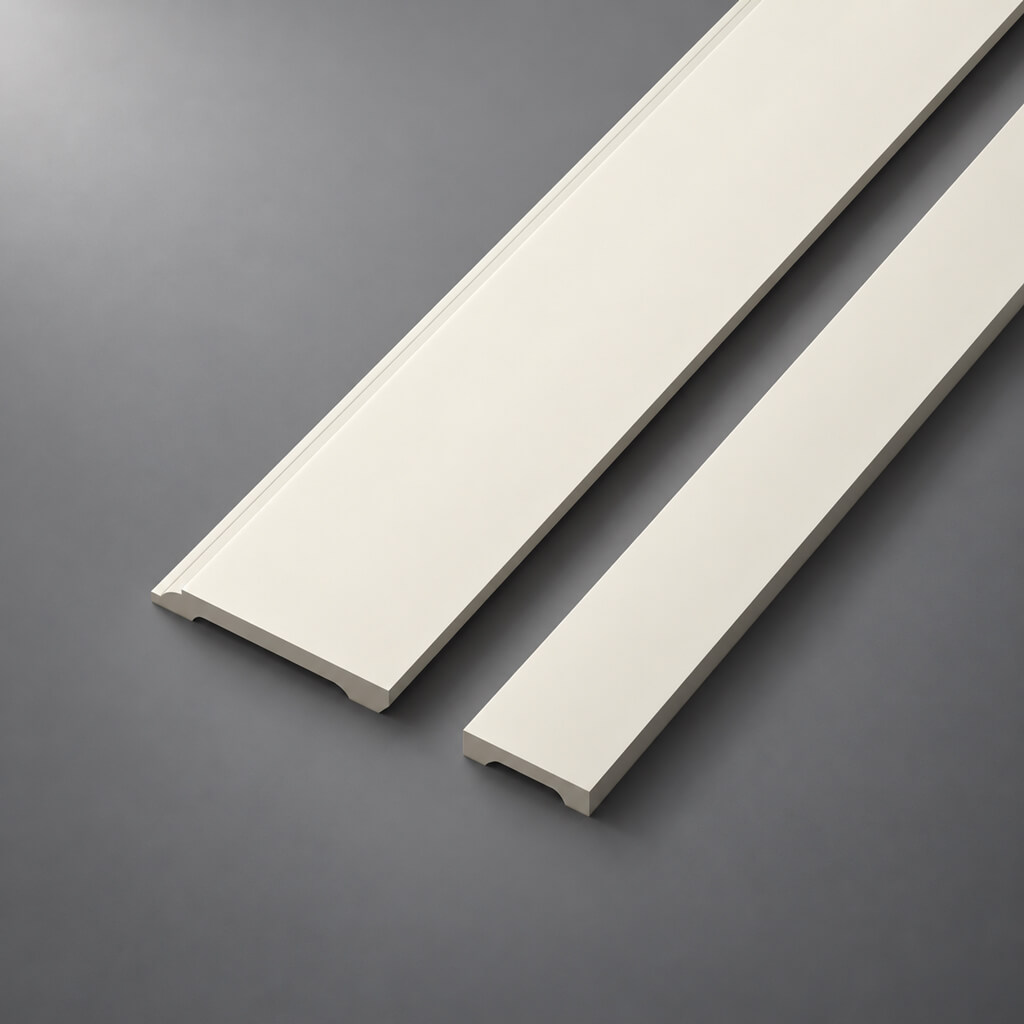
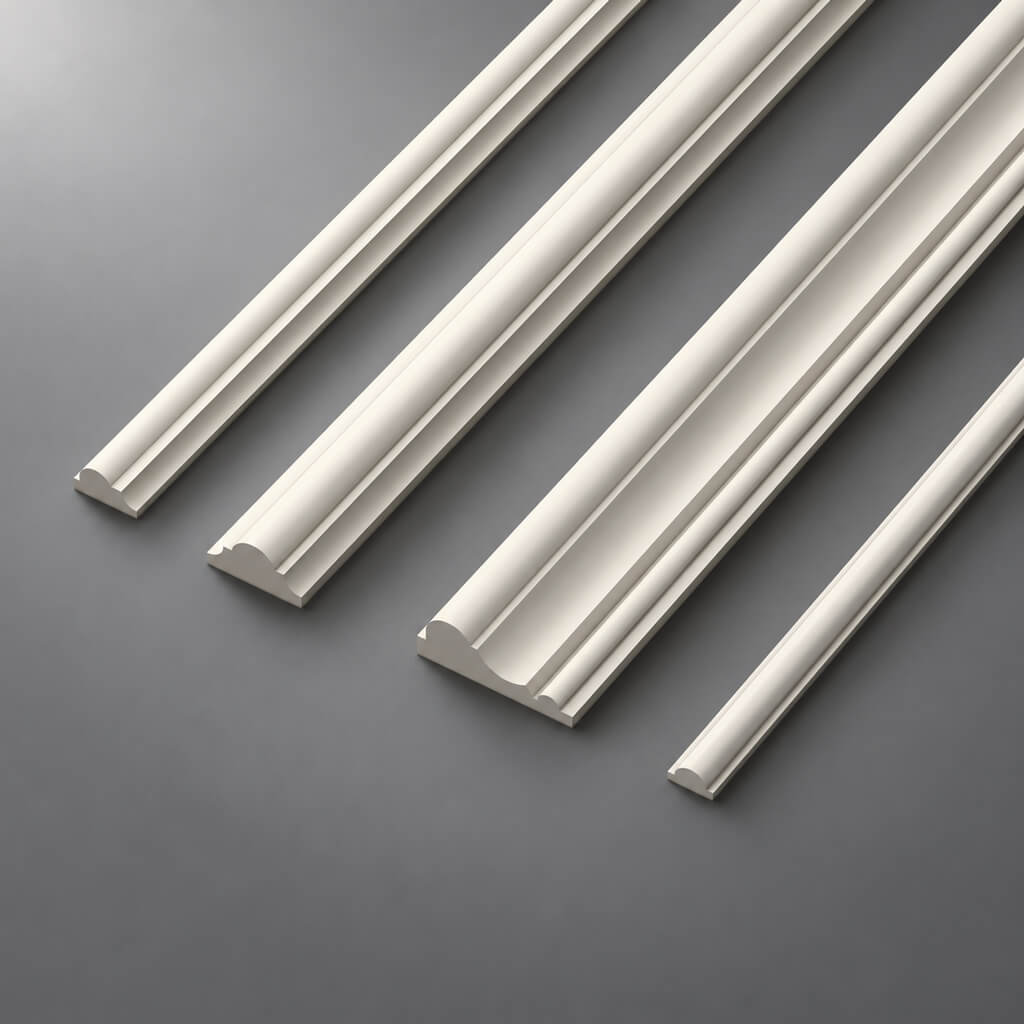
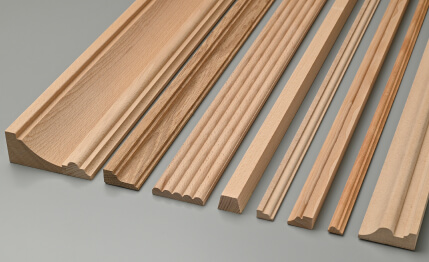
BIM models of moldings
Molding in BIM is useful as a real profile extruded along a path. What matters for it:
- width;
- height;
- cross-section;
- the material;
- article number;
- segment length;
- room.
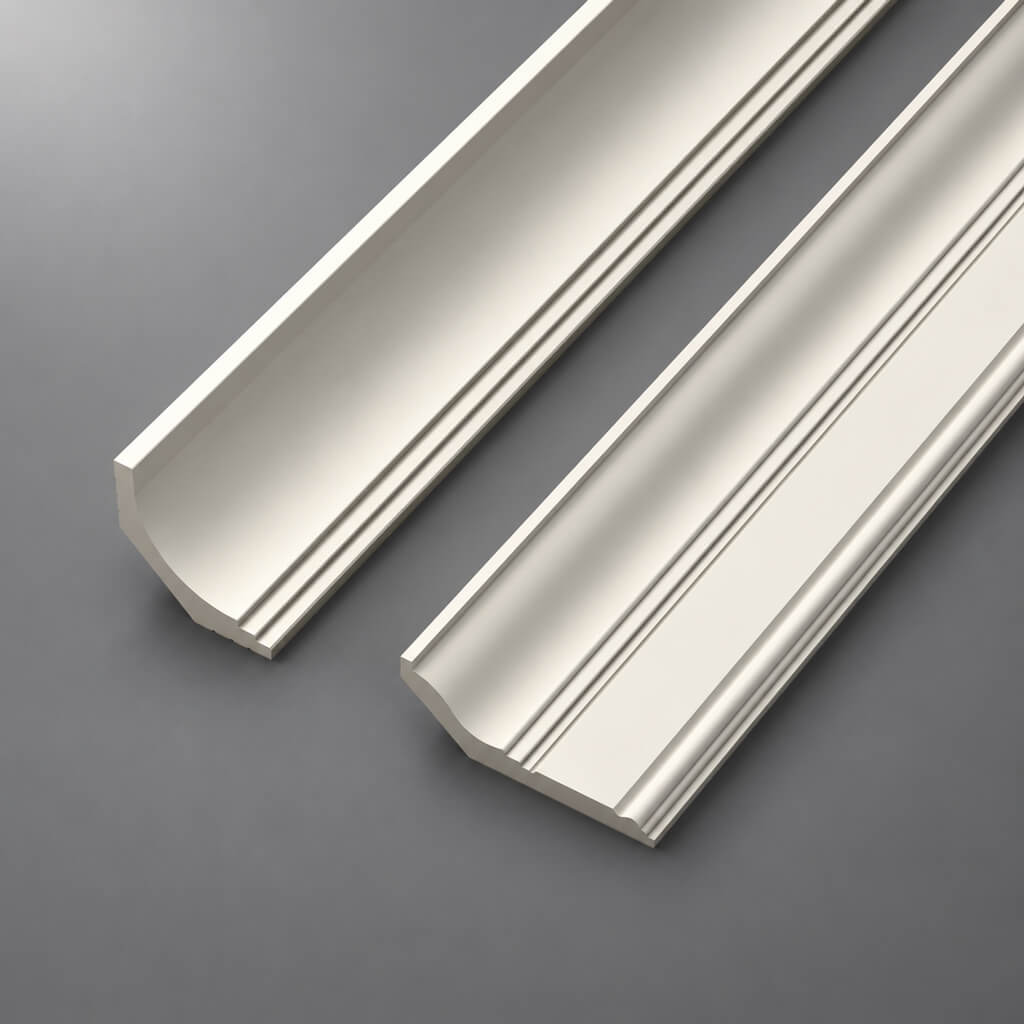
BIM models of cornices
A cornice affects not only the interior composition but also ceiling coordination.
It can conflict with:
- curtain niche;
- ventilation grille;
- lighting;
- ceiling profile;
- doorway.
Therefore, the actual cornice profile in the model is more useful than a conventional decorative strip.
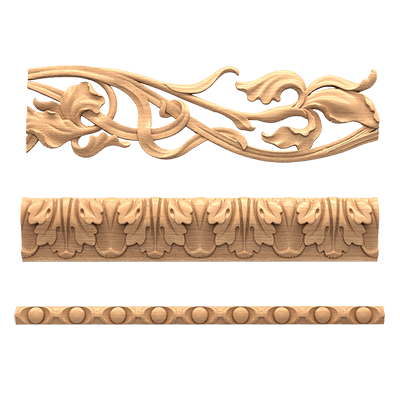
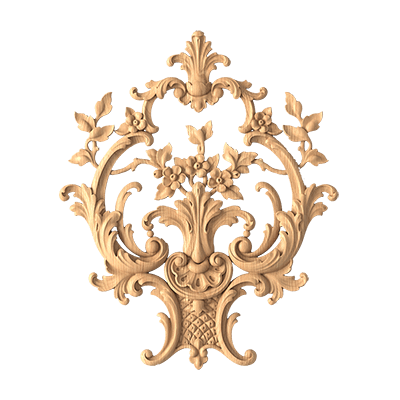
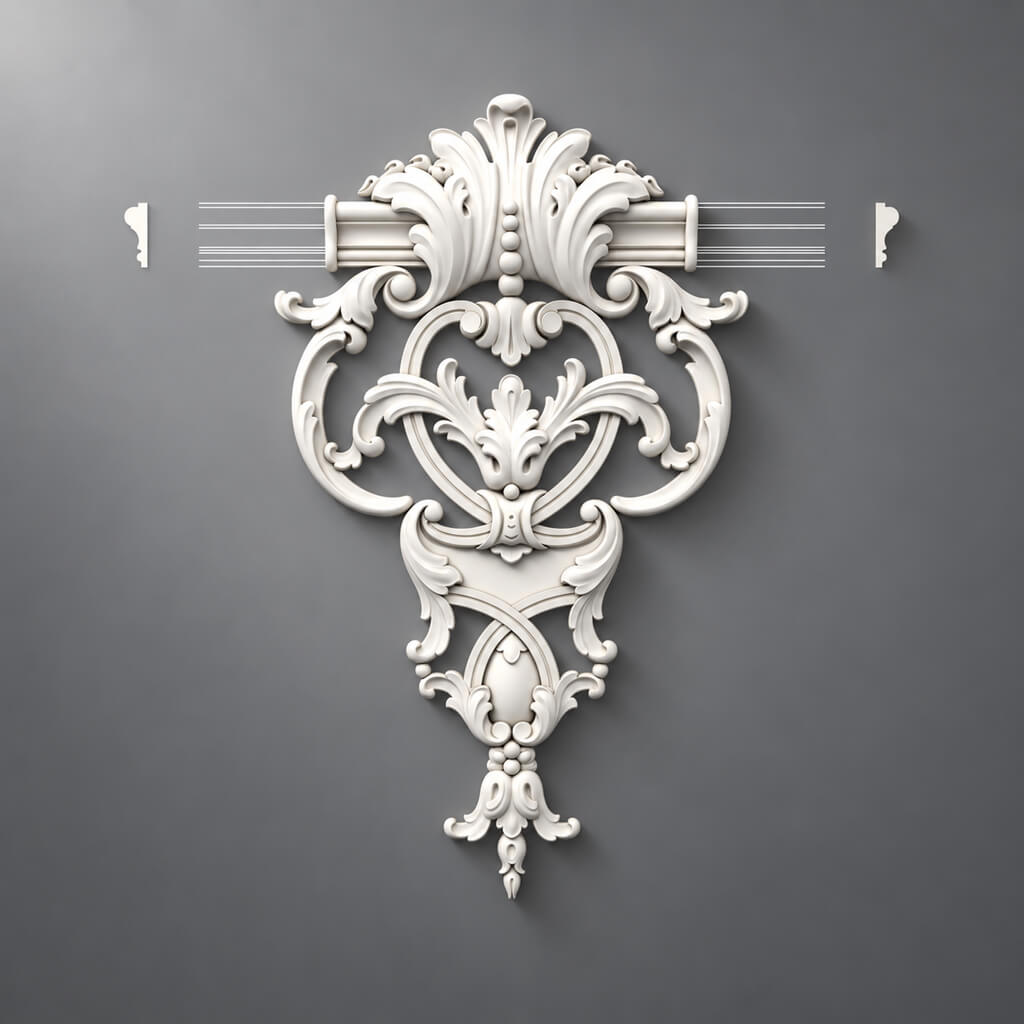
BIM models of stucco moldings
Stucco molding includes individual and linear elements. Each group has its own logic.
Linear trim is best stored as a profile + path.
Individual decor — as a family with fixed geometry and product parameters.
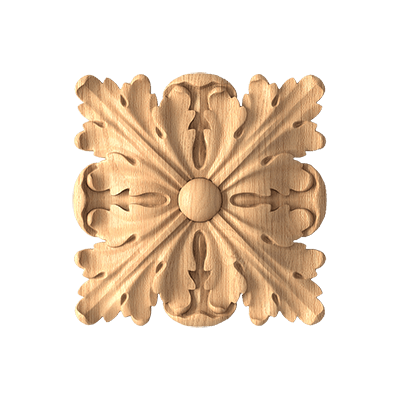
BIM models of ceiling medallions
For a medallion, the following is important:
- actual diameter;
- depth;
- center;
- connection to the light fixture;
- SKU.
In the model, architects can see whether the element is too large relative to the room and whether it conflicts with ceiling fixtures.
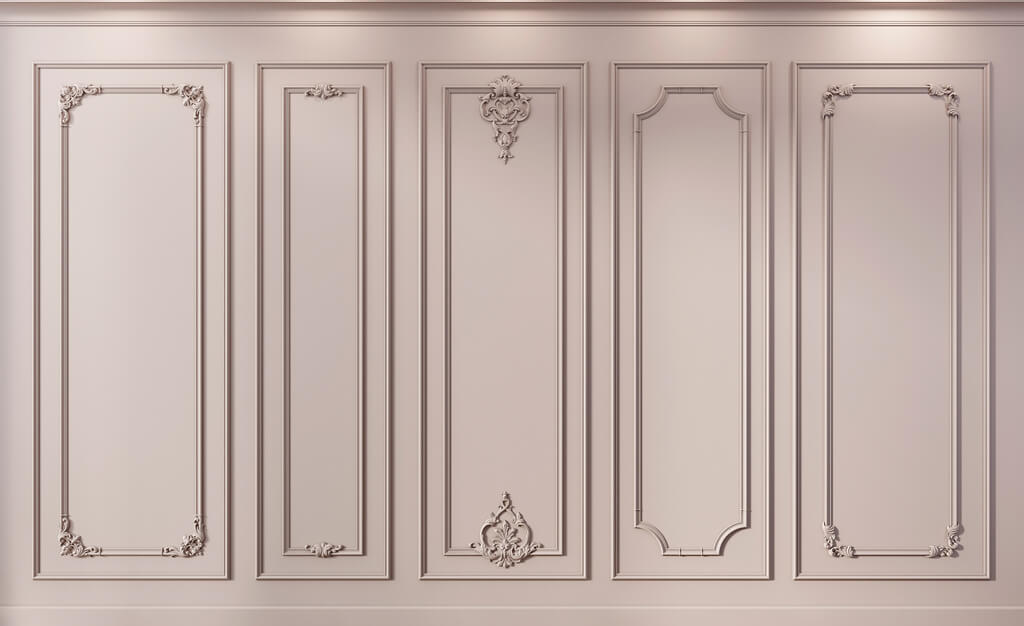
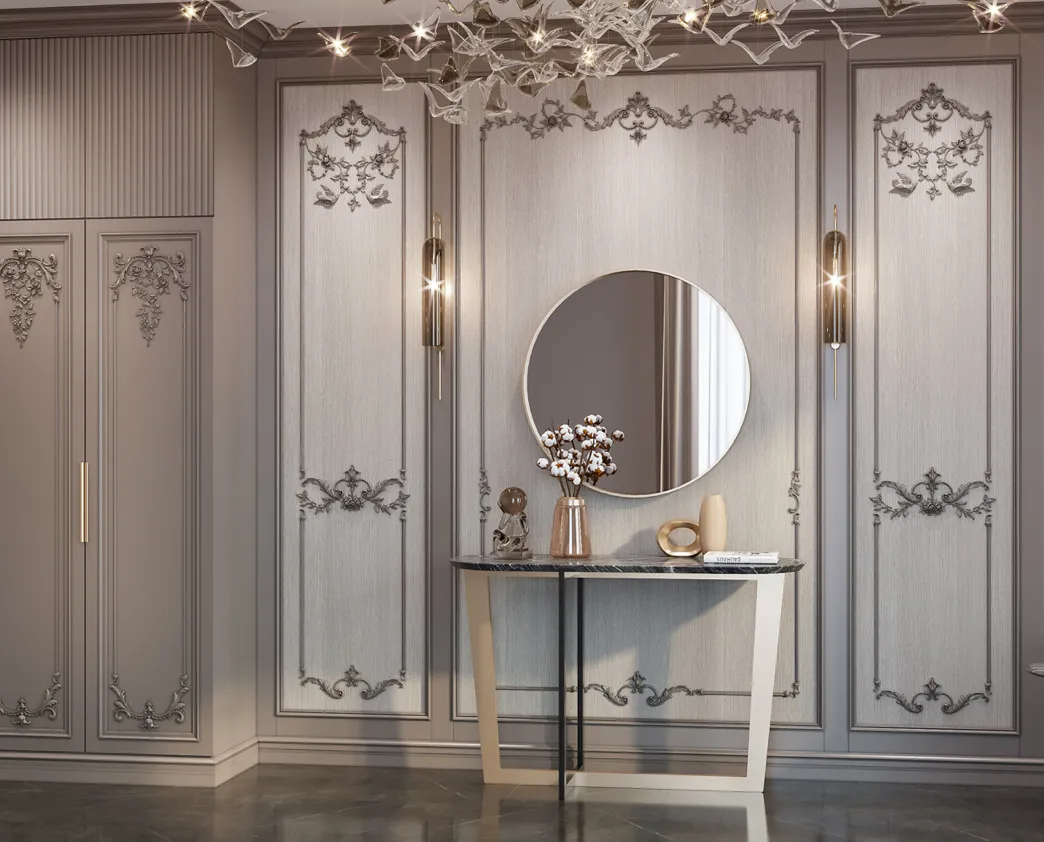
BIM models of wall panels
Important for the panel:
- module;
- thickness;
- direction;
- rhythm;
- start and end of the zone;
- the position of electrical outlets;
- door junctions.
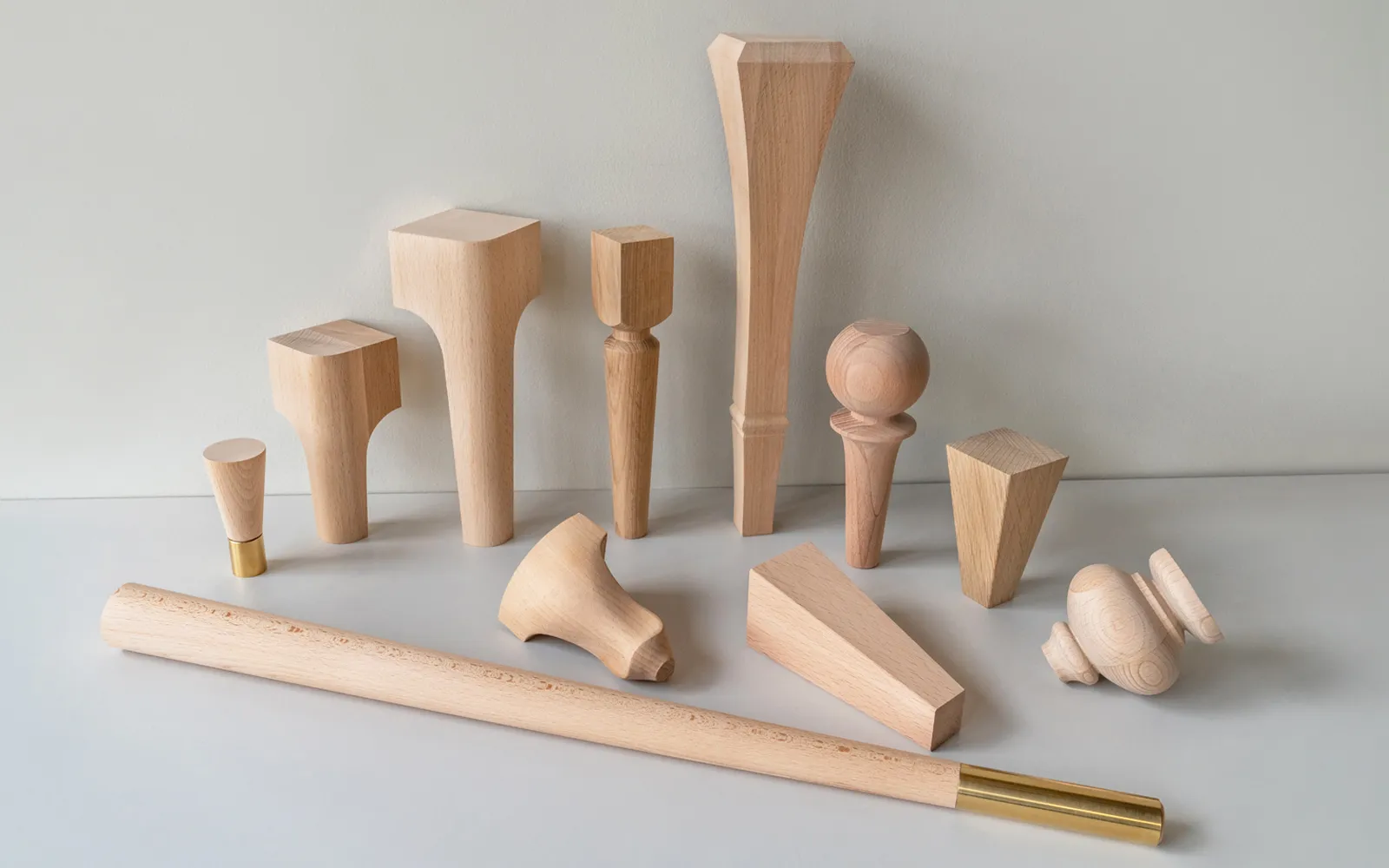
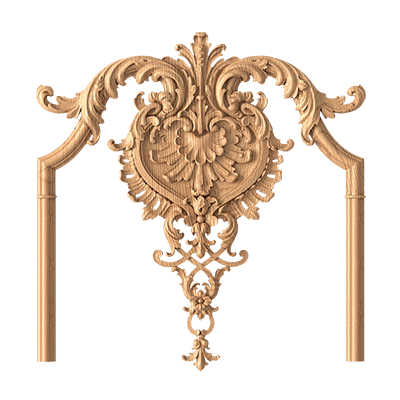
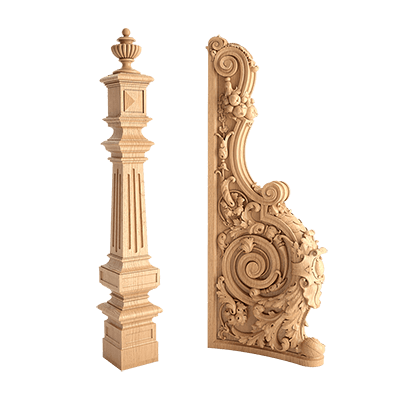
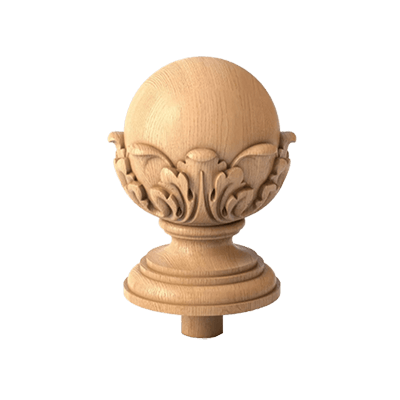
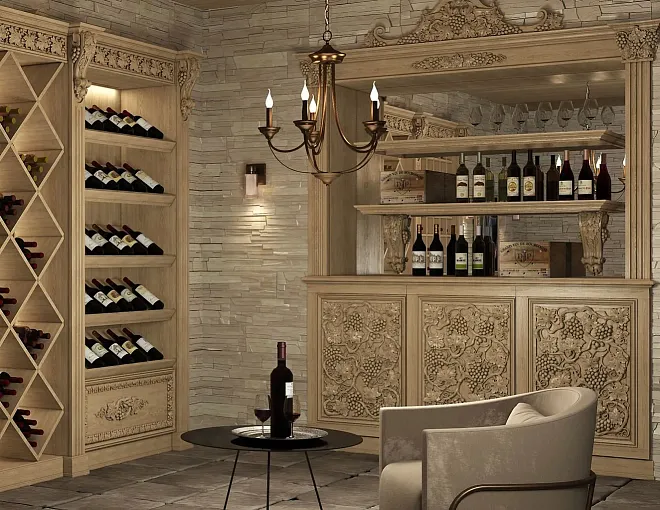
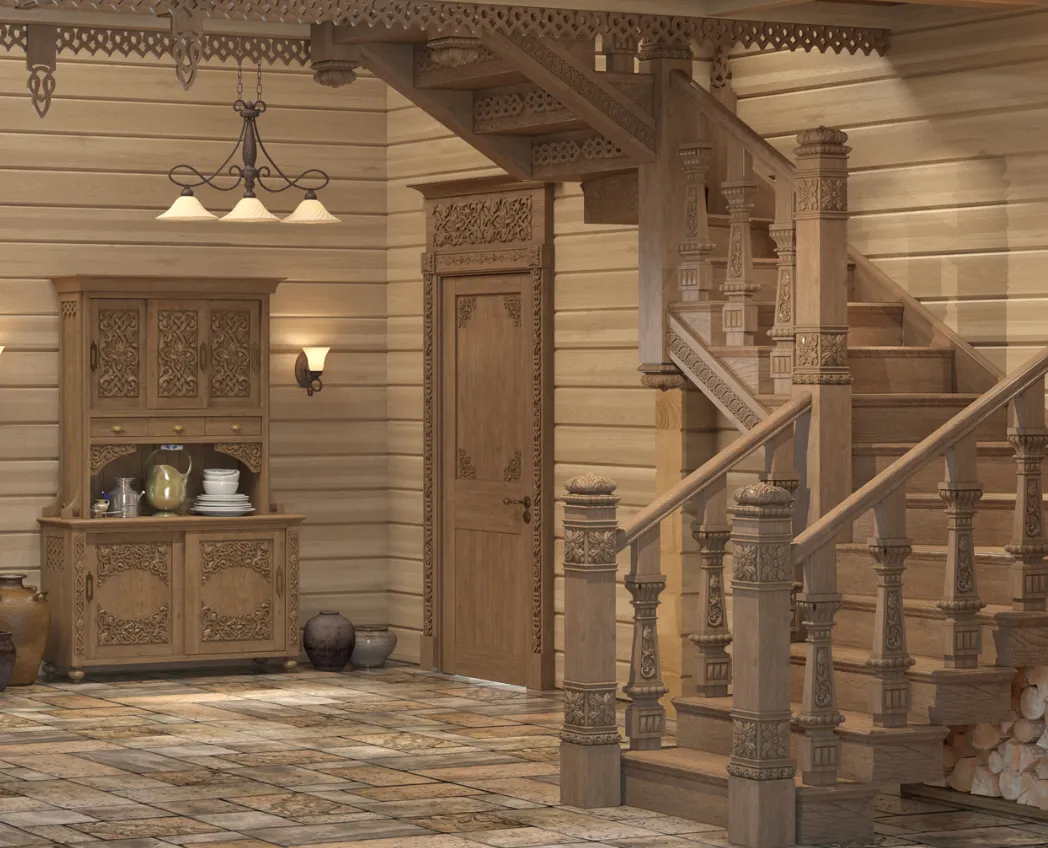
BIM models of wooden decor
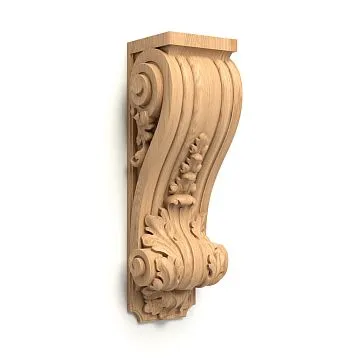
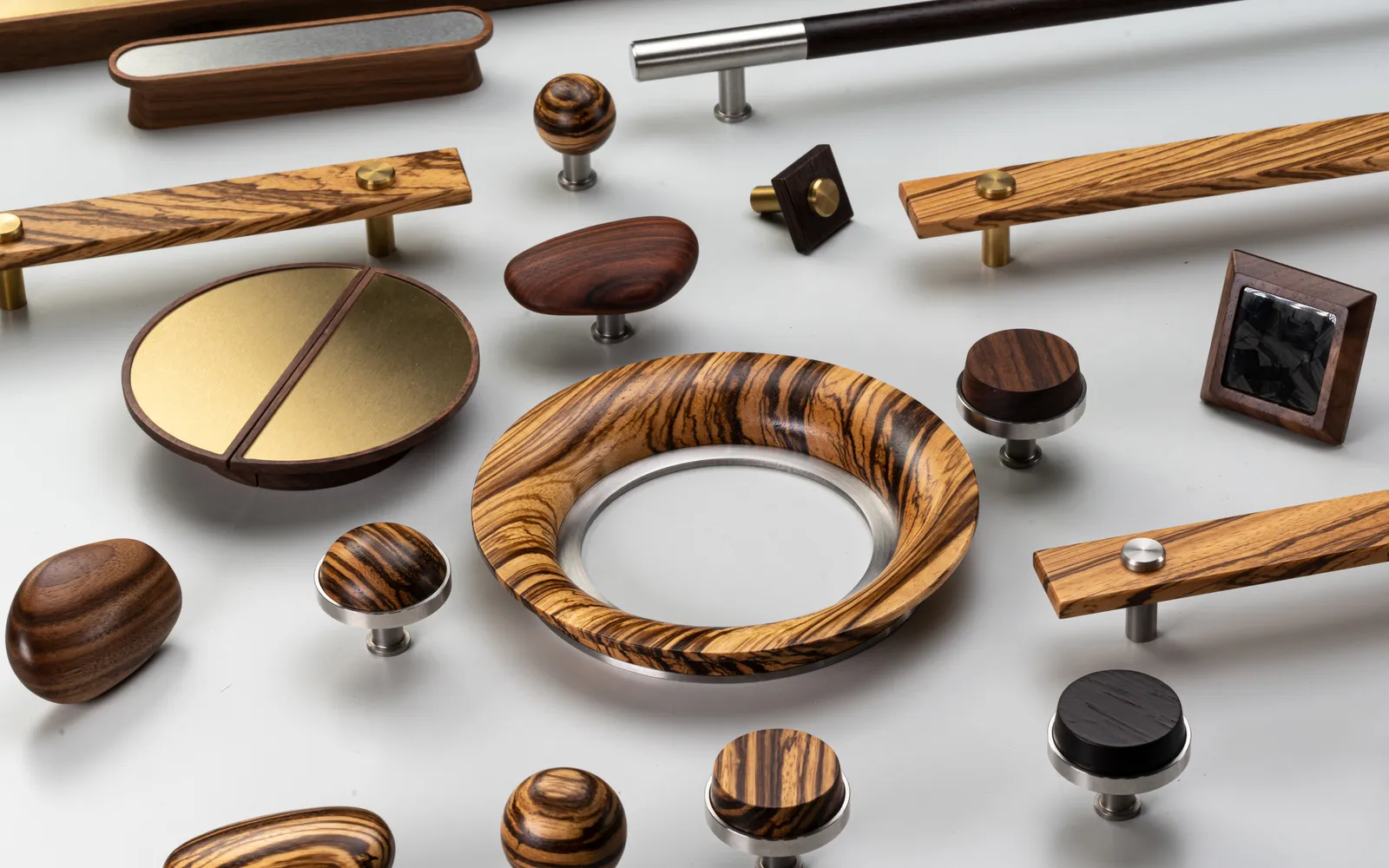
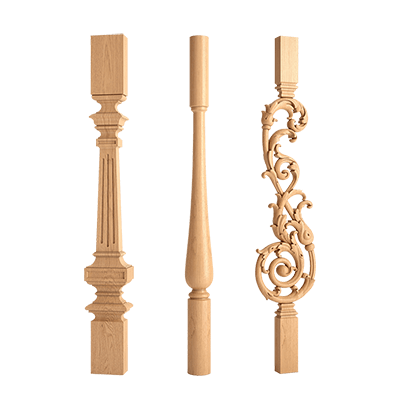
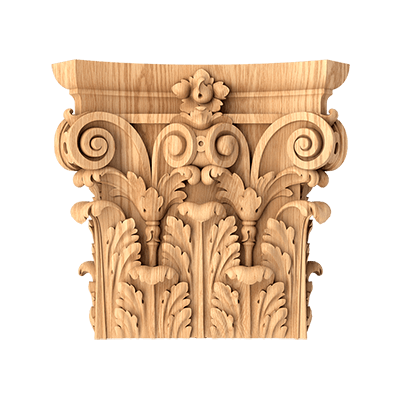
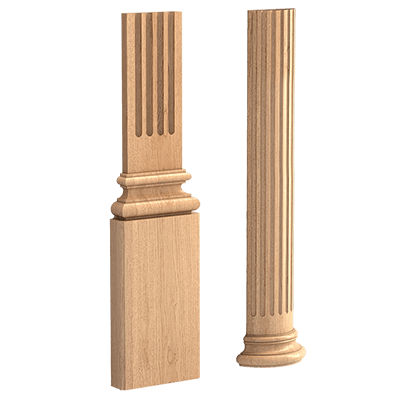
wooden decorative elements in BIM they are especially useful in complex furniture, portals, and interior compositions, where the size of the overlay is tied to the actual geometry of the facade.
Revit molding: what data is needed to create a family
If there is no ready-made Revit family, first reliable source data is collected.
Minimum:
- manufacturer;
- article number;
- name;
- category;
- width;
- height;
- depth;
- length;
- the material;
- URL;
- image;
- Original DWG or 3D, if available.
After that, the geometry can be transferred to Revit.
Why the SKU should be entered right away
If you first create an abstract family Molding 01, and add the item code later, there is a risk that the model will start being copied between projects as a universal one.
It is more correct to make the link to the product part of the template itself.
What to store in type parameters
For a fixed serial product, type parameters are suitable for characteristics that are the same for all instances:
- SKU;
- manufacturer;
- profile;
- width;
- height;
- depth;
- the material;
- URL.
What to store in instance parameters
An instance may differ by project context:
- room;
- floor;
- zone code;
- segment length;
- comment;
- the status.
This way, product data does not get mixed with project data.
Which parameters should be parametric, and which cannot be changed
This is one of the most important questions when creating a Revit family for serial decor.
The actual product geometry cannot be changed freely
If a specific molding is produced with a fixed profile, its width and height cannot be made freely editable.
Otherwise, the user will get dozens of "type sizes" that do not exist.
Cannot be parameterized without confirmation:
- profile width;
- height;
- the depth;
- ornament;
- outlet diameter;
- the shape of the overlay.
Project characteristics can be parameterized
For example:
- the length of the molding section;
- the path;
- the position;
- room code;
- the floor number;
- quantity.
When size variants are acceptable
If a manufacturer truly has several real sizes within one family, they can be represented as separate Revit Types.
Each type must correspond to a specific SKU.
This way BIM remains a catalog of real products, not a generator of nonexistent variants.
Molding in Revit: how to model linear trim
Working logic:
real cross-section → Revit profile → path → exact SKU.
To start, you can take the geometry from DWG drawings of mouldings and build a correct profile based on it.
Check the section
Important:
- width;
- depth;
- orientation;
- mounting side.
If the profile is rotated incorrectly, it will occupy a different space in the section and in coordination with the door.
Check the wall attachment
The molding should not "hang" a few millimeters from the plane or sink into the wall.
Check the elevation
The height of the frames must match the working elevations.
Check the corners
Joints are important for calculation and installation.
Check length
Linear footage can be specified by the total length of the sections.
After the profile is approved, the project can be linked to a product category Moldings made of polyurethane.
Cornice in a BIM project
A cornice particularly well demonstrates the benefits of BIM coordination, because the decorative geometry lies at the boundary of several systems.
It may intersect with:
- ceiling;
- curtain niche;
- a light cornice;
- ventilation;
- tracks;
- door portals;
- with built-in furniture.
Example of a conflict
The visualization shows a cornice with a 120 mm projection. On the ceiling plan, a linear diffuser runs through the same area at a distance of 90 mm from the wall.
If the cornice was a conditional line, the conflict will be discovered during installation.
If its actual profile is included in the BIM, the intersection is visible in advance.
What to record for the cornice
- SKU;
- height;
- overhang;
- length;
- the material;
- room;
- URL.
Ceiling roses and BIM
Polyurethane ceiling rosettes convenient to model as fixed families.
Key parameters:
- diameter or overall dimensions;
- depth;
- center;
- level;
- article number;
- the material;
- connection with the light fixture.
Scale check
A 800 mm diameter rose and a 450 mm diameter light fixture create a single composition.
If the fixture is later changed to the 1000 mm model, the outlet must be rechecked.
Engineering check
A power outlet, chandelier mounting, or embedded support may pass through the center.
BIM allows this to be shown before ceiling finishing.
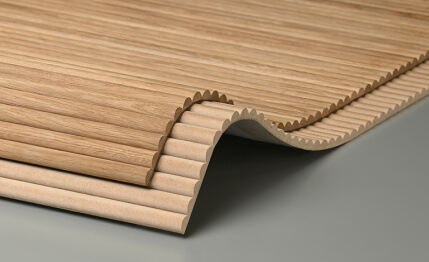
Wall panels in Revit
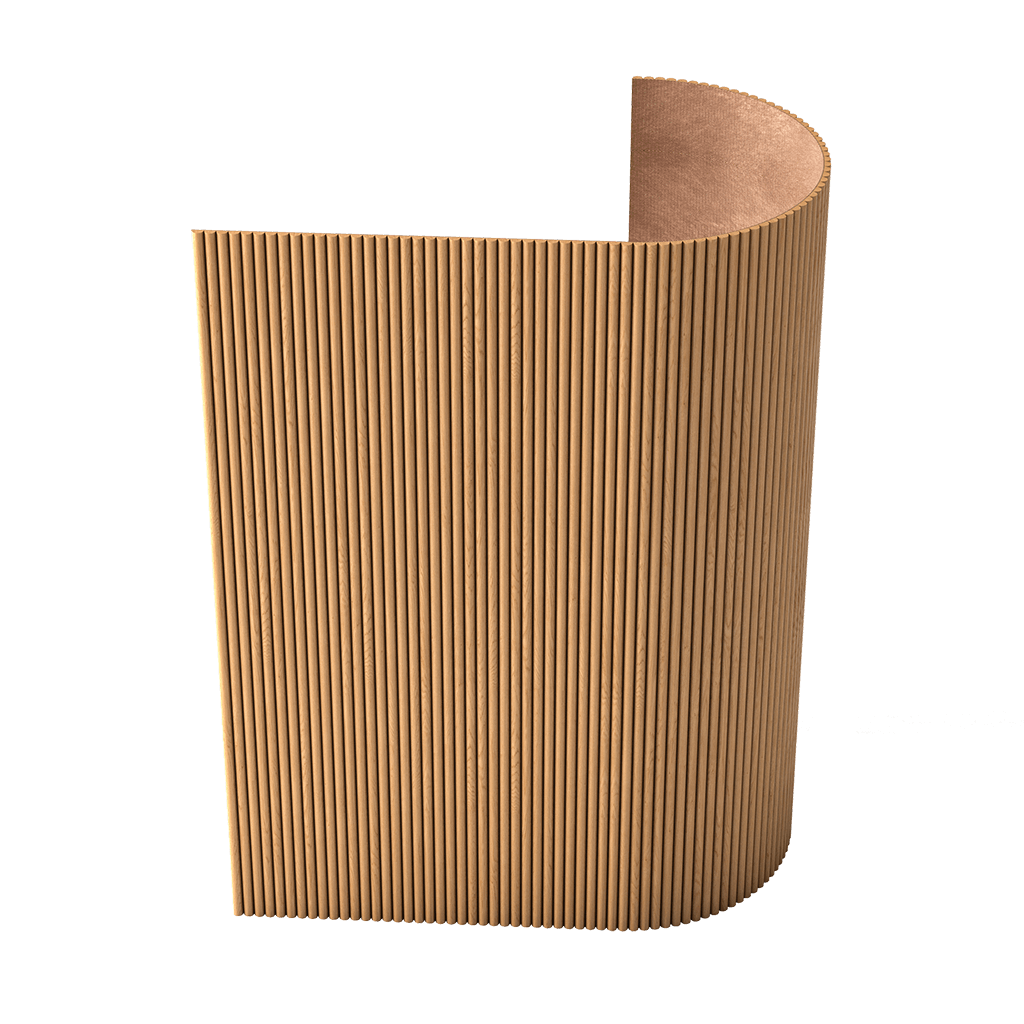
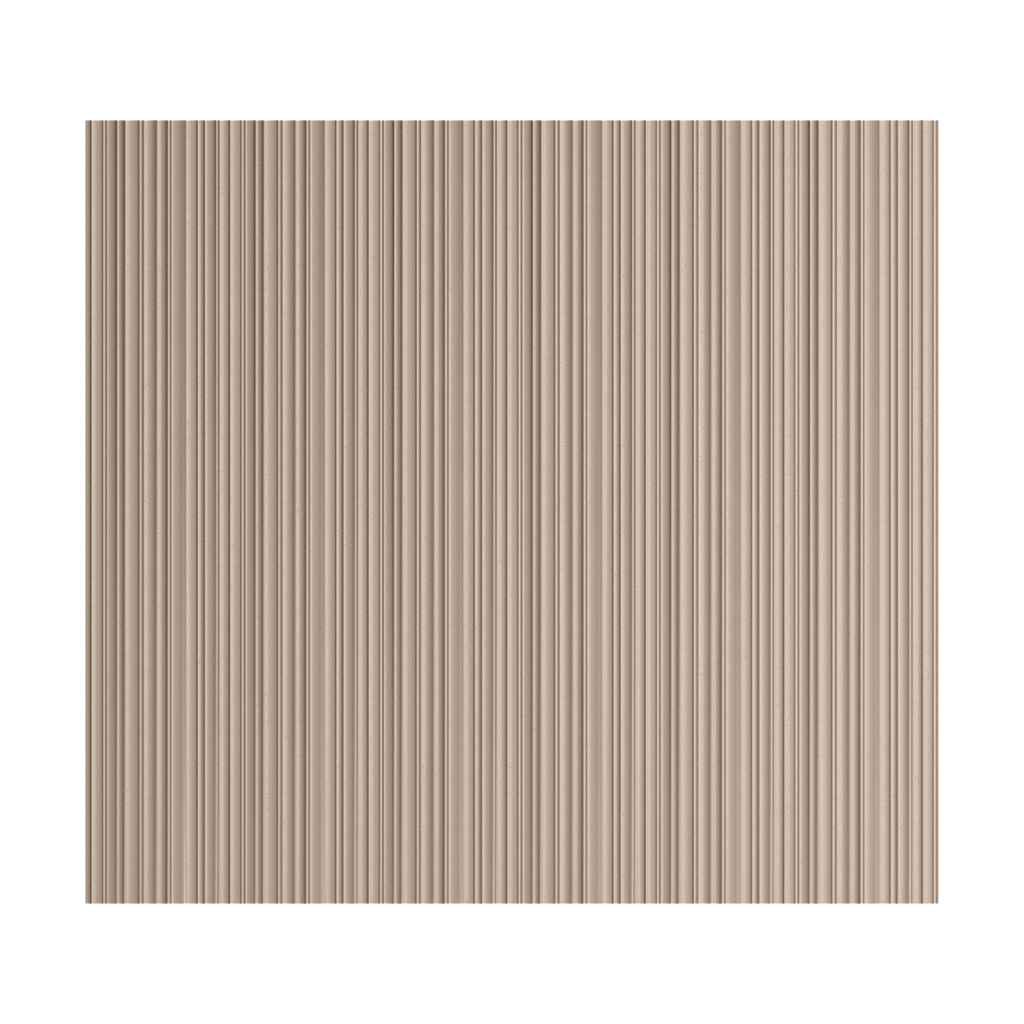
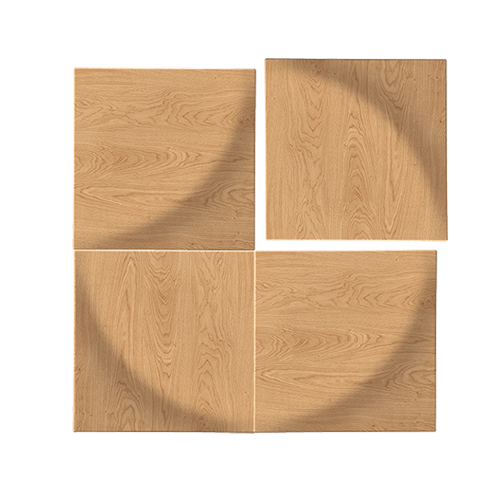
MDF wall panels in BIM, walls cannot be reduced to a single material if the relief affects the architecture.
For panels, the following must be taken into account:
- actual thickness;
- module;
- spacing;
- direction;
- zone boundaries;
- doorways;
- Outlets;
- switches;
- baseboard.
When the wall material is sufficient
If the panel is used only as conventional finishing at an early stage and its relief does not affect the assemblies.
When geometry is needed
if:
- the slat rhythm matters;
- there is side lighting;
- sockets must fall between the slats;
- the panel adjoins the casing;
- the edge must be symmetrical.
Module calculation
If the zone is 3600 mm and the working module is 300 mm:
3600 / 300 = 12
If the zone is 3700 mm:
3700 / 300 = 12,33
BIM shows the problem immediately: the edge must be resolved by design, not simply rounded up to 13 panels.
What to do if there is no ready-made Revit family
This is a key scenario for STAVROS. The official downloads page currently clearly presents DWG and 3D, and a separate ready-made Revit/BIM library is not listed there. Therefore, the correct workflow should not begin with the assumption that the required family already exists.
Work sequence:
- select a real product;
- record the SKU;
- open the product page or category;
- download the available DWG and/or 3D;
- verify the actual dimensions;
- create your own Revit family or system object;
- add product parameters;
- check the geometry;
- save to the corporate library;
- use in the specification.
For the initial visual and geometric information, you can use 3D models of stucco, but a 3D file by itself does not become a BIM object.
Do not import heavy geometry unnecessarily
A high-poly ornament that looks great in 3ds Max can significantly weigh down a Revit model.
For working tasks, the following is often sufficient:
- accurate external dimensions;
- correct profile;
- simplified relief;
- correct material;
- a complete set of parameters.
A detailed high-poly object can be kept for visualization.
Do not build the family "by eye"
If there is a drawing, profile, or actual dimension, they should be used.
A BIM object must reproduce the product, not approximately resemble it.
How to use DWG STAVROS to create a BIM object
CAD models of decor in DWG format are useful as a geometric basis.
DWG can provide:
- profile;
- cross-section;
- outer contour;
- actual dimensions;
- centerlines;
- installation geometry.
But it is important to remember:
DWG ≠ BIM.
It does not store all the necessary Revit parameters and is not required to automatically appear in the schedule.
Scenario for molding
- open DWG;
- check units;
- clean up unnecessary layers;
- select the working profile;
- transfer the profile to Revit;
- create a type with a specific SKU;
- add Manufacturer, Article, Material, and URL.
Scenario for socket
- take the frontal outline;
- check the diameter;
- clarify the depth;
- create simplified geometry;
- save the SKU;
- add the type to the library.
Scenario for a wall panel
If the DWG contains a module, it can be used to verify the actual spacing and layout.
How to use STAVROS 3D models
3D models of interior decor they help verify shape and scale, but in BIM an information layer needs to be added to them.
3D is useful for:
- understanding of form;
- relief verification;
- visual comparison;
- creation of simplified geometry;
- preparation of previews for the library.
What to check before import
- units of measurement;
- orientation;
- external dimensions;
- compliance with the item code;
- level of detail.
What not to transfer automatically
Visualization materials, random object names, and technical auxiliary elements should not thoughtlessly end up in BIM.
When 3D matters more than DWG
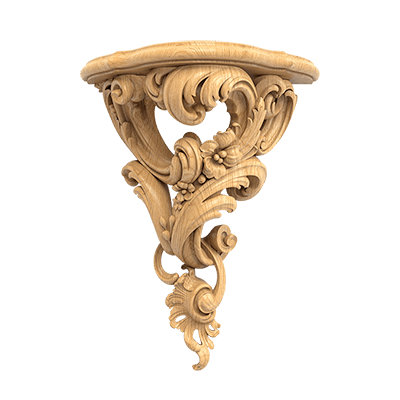
For a complex overlay, bracket, or capital, where the shape is three-dimensional and cannot be described by a single profile.
When DWG matters more than 3D
For molding, cornice, skirting, and other products where the cross-section is of key importance.
Which STAVROS parameters to add to a Revit family
A unified parameter scheme makes the library suitable for schedules.
| Parameter | Value |
|---|---|
| Manufacturer | STAVROS |
| Article | SKU |
| Category | molding / cornice / decor / panel |
| Material | polyurethane / MDF / wood |
| Width | mm |
| Height | mm |
| Depth | mm |
| Length | mm |
| Product URL | URL |
| Specification | position name |
| Project Status | DRAFT / APPROVED / ORDERED |
| Note | project note |
Manufacturer
Used to filter objects by manufacturer.
Article
A key procurement parameter. It is what links BIM to the product item.
Category
Allows generating schedules by groups.
Material
Needed for design logic and finish schedules.
Product URL
Speeds up checking a card or category.
Project Status
Helps distinguish a preliminary object from an approved one.
How to get a decor specification automatically
If the parameters are filled in correctly, Revit can be used not only for coordination but also for calculation.
For linear products, it is useful to output:
- article number;
- name;
- type;
- length;
- room;
- floor;
- the status.
For piece decor:
- article number;
- size;
- quantity;
- room;
- Material.
For panels:
- type;
- SKU;
- number of modules;
- area;
- area or length — depending on the adopted methodology.
Example of a moulding schedule
| SKU | Room | Section length | Number of sections | Total |
|---|---|---|---|---|
| MLD-A | Living room | 2.4 m | 4 | 9.6 m |
| MLD-A | Bedroom | 1.8 m | 6 | 10.8 m |
Total geometric linear meterage:
9.6 + 10.8 = 20.4 m.
This is not yet the purchase quantity. Next, you need to take into account the actual length of the product, cutting, angles, and technological allowance.
Why BIM does not eliminate cutting
Revit can calculate the total length. But it doesn't always understand how to optimally cut sections from the actual supplied profiles.
Therefore:
BIM quantity takeoff → cutting map → procurement quantity.
How to link a BIM model to actual procurement
This is the main commercial value of BIM for decor.
The correct sequence is:
BIM Object → SKU → STAVROS category → quantity → order.
Incorrect:
Generic Molding 01 → the specifier then looks for something similar.
Step 1. Approve the type
Before the final specification, the object must have a real SKU.
Step 2. Check relevance
Before purchasing, you need to make sure the item is still available.
Step 3. Get the quantity
From BIM or a linked schedule.
Step 4. Perform the purchasing calculation
For linear stock — taking into account the length of the actual part.
For panels — taking into account the layout.
For individual decor — by the number of installation locations.
Step 5. Create the order
After that, you can You can buy ready-made stucco matching the Baroque style. Calculate the quantity: linear meters of cornices and moldings, number of rosettes, pilasters, consoles, corner elements. Add a ten to fifteen percent allowance for trimming. or other elements now by specific items rather than by a general description.
BIM library for a design studio
The word cluster “BIM library of decor” accurately reflects the real task: a studio needs not a single object, but a repeatable system.
You can create a structure:
STAVROS /
MoldingsCornicesRosettesWall DecorPanelsWood Decor
Within each item:
SKU → family → preview → material → URL → verification date.
Why the verification date matters
A library can outlive a single project. Therefore, before reusing it, it is useful to check that it is up to date.
What to store alongside the family
- file;
- preview;
- parameter card;
- source DWG;
- source 3D;
- link to the product;
- note about the project.
What not to store
Dozens of duplicates of the same SKU with different random names.
How to name BIM objects so the library doesn't turn into chaos
A good naming scheme helps you find an object without opening the file.
For example:
STAVROS_MLD_Article_Size
Or:
STAVROS_ROS_Article_Diameter
The main thing is that the name reflects:
- manufacturer;
- category;
- SKU;
- key size type.
Do not use the words final, final2, new_final
They do not describe the object.
The version should be reflected structurally:
v01, v02, APPROVED.
Separate family and type
For example:
family: STAVROS_Molding;
Type: MLD-001_48x22.
This keeps the library more compact.
LOD: how detailed the molding should be
For a working BIM model, it is not always necessary to model every acanthus leaf.
Excessive detail:
- makes Revit heavier;
- slows down synchronization;
- degrades navigation;
- does not add information for plans and specifications.
Therefore, it is useful to separate the two levels.
BIM geometry for the project
Contains:
- correct dimensions;
- the actual profile;
- nature of the relief;
- the mounting plane;
- parameters.
High-poly 3D for visualization
Contains:
- small details;
- complex shapes;
- high-quality relief;
- materials for rendering.
When high detail is needed in Revit
If the object appears in a large interior section or a detailed node.
But even then, it is better to check whether it would be more convenient to use a 2D detail component together with a simplified 3D form.
Revit + 3ds Max: how not to lose SKUs
A project often moves between BIM and visualization.
Workflow:
BIM → export → visualization → approval → back to the specification.
The main risk: the visualizer will replace the real SKU with a prettier random model.
How to avoid this
- keep the product code in the object name;
- pass the SKU list to the visualizer;
- do not delete the project code;
- verify the final scene against the specification.
If a more detailed model is needed
You can replace the simplified BIM object with a high-poly object of the same SKU.
But you cannot change it to another product without approval.
If the product has been replaced
Need to update:
- BIM;
- visualization;
- DWG layouts;
- the specification;
- quantity;
- the status.
Replacing in only one table creates a desynchronization.
How to check a BIM object before adding it to the library
Before saving the family, go through the checklist.
Real SKU
The object must correspond to a specific product.
Correct dimensions
At least one reference dimension is verified.
Correct section
Especially for moldings and cornices.
Material
Must correspond to the actual group.
Category
Needed for schedules and filtering.
URL
The link must point to the current STAVROS page.
Units of measurement
Imported geometry must not be scaled up 10 or 1000 times.
Reasonable level of detail
The family must not overload the model.
Schedulability
Article, Manufacturer, and key dimensions must be output in the Schedule.
Up-to-dateness
If the object was created long ago, it must be rechecked before a new project.
How to use samples together with BIM
BIM handles geometry and information, but does not confirm the actual texture.
For material-sensitive decisions, the following are useful STAVROS product samples.
The sample verifies:
- actual color;
- the texture;
- gloss;
- relief;
- surface;
- combination with adjacent materials.
How to link a sample and BIM
On the sample:
SKU / project code / approved.
In BIM:
Article = the same SKU.
In the specification:
the same Article.
Thus, the physical and digital object belong to the same line item.
How to purchase decor specified in a BIM project
Final commercial process:
BIM → bill of materials → SKU → quantity → verification → order.
Moulding
If the project uses specific elements, they must be verified by item code and then proceed to the category Polyurethane moldings.
Moldings
After calculating length and cutting, you can buy polyurethane moldings using the same SKUs that are specified in the families.
Wall panels
If the panels have already been modeled and calculated, purchasing should be based on the actual line item, not a visual equivalent.
Piece decor
molded decoration made of polyurethane and other piece elements are counted by instances.
Wooden elements
Material, article number, and finish are being checked.
When BIM is overkill for decor
Not every element needs to be turned into a complex family.
A single decorative object in a small project
If it does not affect coordination and the specification, simple geometry and a schedule entry are sufficient.
A distant element that is not involved in junctions
High detail will not provide any benefit.
Conceptual stage
At an early stage, a generic object is acceptable if it is clearly marked as temporary.
No confirmed SKU
Until a product is selected, you shouldn't create a "final" family.
The key is to distinguish between a conceptual placeholder and an approved project object.
How to organize an internal BIM library by category
When a firm uses the same decor across multiple projects, it's more convenient to store a structured corporate library rather than a random set of families.
For example:
STAVROS / Polyurethane / Moldings
STAVROS / Polyurethane / Rosettes
STAVROS / Wall Panels / MDF
STAVROS / Wood Decor
For each object, the following are saved:
- Revit family;
- preview;
- SKU;
- category;
- the material;
- URL;
- source DWG;
- the original 3D;
- verification date;
- usage note.
So Revit decor models turn from one-off preparation for a specific project into a studio asset.
Why store source files
If the family needs to be updated a year later, it is easier to return to the original DWG or 3D than to reconstruct the geometry from an old Revit model.
Why store the verification date
A product library is not eternal. Before reuse, you need to make sure that the SKU and category are still up to date.
Why store a preview
Visual preview speeds up selection, especially if the library contains dozens of similar moldings.
How to work with STAVROS catalogs in BIM design
STAVROS catalogs are useful as a first level of selection.
They help:
- select a product group;
- compare profiles;
- find elements close in scale;
- check the series;
- then move on to the specific item.
But the catalog should not be the only source for the family. Final dimensions and SKU need to be verified against the current product data.
Catalog as a shortlist
For an architect, this order is convenient:
- select 3–5 candidates;
- check their geometry;
- match them with the room;
- get the required files;
- leave one approved SKU.
This is more efficient than loading dozens of temporary elements into Revit.
How to link BIM objects with working elevations
A BIM model is only useful when it does not diverge from the working sheets.
For a wall composition in Revit, you can store:
- molding;
- overlay;
- socket;
- panel;
- finish code.
The following must match on the elevation:
- position;
- size;
- axis;
- distance to furniture;
- height;
- SKU.
Control principle
If an object changes in BIM, the working documentation must be updated in the same revision.
What is especially important for moldings
Profile and outer dimensions of the frame.
For panels
Zone boundary, direction, and modulus.
For sockets
Center and diameter.
For wooden decor
Mounting zone and connection to furniture.
How to build a Revit family for one-off decor
A fixed model is useful for a decorative overlay or rosette.
Step 1. Define the base plane
The back side must coincide with the mounting surface.
Step 2. Build or import geometry
Use only the necessary level of detail.
Step 3. Lock dimensions
Width, height, depth.
Step 4. Add parameters
Manufacturer, Article, Material, URL.
Step 5. Create a preview
So the object is easy to select in the library.
Step 6. Check the schedule
Make sure the parameters are displayed in the Schedule.
Step 7. Test in the project
Insert the object into a wall, ceiling, or furniture assembly and check its behavior.
How to build a Revit object for a wall panel
There are several levels of complexity for panels.
Option 1. Generic material
Suitable for an early stage.
Option 2. Separate plane with thickness
Suitable when depth and adjacency matter.
Option 3. Modular geometry
Needed if the rhythm is tied to outlets, doors, or lighting.
The choice depends on the project stage and LOD.
But in all variants, the object must be linked to a real SKU.
How to use BIM for linear footage calculation
For moldings and cornices, BIM is especially useful because the length can be calculated automatically.
Let's say the living room has four frames of 1200 × 800 mm.
Perimeter of one:
2 × (1.2 + 0.8) = 4 m.
Four frames:
4 × 4 = 16 m.
The bedroom has two frames of 900 × 600 mm:
2 × (0.9 + 0.6) = 3 m.
Two frames:
2 × 3 = 6 m.
Total geometric linear meterage:
16 + 6 = 22 m.
BIM can collect these values automatically.
But the purchasing footage will be different after accounting for:
- the actual length of one part;
- the number of corners;
- Cutting;
- the technological allowance.
How to compare two decor options in BIM
Sometimes a designer chooses between two profiles.
Instead of an abstract discussion, you can create two types and compare:
- width;
- the depth;
- shadow;
- quantity;
- length;
- the impact on frames.
Example
Profile A — 40 mm.
Profile B — 62 mm.
For frames with the same outer dimensions, the difference in inner field:
2 × (62 − 40) = 44 mm.
That is, the second profile will reduce the usable field by 44 mm along each axis.
This comparison is especially useful if there is a sconce or decorative overlay inside the frame.
How to preserve product traceability after export
BIM is often exported to other programs.
When exporting to 3ds Max, IFC, or another environment, some custom parameters may not be directly available to the visualizer.
Therefore, it is useful to additionally store:
- SKU in the object name;
- project code;
- a mapping table;
- preview.
So even after export, it's clear which product was used.
How to conduct revisions of BIM decor
Any change must be controlled.
Example
Was:
STAVROS_MLD_A_v01
After adjusting the profile:
STAVROS_MLD_A_v02
After approval:
STAVROS_MLD_A_v02_APPROVED
What not to do
You cannot overwrite a file without a version number if it has already been used in a project.
Why this is needed
Otherwise, it's impossible to tell which variant it was:
- in the visualization;
- in the specification;
- in the order.
Common mistakes of a BIM modeler
Mistake 1. Making the molding fully parametric
Reason: you want a universal family.
Consequence: architects create sizes that are not in the catalog.
How to avoid: one real profile = one type or SKU.
Mistake 2. Importing high-poly without optimization
Reason: the model looks more accurate.
Consequence: the project becomes heavy.
How to avoid: separate BIM and visualization geometry.
Mistake 3. Not storing the URL
Cause: it seems that the SKU is enough.
Consequence: the kit assembler has to search for the product manually.
How to avoid: Product URL as a parameter.
Mistake 4. Not checking units
Cause: DWG or 3D is imported automatically.
Consequence: the object ends up 10 or 1000 times larger.
How to avoid: a control measurement after import.
Error 5. Using a Generic Model without a category and parameters
Cause: it's faster to create.
Consequence: the object is difficult to filter and specify.
How to avoid: plan the parameter structure in advance.
Error 6. Not updating the SKU after replacing the decor
Cause: the geometry looks similar.
Consequence: the schedule shows the old product.
How to avoid: check the parameters with every revision.
Error 7. Considering a BIM file to be a ready-made manufacturer's Revit family
Cause: there is 3D on the website.
Consequence: the designer attributes capabilities to the library that it does not claim.
How to avoid: separate official source files from the families created by the bureau.
When a physical sample is needed even with BIM design
An information model does not resolve material issues.
A physical sample is needed if the following are critical:
- color;
- texture;
- depth of relief;
- gloss;
- natural wood;
- combination with paint or fabric.
BIM shows coordinates and dimensions.
A sample shows the real material.
Both levels complement each other.
How to move from BIM to ordering without losing data
Before ordering, it is useful to perform a final check.
1. Export the list
SKU, name, quantity, length.
2. Check current availability
Verify the items on the website.
3. Verify samples
If the material was approved physically.
4. Check the cutting plan
For linear products and panels.
5. Check the revision
The specification must correspond to the latest approved model.
6. Place an order
By actual product codes.
This way BIM becomes part of the procurement chain, not just a modeling tool.
FAQ
Does STAVROS provide ready-made Revit families?
The current official downloads page clearly presents DWG drawings and 3D models. A separate ready-made BIM/Revit library is not stated there, so it is more appropriate to use the available files and product data as a basis for your own families.
Where can I get source data for Revit?
Available on the downloads page 3D models of interior decor, DWG and catalogs. The specific set depends on the product group.
Can a 3D model be used directly in Revit?
Technical import is possible for various formats, but for a working BIM model it is better to prepare optimized geometry and add information parameters.
Which parameters must be stored?
Minimum: Manufacturer, Article, Category, Material, actual dimensions, and Product URL.
Should every decorative detail be made high-poly?
No. For BIM, correct overall dimensions, profile, and parameters are more important. High-poly is better left for visualization.
How should molding be modeled?
Using the actual cross-section and path, without arbitrarily changing the profile.
How should wall panels be modeled?
The choice depends on the stage: material, a plane with thickness, or modular geometry. During working design, the rhythm and thickness must correspond to the actual product.
Can the quantity be obtained automatically?
Yes, if the families and parameters are created correctly. For linear trim, BIM provides the geometric length, but procurement still needs to be verified against the cutting plan.
Where can I find ready-made polyurethane decor?
In the category molded decoration made of polyurethane and other related sections of STAVROS.
How do I verify the material before ordering?
Use STAVROS product samples for physical characteristics that BIM does not convey.
Final BIM workflow for decor
1. Select a real product.
Do not start with an abstract Generic Object.
2. Note the SKU.
The SKU is the basis for the link to procurement.
3. Obtain the source files.
DWG, 3D, catalog.
4. Check dimensions.
Verify against product information.
5. Create a family.
With reasonable detail.
6. Fill in the parameters.
Manufacturer, Article, Material, URL.
7. Check the geometry in the project.
Walls, ceiling, furniture, engineering systems.
8. Link to visualization.
Do not replace the SKU with a random equivalent.
9. Get the statement.
SKU, quantity, length.
10. Check the cutting.
For linear products and panels.
11. Approve the samples.
If color and texture matter.
12. Check the current status.
Before placing a commercial order.
13. Buy the same item.
For example, go to the category and buy polyurethane moldings specifically by the SKU from the statement.
14. Save the family to the library.
With the verification date and source files.
For general professional work with decor and project materials, you can use STAVROS as the source product system, and form the BIM library within the architectural bureau based on real products and available manufacturer data.