


























Article Contents:
- What Is a DWG Molding and Why a Designer Needs It
- Why a Photo of a Molding Is Not Enough
- What a DWG Drawing of a Molding Should Include
- Outer contour
- Mounting plane
- Depth
- Width
- Orientation
- Project code
- Verticality
- Horizontal
- Inside corner
- Outside corner
- 45° frame corner
- Ready-made corner element
- Why total linear meters alone are not enough
- Example
- Ornamental profile
- Practical conclusion
- Why this is important
- What to check between 3D and DWG
- Typical mistake
- How to avoid
- Separate layer
- Clear block name
- SKU in the name
- Correct scale
- Original file
- Why this is convenient
- What to avoid
- Versions
- Why the upload date is useful
- Project code
- SKU
- Profile size
- Product length
- URL
- Check 1. SKU
- Check 2. Size
- Check 3. Linear footage
- Check 4. Number of strips
- Check 5. Room
- Check 6. Revision
- What to check before payment
- What to обязательно check in DWG
- Why you cannot select the overlay separately
- When this is especially important
- Level 1. Overall composition
- Level 2. Frames
- Level 3. Nodes
- Level 4. Section
- Level 5. Procurement
- Mistake 1. Incorrect units
- Mistake 2. Unnamed block
- Mistake 3. Profile replaced after visualization
- Mistake 4. Section not checked near the door
- Mistake 5. Only total linear footage calculated
- Mistake 6. Ornament not taken into account
- Error 7. The remainder is automatically considered useful
- Error 8. DWG and specification from different revisions
- Complex frames
- Portals
- Tall panels
- Wall Panels
- Radius Walls
- Large project
- How is a molding DWG different from 3D?
- What should you check first after downloading a DWG?
- Can you just draw a similar profile manually?
- Do you need to specify the SKU in AutoCAD?
- How to count frames?
- When is a separate section needed?
- What to do with leftovers?
- Where to get DWG and 3D STAVROS?
- Where to view product categories?
- Comparison should be based on a single baseline
- Example
- Why this test is more useful than a catalog comparison
- Check layers
- Check line types
- Check dimensions
- Check signatures
- Check sections
- Check legend
- Why PDF is also needed
- Revision number
- If the width has changed
- If the depth has changed
- If the product length has changed
- If the ornament has changed
- Acceptable simplification
- When simplification becomes dangerous

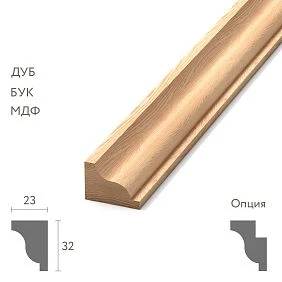
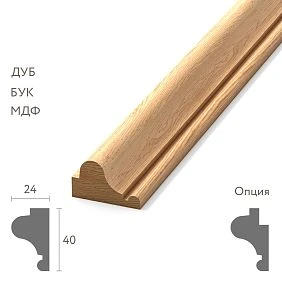
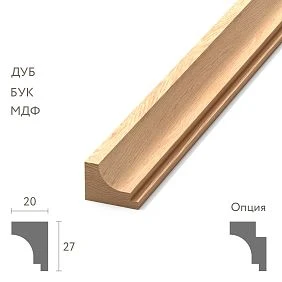
For a working design project, a molding is not just a decorative line in a visualization. It has a real cross-section, width, depth, mounting plane, length, SKU, and a specific role in the assembly. Therefore DWG moldings they are needed primarily where the project transitions from a pretty picture to working geometry: wall elevations, frames, junctions with doors and baseboards, assemblies, linear footage calculations, and specifications.
Workflow:
catalog → SKU → DWG → SECTION → elevation → layout → calculation → specification → order.
It is the cross-section of a specific SKU that links the visual solution to the actual product. If a designer uses one profile in 3D, another in DWG, and a third in the specification, the project starts to diverge before installation even begins.
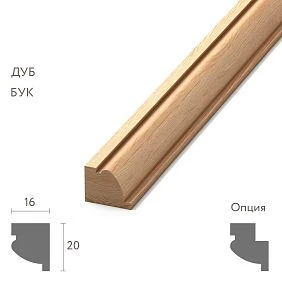
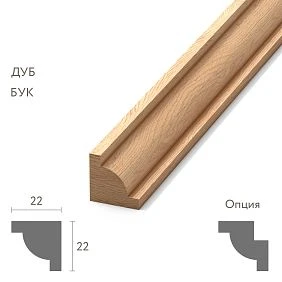
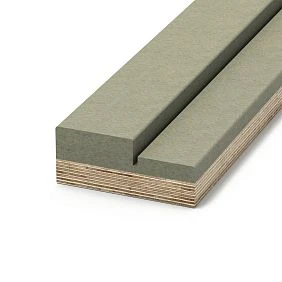
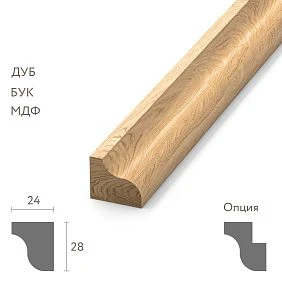
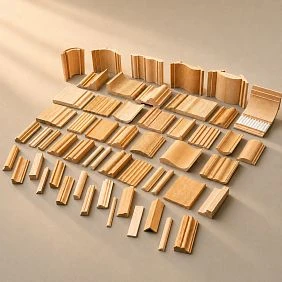
What a molding DWG is and why a designer needs it
A photograph, a 3D model, and a DWG solve different tasks.
A photo shows the appearance.
3D helps to see volume and light-and-shadow in the visualization.
DWG is needed for working geometry.
For molding, the following are especially important:
- width;
- depth;
- cross-section;
- mounting plane;
- position relative to the wall;
- outer contour;
- the real scale.
Therefore download molding DWG makes sense not for the sake of a collection of CAD files, but for the precise alignment of the selected profile with the project documentation.
The main professional principle: for a working drawing, molding is first and foremost the SECTION of a specific SKU.

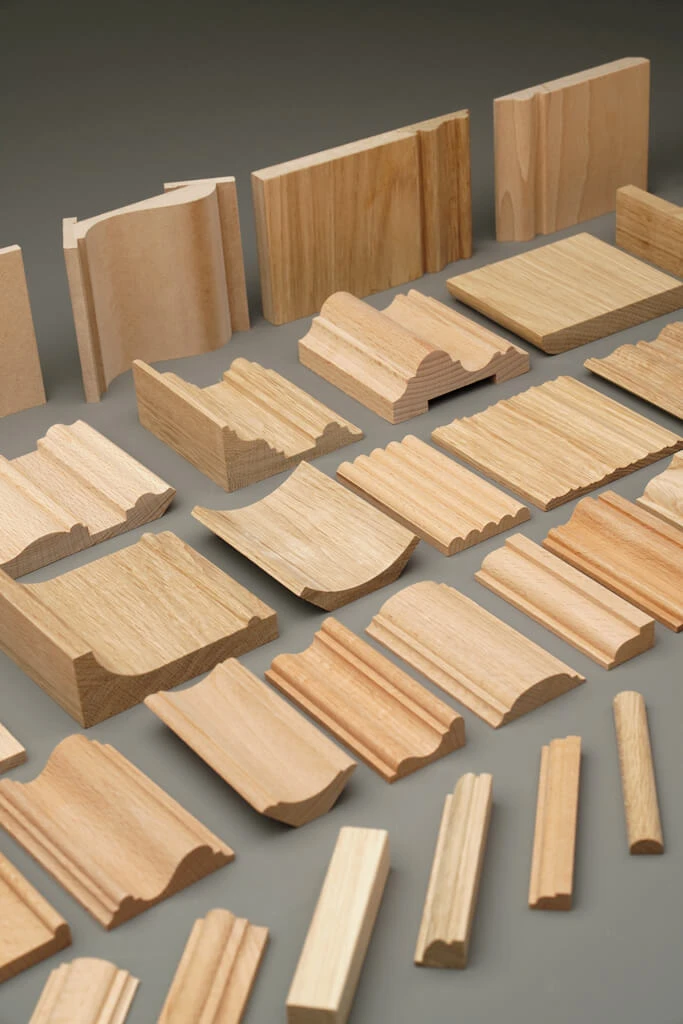


Why a photograph of the molding is not enough
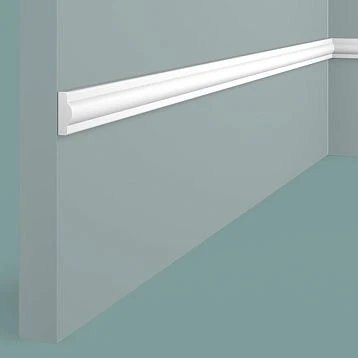
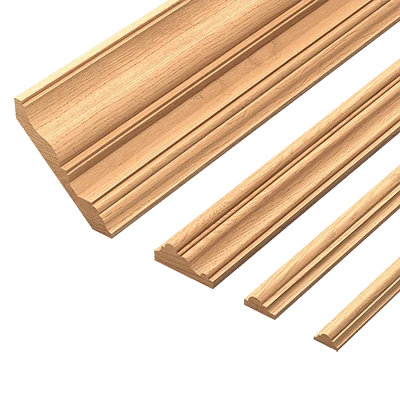
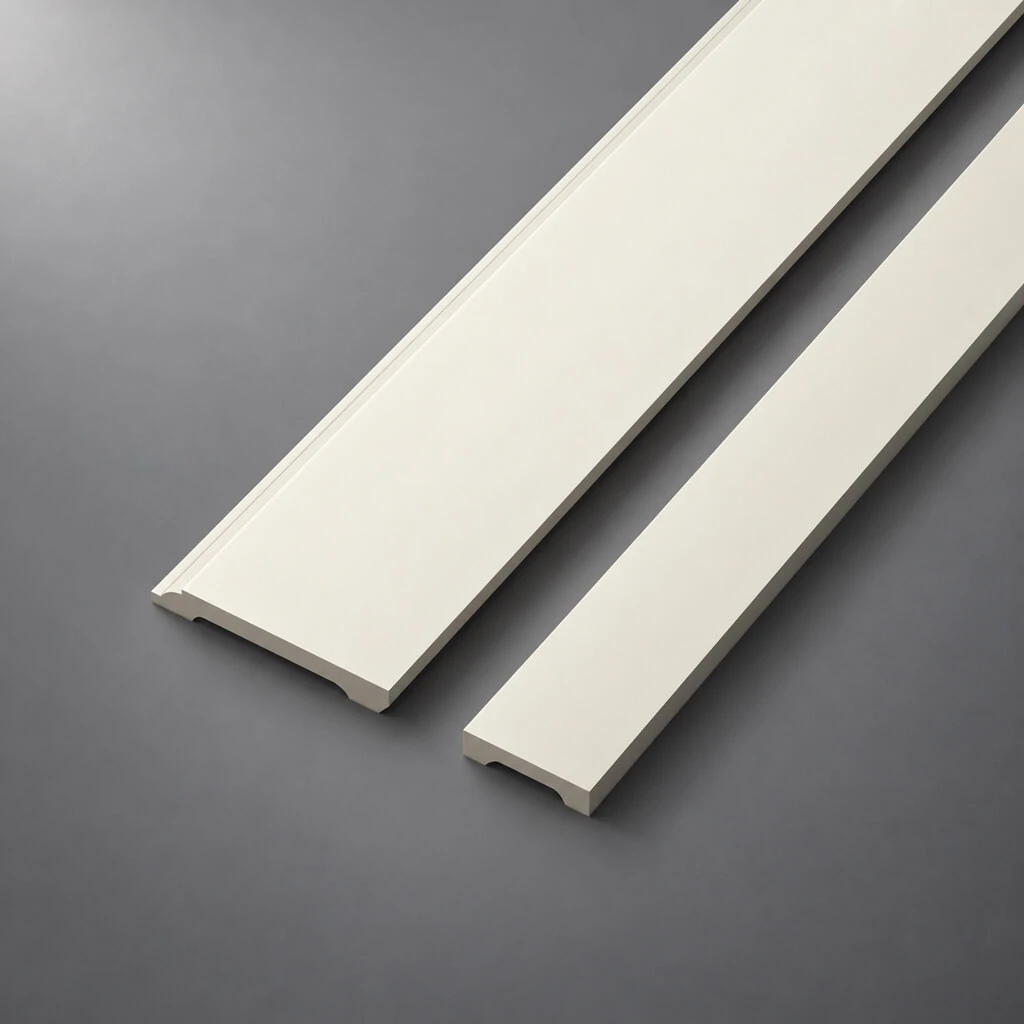
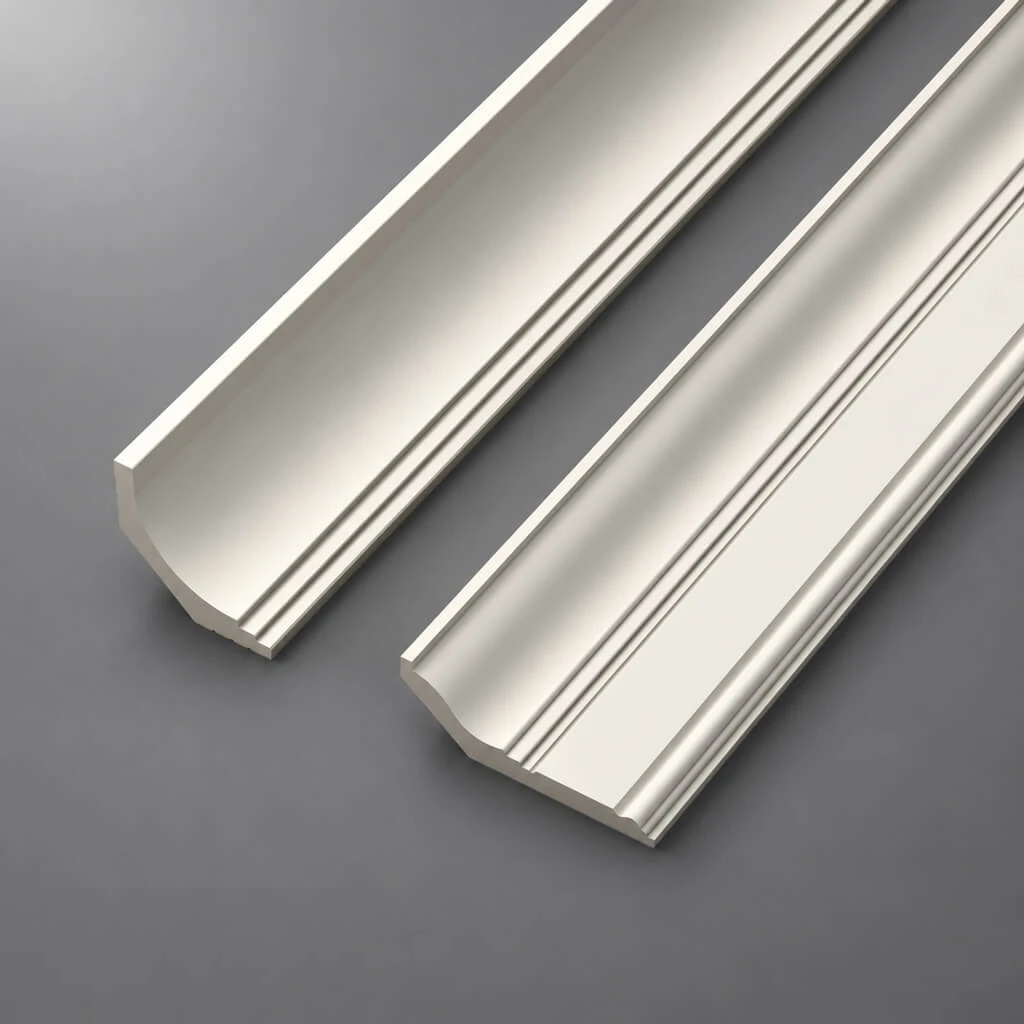
In a photograph, the profile face often looks flat. The camera, lighting, and angle can hide the real depth.
Two moldings 40 mm wide can have completely different cross-sections. The first may protrude 8 mm from the wall and have a soft radius. The second may protrude 20 mm and create a deep shadow. In a frontal photo, the difference is small, but in a real junction near a door, it is critical.
Next to a door casing, two profiles need to be compared by depth. Next to built-in furniture, check whether the molding runs into the side panel of the cabinet. Next to a socket, check whether it covers the frame of the electrical accessory. Next to a wall panel, how the two thicknesses relate.
That is why a working DWG matters more than a catalog preview when a detail is being resolved.
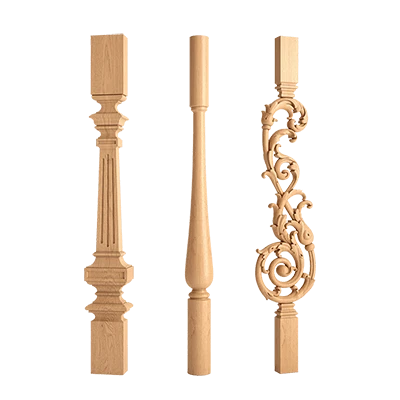
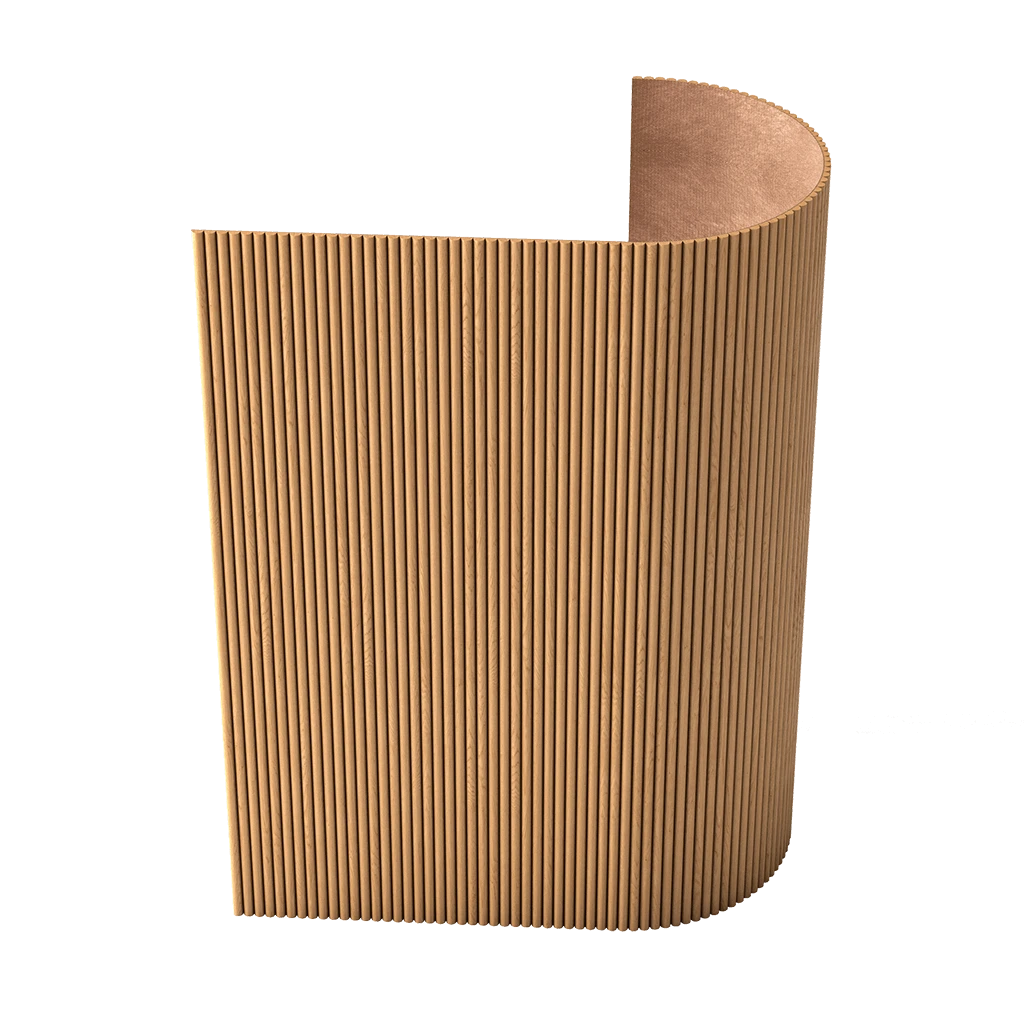
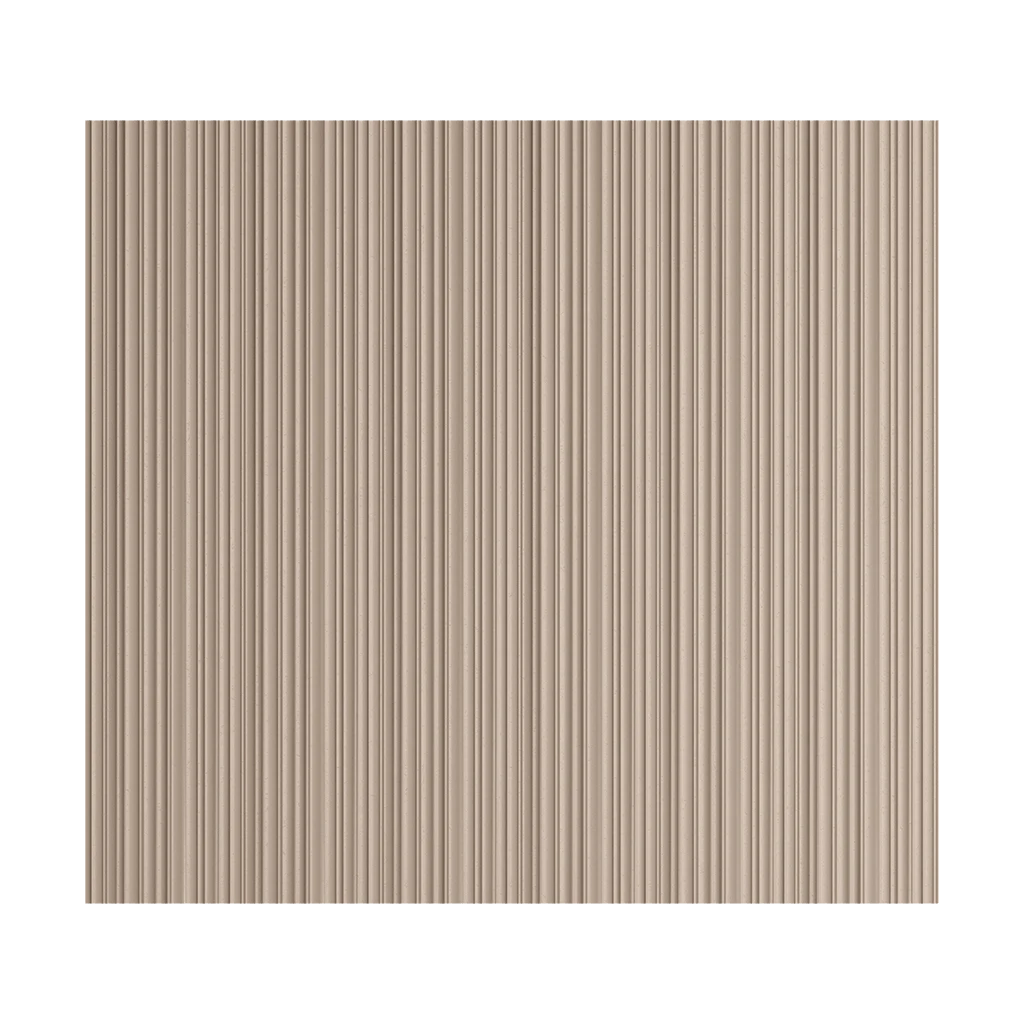
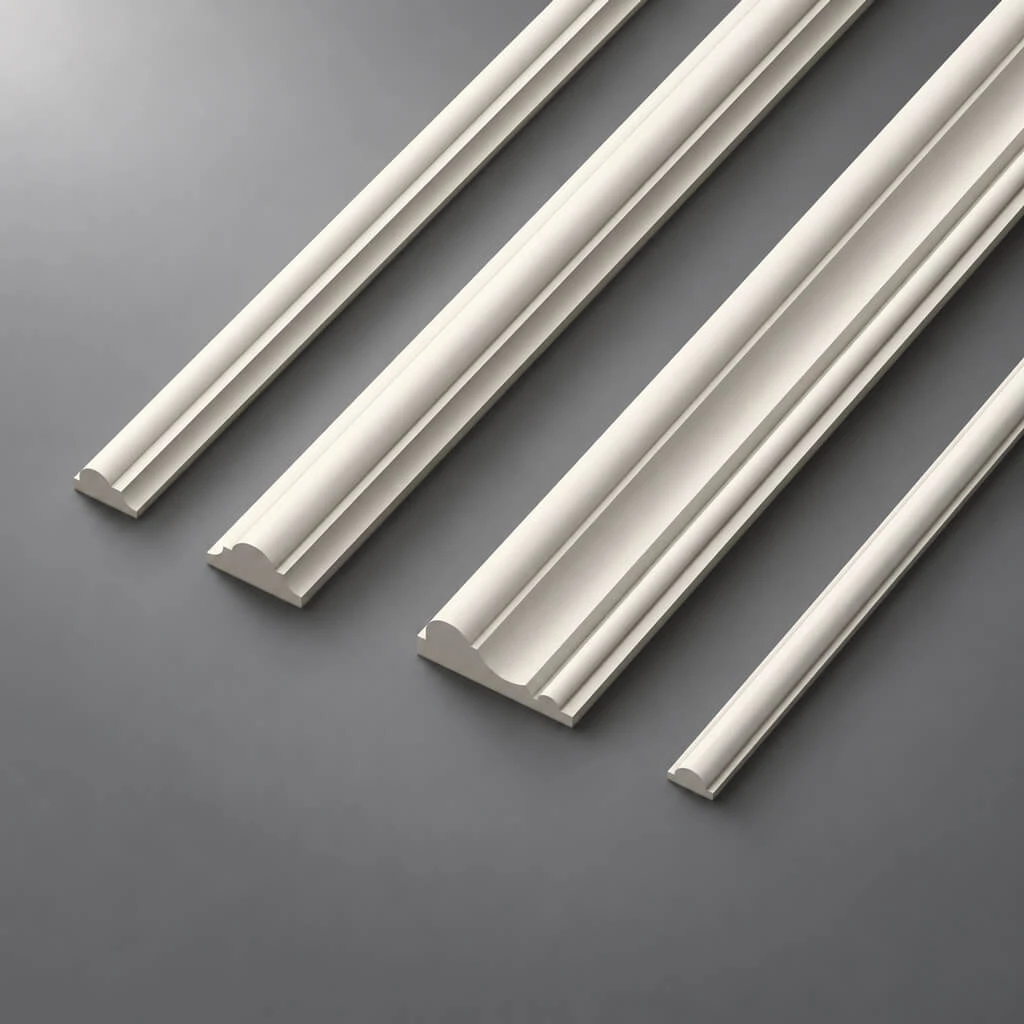
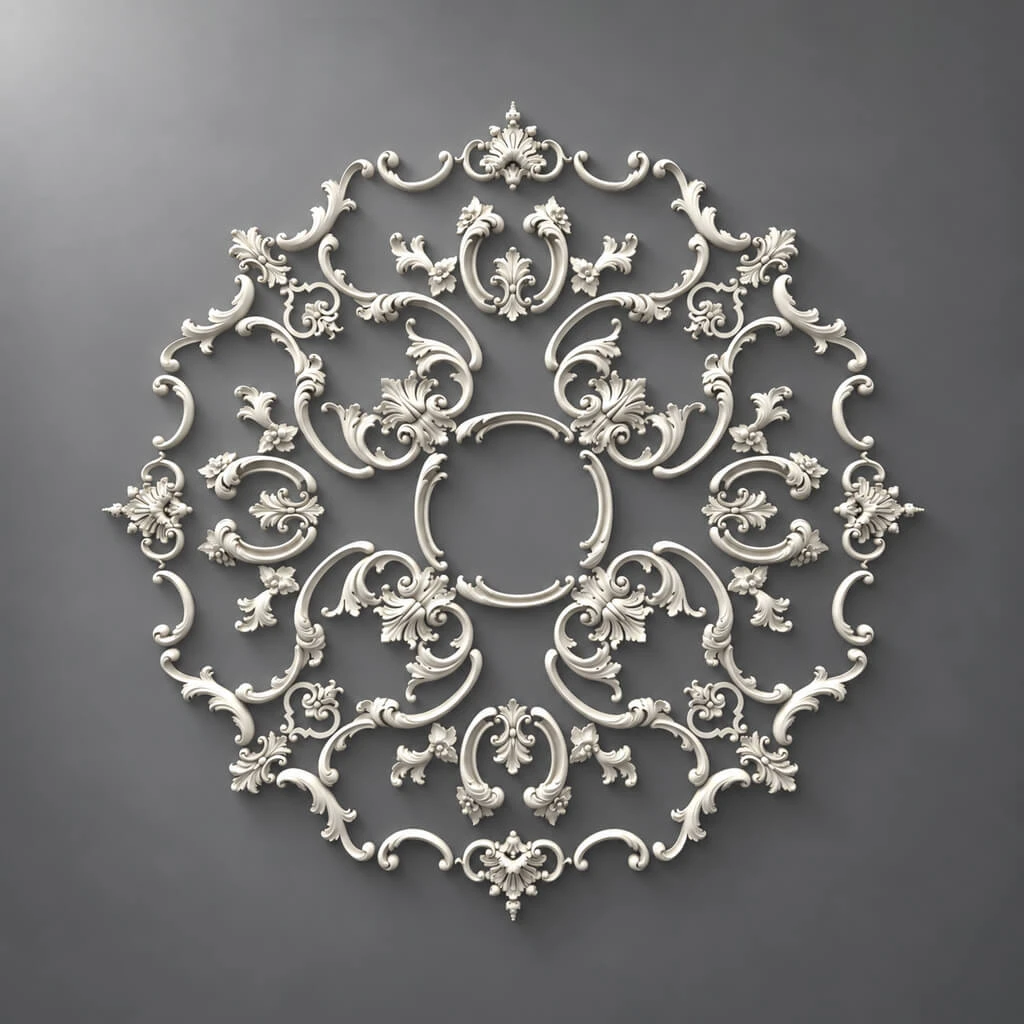
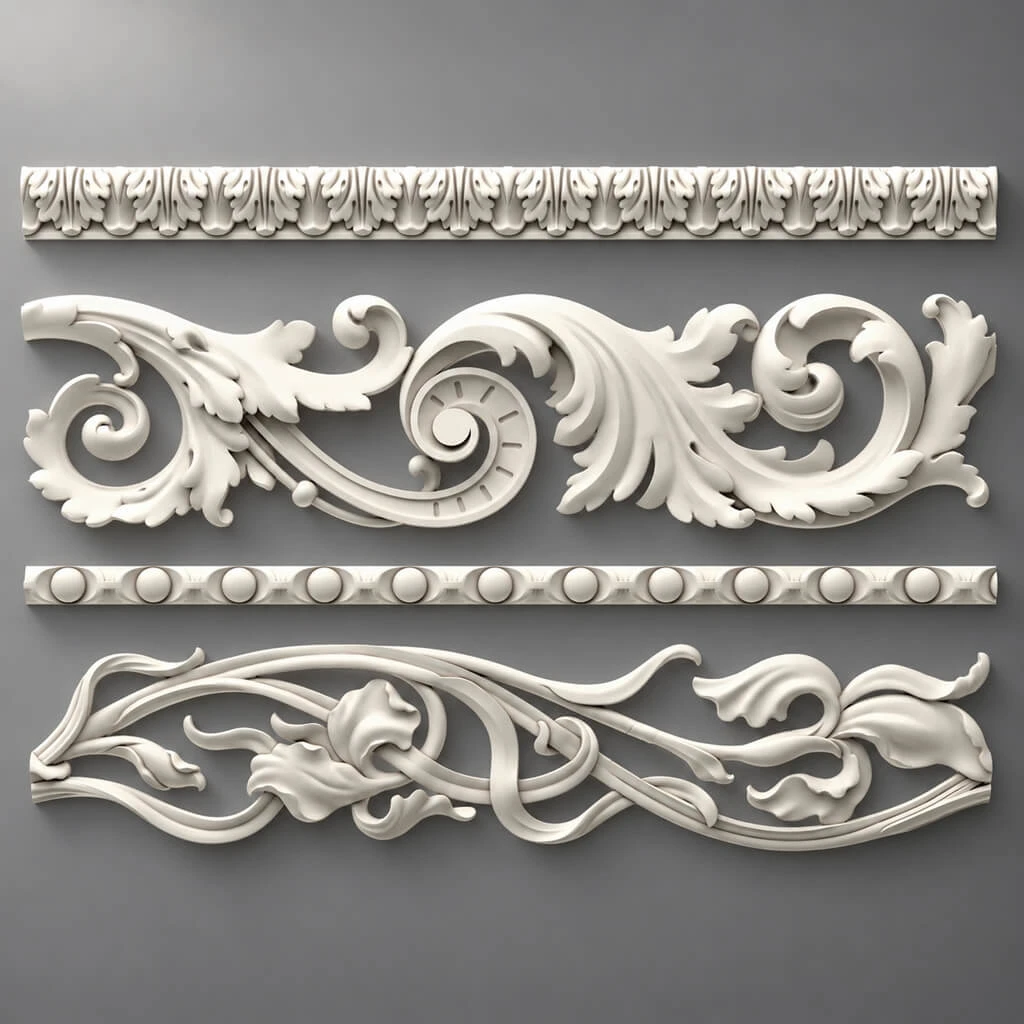
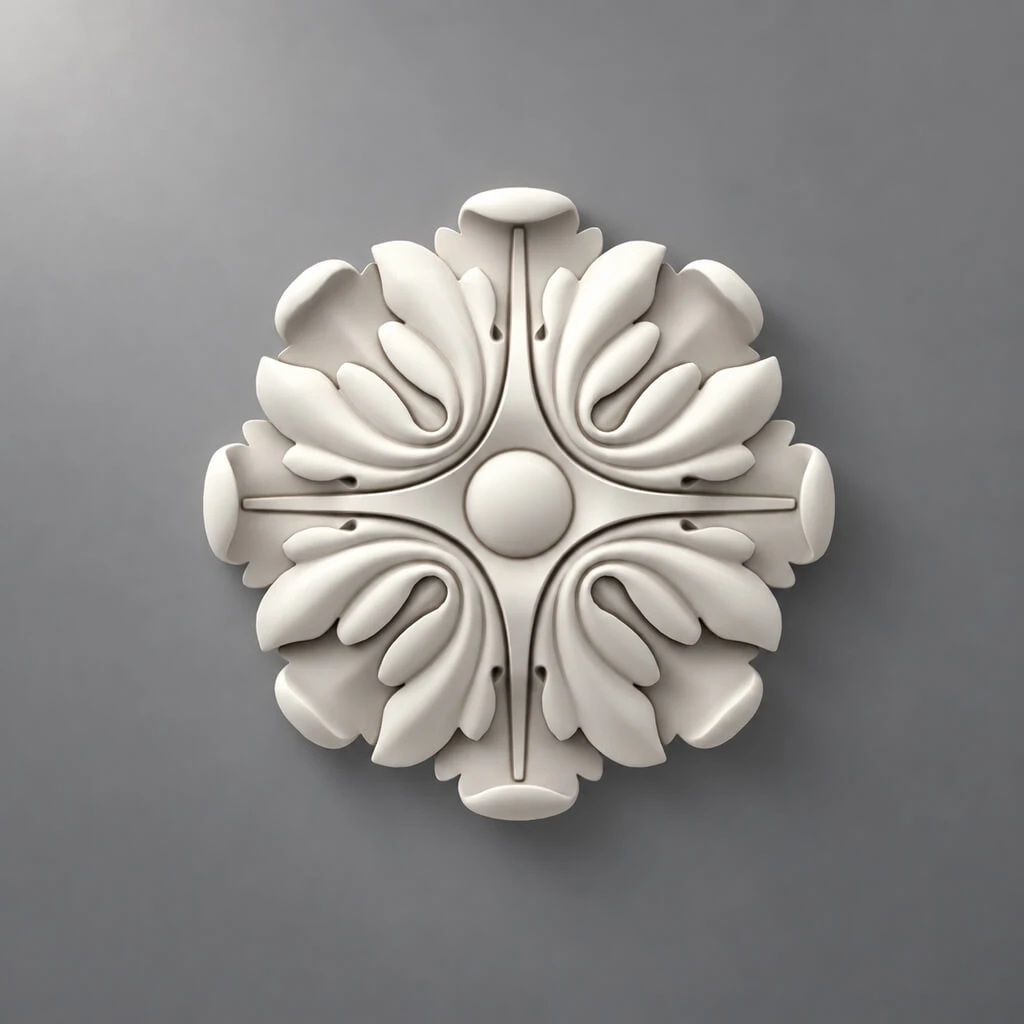
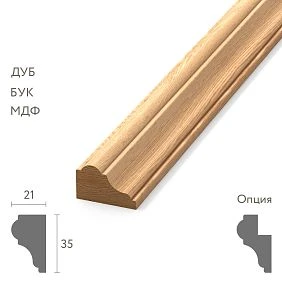
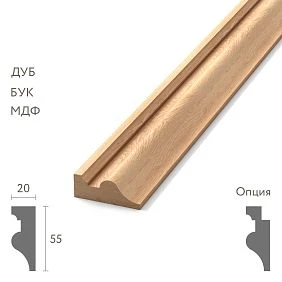
Our factory also produces:
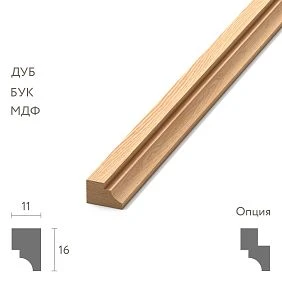
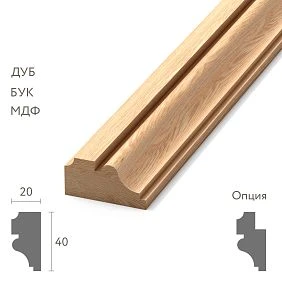
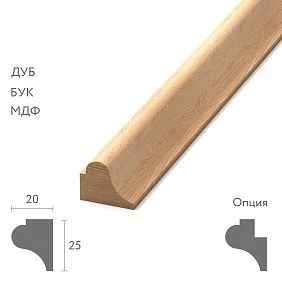
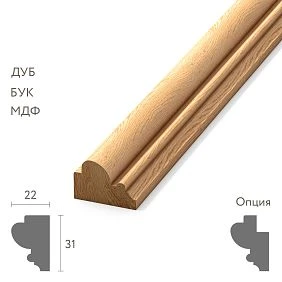
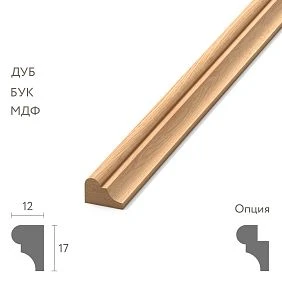
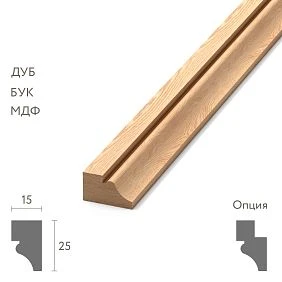
What a molding DWG drawing should include
Before using the file, check:
- outer contour;
- width;
- the depth;
- the mounting plane;
- orientation;
- actual profile;
- units of measurement;
- scale.
If the molding is ornamental, it is additionally important to understand the pattern repeat, especially when the project requires matching the ornament across several segments.
Get Consultation
Outer contour
Must correspond to the actual cross-section.
Mounting plane
Shows which side of the profile sits against the wall.
Depth
Needed for junctions with doors, panels, and furniture.
Width
Defines the inner field of the frame.
Orientation
If the profile is asymmetrical, it cannot be flipped without careful consideration.
Molding DWG files and real article numbers
An unnamed CAD file is almost useless for procurement.
Bad:
Molding_Classic.dwg
Much better:
STAVROS_SKU_SECTION_WidthxDepth.dwg
The link must be preserved:
SKU → DWG → drawing → specification → procurement.
For internal CAD libraries, you can use DWG blocks moldings only after each block has been assigned a clear SKU and the units have been verified.
Project code
Within the project, you can add a short code:
M-01
Then:
M-01 → SKU STAVROS → DWG → URL.
This way, the project code stays short and the product link stays accurate.
How to check the DWG scale after downloading
One of the most common CAD errors is incorrect units.
A profile with a width of 40 mm must not become 400 mm or 0.04 mm after import.
Control procedure:
- open the file;
- measure one known side;
- verify against the product card;
- check units;
- only after that, insert the profile into the working file.
Millimeters, centimeters, meters, and the block insertion coefficient are checked.
You cannot correct the scale "approximately." If the real size is known, an exact coefficient is required.
How to place a molding on a wall elevation
Algorithm:
- import or connect the profile;
- check SECTION;
- build composition boundaries;
- set outer frame dimensions;
- define inner margins;
- set paddings;
- check doors;
- check furniture;
- check sockets and switches;
- assign SKU.
The elevation should already include the door, window, furniture, baseboard, cornice, switches, and light fixtures. Only after that is the decorative grid built.
How to design frames from moldings in DWG
For each frame, the following are fixed:
- outer dimension;
- inner field;
- profile width;
- offset to the floor;
- clearance to the ceiling;
- distance to the adjacent frame;
- distance to the door;
- distance to furniture.
Let's say the outer width of the frame is 1200 mm. The profile is 45 mm.
Inner field:
1200 − 2 × 45 = 1110 mm.
If you replace the molding with a 70 mm profile:
1200 − 2 × 70 = 1060 mm.
The difference in the inner field is 50 mm. It can already affect the mat, sconce, or picture inside the frame.
Vertical and horizontal moldings
Vertical
Height, axis, distance to the door, junction with the skirting board, and adjacent furniture are checked.
Horizontal
The elevation, countertop level, window sill, door lintel, panel height, and furniture are checked.
The horizontal line must be tied to the architecture, not run randomly.
Molding near the door casing
The DWG must show:
- the edge of the casing;
- edge of the molding;
- actual offset;
- depth of the casing;
- depth of the molding.
The front view shows the distance between the profiles. The section shows which one protrudes forward.
In a render, a difference of a few millimeters may be unnoticeable. A working section makes the detail unambiguous.
Molding and baseboard
Options:
- the vertical ends above the baseboard;
- reaches the baseboard;
- is included in the overall panel system;
- connects through an intermediate element.
You need to compare the protrusions of both profiles. If the baseboard protrudes more, the molding can visually enter into it. If the molding protrudes more, a step appears.
Molding and ceiling cornice
If the framed composition rises high, check the lower mark of the cornice, the top of the frame, the free field, and the depth of the profiles.
Too small a gap creates a random strip of wall. Too large a gap can destroy the vertical connection.
How to design corners
Inner corner
The profile meets the junction of two walls. You need to check the cross-section and the method of trimming.
External corner
Especially sensitive to profile depth.
Frame angle 45°
Classic scenario for a straight profile.
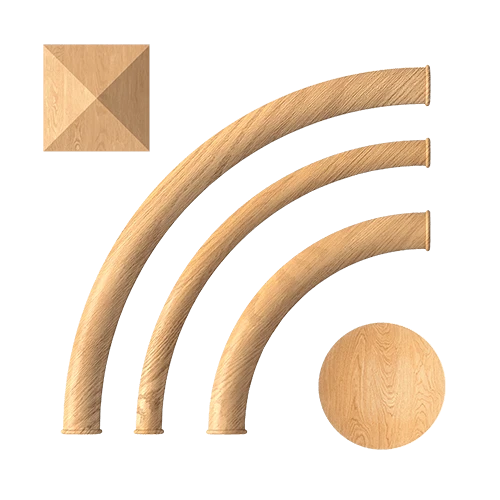
Ready-made corner element
Decor for Molding can replace a standard 45-degree corner with a decorative detail. Then you need to check the size, compatible profile, orientation, and inner field.
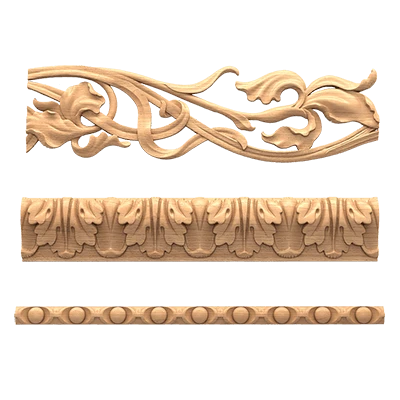
Ornamental molding: why a DWG alone is not enough without a repeat
If the profile is ornamental, the same geometric length does not always mean the same consumption.
Suppose the ornament repeats every 300 mm. A part 1350 mm long contains 4.5 repeats. If the pattern must end symmetrically, additional length will be required for matching.
Therefore, the cutting map must take into account not only millimeters but also the pattern.
How to create a cutting map for moldings
Example:
| Code | Detail | Length | Quantity |
|---|---|---|---|
| M-01-V | Vertical | 1950 мм | 4 |
| M-01-H | Horizontal | 1350 мм | 4 |
| M-02-V | Vertical | 1200 мм | 2 |
Next, the parts are distributed across the product strips.
The purpose of the cutting map is to understand not only the total linear meters, but also how many whole strips are needed, which offcuts can be used, and where the pattern does not allow an offcut to be used.
How to calculate moulding from DWG
The total linear meters of frames are calculated from the geometry, while purchasing is based on the actual product lengths and the cutting map.
For a rectangular frame:
2 × height + 2 × width.
For example, a frame 1950 × 1350 mm:
2 × 1.95 + 2 × 1.35 = 6.6 m.
If there are four such frames:
6.6 × 4 = 26.4 m.
But the purchasing volume may be larger due to:
- corners;
- trims;
- pattern repeat;
- defective offcut;
- inability to use a short offcut;
- the selected commercial length.
Why total linear meters alone are not enough
Suppose 26.4 m is required, and one strip has a fixed commercial length. You cannot simply divide the total linear meters and round up without checking the details.
More importantly, break down the actual cut lengths:
- 1950 mm;
- 1350 mm;
- 1200 mm;
- other working dimensions.
After that, it is clear which parts can be obtained from one strip.
When the remainder of the molding can be reused
The remainder is useful only when it matches the next part.
Checked:
- length;
- quality of the end;
- ornament;
- direction;
- the next required size.
Example
After the 1950 mm segment, a short fragment remains.
If the next element is 1200 mm and the remainder is shorter, it no longer helps.
If the next element is 600 mm, the remainder can be used.
Ornamental profile
Even sufficient length does not guarantee reuse.
The pattern may not match in repeat.
Practical conclusion
The cutting map is more important than the overall waste percentage figure.
DWG for straight and flexible moulding
If the project has a curved wall or arch, you cannot simply "bend" a straight profile in AutoCAD and consider the product resolved.
You need to:
- determine the actual radius;
- check whether a suitable flexible option exists;
- verify the cross-section;
- confirm the installation method;
- only after that, build the assembly.
The design geometry must match the actual product.
Why this is important
A straight molding in CAD can be deformed almost any way you like.
A physical profile does not work that way.
Therefore, any radius scheme must be confirmed by a product solution, not just by a beautiful line on the plan.
How to use DWG together with a 3D model
The correct combination:
3D — visual coordination.
DWG — working geometry.
SKU — purchasing.
All three levels must describe the same item.
For the visual stage, you can use 3D models of moldings, and for the technical stage — CAD models of moldings.
What to check between 3D and DWG
- the same article number;
- same size;
- the same profile;
- same orientation.
Common mistake
The 3D has an impressive wide profile, while the DWG has a simpler and thinner one.
The client approves one composition, the installation team receives another.
How to avoid
The SKU must be recorded:
- in the name of the 3D object;
- in the DWG block;
- in the specification;
- in the project folder.
DWG moldings in AutoCAD
For AutoCAD, it is useful to follow a simple standard.
Separate layer
For example:
A-DECOR-MOLDING
or the studio's internal standard.
Clear block name
For example:
STAVROS_MLD-XXX_SECTION
SKU in the name
This way the file keeps its product link.
Correct scale
Checked right after insertion.
Original file
It's better to store the source separately and not blow it up unnecessarily.
Why this is convenient
If a block is used in several projects, it can be quickly found and updated.
For the studio library drawings of polyurethane products it is useful to save together with the upload date and a link to the current product page.
How to store DWG in the project folder
Example structure:
/DECOR/STAVROS/MOLDINGS/
For each item:
- DWG;
- 3D;
- screenshot;
- SKU;
- URL;
- upload date;
- comment.
What is best to avoid
molding-final.dwg
molding-final-2.dwg
molding-new-final.dwg
Such names do not indicate which product was used.
Versions
If the working file changes:
STAVROS_SKU_SECTION_v01
STAVROS_SKU_SECTION_v02
Why the upload date is useful
If the file was used a year ago, it must be verified against the current product card before starting a new project.
How to transfer a molding from DWG to the specification
Example fields:
| Field | Value |
|---|---|
| Project code | M-01 |
| Manufacturer | STAVROS |
| SKU | specific SKU |
| Profile size | mm |
| commercial length | mm |
| Estimated linear meters | м |
| Number of planks | pcs. |
| Room | Living room |
| URL | card / category |
| Status | APPROVED / ORDERED |
Project code
M-01 convenient to use on a drawing.
SKU
Needed for purchasing.
Profile size
Allows you to quickly check that no other molding was included in the project.
Product length
Needed for the cutting map.
URL
Speeds up re-checking.
Why it is not enough to write “polyurethane molding” in the specification
Because dozens of different profiles fit this phrase.
For procurement, you need:
- SKU;
- cross-section;
- dimensions;
- product length;
- quantity;
- room;
- application area.
The phrase "polyurethane molding" works as a category, but not as an order line.
The project must lead to a specific item from the section Moldings made of polyurethane.
How to check the specification before procurement
Final check:
DWG ↔ SKU ↔ product page ↔ size ↔ quantity.
If even one item doesn't match, the order isn't ready yet.
Check 1. SKU
Does it match the block in the DWG?
Check 2. Size
Does it match the actual profile?
Check 3. Linear footage
Does it match the cutting map?
Check 4. Number of strips
Was it derived from actual segments, not just the total linear footage?
Check 5. Room
Is there any mixing of multiple zones?
Check 6. Revision
Is the latest DWG version being used?
How to buy moldings after preparing the DWG
The commercial stage begins after the technical selection of the profile.
First:
DWG → real SKU → linear footage → number of strips.
Only after that — the order.
For an approved profile, you can buy polyurethane moldings by the specific SKU from the specification.
If you need a wall profile, go to the category buy polyurethane wall molding should take place only after checking the cross-section and joints.
What to check before payment
- article number;
- size;
- quantity;
- length;
- availability;
- current price;
- the latest revision of the project.
How to use decorative elements together with molding
In a complex frame, one profile may not be enough.
decorative polyurethane elements can be used as central, side, or corner elements.
Polyurethane wall decor may complement the frame composition, but its dimensions need to be checked within the actual inner field.
What must be checked in the DWG
- element dimensions;
- axis;
- offset to the molding;
- orientation;
- free field.
Why you cannot select the overlay separately
Replacing the molding changes the inner size of the frame.
An overlay that fit before may become too large.
How to connect the molding with the overall stucco system
Molding often does not work alone.
The project may include:
- cornice;
- rosette;
- wall overlay;
- plinth;
- portal.
Therefore, it is useful to consider Polyurethane moldings as a common product system, and a specific molding as one of its technical profiles.
When this is especially important
If the same wall contains:
- frames;
- cornice;
- Plates;
- door portal.
Different elements must be coordinated in scale and depth.
How to check a DWG on a complex wall
For a wall with a door, furniture, and panels, a multi-level check is useful.
Level 1. Overall composition
Symmetry is checked.
Level 2. Frames
Dimensions and spacing are checked.
Level 3. Nodes
Door, baseboard, cornice, panels.
Level 4. Section
The actual profile is checked.
Level 5. Procurement
SKU and quantity are checked.
This is how DWG becomes not just a picture of a wall, but a working tool for specification.
Common mistakes when working with DWG moldings
Mistake 1. Incorrect units
Consequence: the profile is 10 or 100 times larger.
How to avoid: verification measurement.
Mistake 2. Unnamed block
Consequence: it is impossible to identify the SKU.
How to avoid: include the SKU in the name.
Mistake 3. Profile replaced after visualization
Consequence: the internal dimensions of the frames have changed.
How to avoid: update the 3D, DWG, and specification at the same time.
Error 4. Cut not checked near the door
Consequence: protrusions conflict.
How to avoid: separate unit.
Error 5. Only total square footage calculated
Consequence: not enough whole planks.
How to avoid: cutting map.
Error 6. Ornament not taken into account
Consequence: pattern repeat does not match.
How to avoid: separate pattern check.
Error 7. Remainder automatically considered usable
Consequence: a real short fragment doesn't fit anywhere.
How to avoid: distribute the leftovers across specific parts.
Error 8. DWG and specification of different revisions
Consequence: the wrong profile gets purchased.
How to avoid: version number on both documents.
When a molding DWG is especially needed
Complex frames
Where there are many dimensions and junctions.
Portals
Where the profile meets the casing.
Tall panels
Where the frames are connected to the cornice and baseboard.
Wall panels
Where depth matters.
Curved walls
Where a straight profile cannot be used conditionally.
Large object
Where the same SKU is repeated dozens of times and the error scales.
FAQ
How does a molding DWG differ from 3D?
3D is needed for visual volume, DWG — for precise cross-section, dimensions, references, and working documentation.
What should be checked first after downloading a DWG?
Units of measurement and the profile's control dimension.
Can you simply draw a similar profile manually?
For the concept — yes. For final working documentation, it is better to use the geometry of a specific SKU.
Should SKU be specified in AutoCAD?
Yes. This is the most reliable way to link the drawing to procurement.
How to calculate frames?
Along the perimeter of each frame, then convert the total linear meters into a cutting map based on the actual planks.
When is a separate section needed?
Near a door, panel, furniture, skirting board, and other places where profile depth matters.
What to do with leftovers?
Use only if the length, orientation, and repeat allow them to be used in the next part.
Where to get DWG and 3D STAVROS?
In the downloads section, you can use STAVROS for designers and architects as a professional entry point, and the project materials themselves — via the downloads page.
Where can I view product categories?
В the STAVROS catalog you can go to moldings, stucco, and related categories.
Final workflow
1. Select an SKU.
Do not start with an unnamed DWG.
2. Download the DWG.
3. Check the units.
4. Check the SECTION.
5. Place the profile on the elevation.
6. Build the frames.
7. Check the door, baseboard, cornice, and furniture.
8. Check the corners.
9. Take into account the ornamental repeat, if any.
10. Create a cutting map.
11. Calculate the geometric linear meters.
12. Convert it into the number of commercial planks.
13. Link the DWG to the specification.
14. Check the SKU and revision.
15. Place the order.
How to compare two molding profiles in CAD before approval
DWG is especially useful when a designer is choosing between two similar profiles.
In a photo, they may look almost identical. In cross-section, the difference becomes obvious.
They should be compared along a single baseline
Place two SECTIONs on the same mounting plane and compare:
- total width;
- the depth;
- the nature of the curvature;
- the top and bottom edges;
- the position of the maximum projection.
Example
Profile A:
- width 40 mm;
- depth 10 mm.
Profile B:
- width 55 mm;
- depth 22 mm.
If the frame has an outer dimension of 1000 mm, the inner field in width:
for A:
1000 − 2 × 40 = 920 mm;
for B:
1000 − 2 × 55 = 890 mm.
The difference is 30 mm.
But in depth, B protrudes more than twice as much. This means that near a door or a built-in wardrobe, the geometric consequence is even more noticeable than the difference in the inner field.
Why this test is more useful than a catalog comparison
It shows not “which one is more beautiful,” but which profile is better suited to a specific junction.
How to prepare DWG moldings for the release of working documentation
Before releasing sheets, the CAD file must be brought to the project's unified standard.
Check layers
Moldings must not accidentally be on the furniture, electrical, or general outline layer.
Check line types
The outline, axis, and hidden lines must be unambiguous.
Check dimensions
The sheet should contain only the working dimensions that are actually needed for installation.
Check labels
Instead of “classic molding,” it is better to use:
M-01 / STAVROS / SKU.
Check sections
If the profile is part of a joint, the cut must be included in the documentation set.
Check the legend
For multiple profiles, a mini-table is useful:
| Code | SKU | Profile size | Zone |
|---|---|---|---|
| M-01 | … | … mm | Living room |
| M-02 | … | … mm | Hall |
| M-03 | … | … mm | Bedroom |
This way, the installer and the kit assembler read the same notation system.
How to transfer a DWG from the design department to kit assembly
The transfer must include more than just the AutoCAD file.
The kit assembler needs:
- up-to-date DWG;
- release PDF;
- the SKU list;
- calculated linear meters;
- cutting map;
- number of planks;
- URL;
- status;
- last check date.
Why PDF is also needed
DWG — the architect's working environment.
PDF records a specific issued revision.
If the CAD file was changed later, it is possible to restore exactly what was sent for procurement.
Revision number
For example:
MOLDINGS_R03
The same revision must be indicated:
- on the PDF;
- in the specification;
- in the commercial request.
How to verify a SKU replacement without recalculating the entire project
Sometimes the source profile becomes unavailable or changes for commercial reasons.
It cannot be replaced based on width alone.
The new molding must be overlaid on the old SECTION and compared:
- width;
- the depth;
- outer contour;
- the mounting plane;
- ornament;
- product length.
If the width has changed
The internal frame margins are recalculated.
If the depth has changed
The nodes at the door, furniture, and panels are rechecked.
If the commercial length has changed
The cutting map is recalculated.
If the ornament has changed
The repeat and visualization are checked.
Only after this can the new SKU be considered a full replacement.
When a DWG profile can be simplified
It is not always necessary to keep maximum detail in a working file.
If the project is at an early stage, a simplified contour is sufficient for the layout.
But by the working documentation stage, critical nodes must use a real SECTION.
Acceptable simplification
You can use:
- bounding profile;
- a conditional line;
- a simplified section.
But the object must be marked as preliminary.
When simplification becomes dangerous
- near the casing;
- in a niche;
- at the furniture facade;
- next to the panel;
- in a complex corner;
- when calculating the inner field of the frame.
These places require a real profile.
Final check before release
Before considering the DWG ready, answer ten questions:
- Does the molding have a real SKU?
- Does the SECTION match the product?
- Are the units verified?
- Is the mounting plane specified?
- Does the profile match the 3D?
- Are the doors and furniture verified?
- Is the baseboard junction resolved?
- Is the repeat taken into account?
- Is there a cutting map?
- Does the specification match the current revision?
If all answers are positive, the drawing can be used as a basis for a commercial order, not just as a decorative scheme.