

Article Contents:
- Start with a product that can be included in the project
- What data to take from the product card before modeling
- System units and display units are different settings
- After import, measure a known dimension
- Why Scale and Reset XForm do not confirm matching the product
- A ready-made model and extruding a section solve different tasks
- Prepare the section at one-to-one scale
- How to build a rectangular frame using Sweep
- The profile anchor determines the position of the frame on the wall
- Internal size, anchor line, and external dimensions
- The angle in the model must match the assembly method
- Ornamental moldings are modeled while preserving the repeat
- Identical frames are convenient to duplicate as instances
- Frames of different sizes need a common profile and different paths
- The object name must preserve the article number
- Check the relief under frontal and side lighting
- Texture helps the finish but does not replace form
- Compare narrow and wide moldings as different products
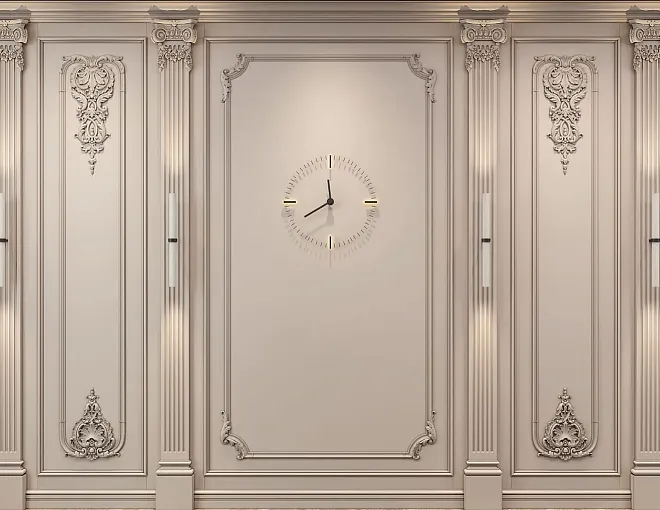
- Check the frame together with the casing, skirting board and cornice
- A curved trajectory requires a suitable product
- Place corner decor as separate product items
- Complete render approval by checking a sample
- How to transfer frames from 3ds Max into calculation
- Check before releasing the scene and placing the order
- How to buy mouldings that are approved in 3ds Max
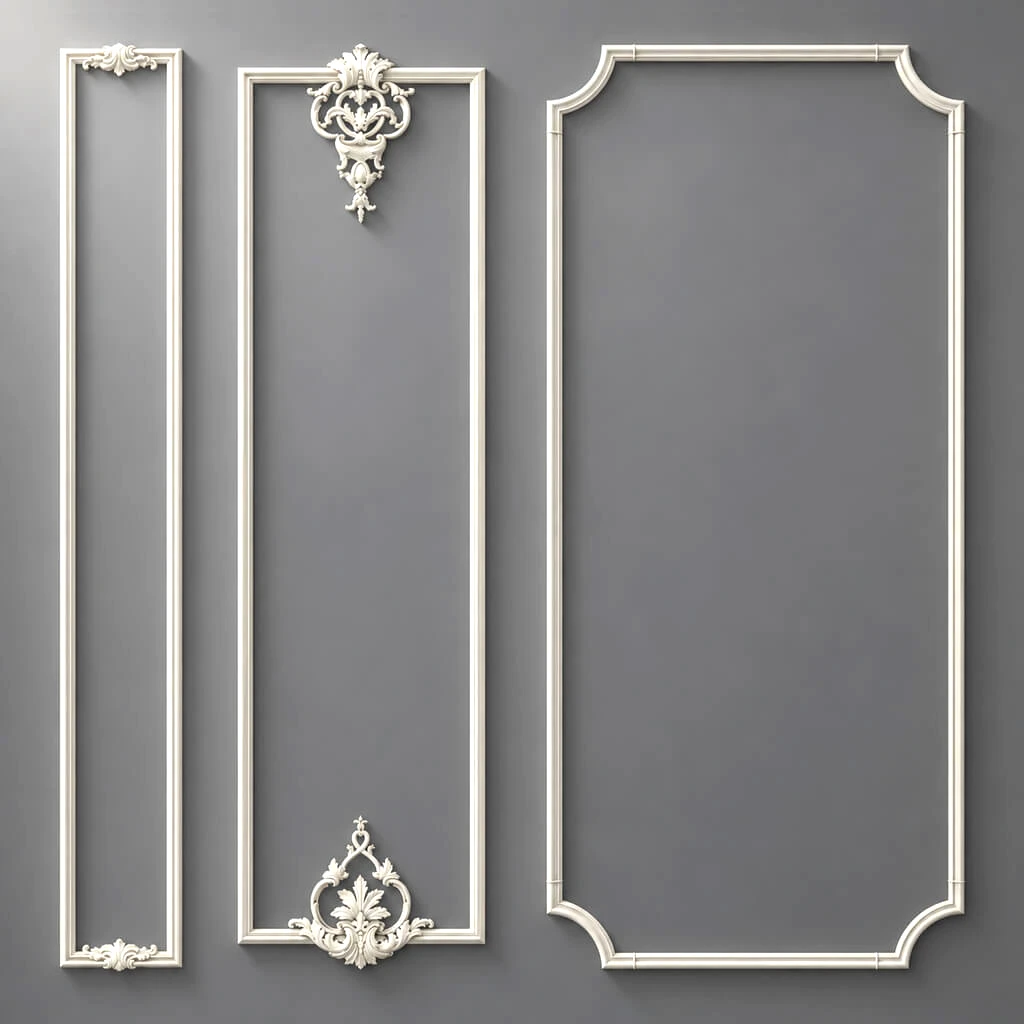
A moulding frame can look convincing in a visualization and turn out to be unfeasible from the selected product. It is enough to increase the finished model in width, slightly change the depth of the relief, or stretch the ornament to the required length. The client approves the image, and the order assembler receives the task of finding a profile that is not in the catalog.
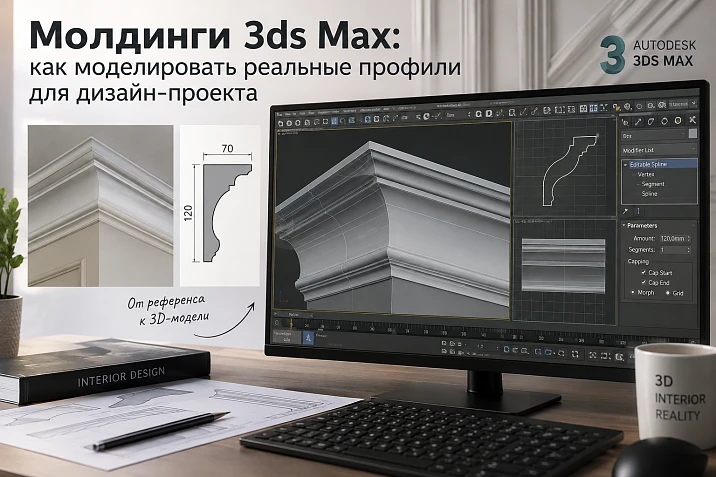
To keep mouldings in 3ds Max connected to the real interior, first select the product and check its dimensions. Then the finished geometry is placed in the scene, or a frame is built according to the actual section. The dimensions of the composition are changed via the trajectory while preserving the width, depth and shape of the profile.
Next, check the corners, repeating elements, lighting and adjacent structures. After approval, the item code goes into the layout and specification. This order allows the visualization to be used to select specific mouldings that can then be calculated and purchased.
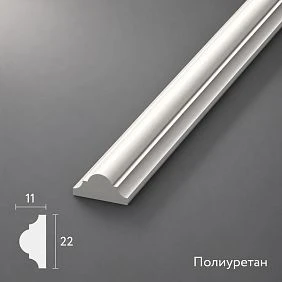
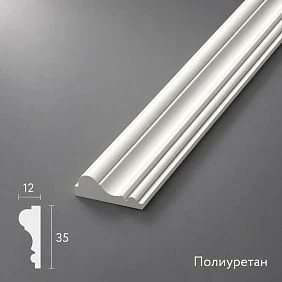
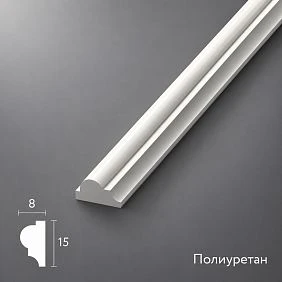
Start with a product that can be included in the project
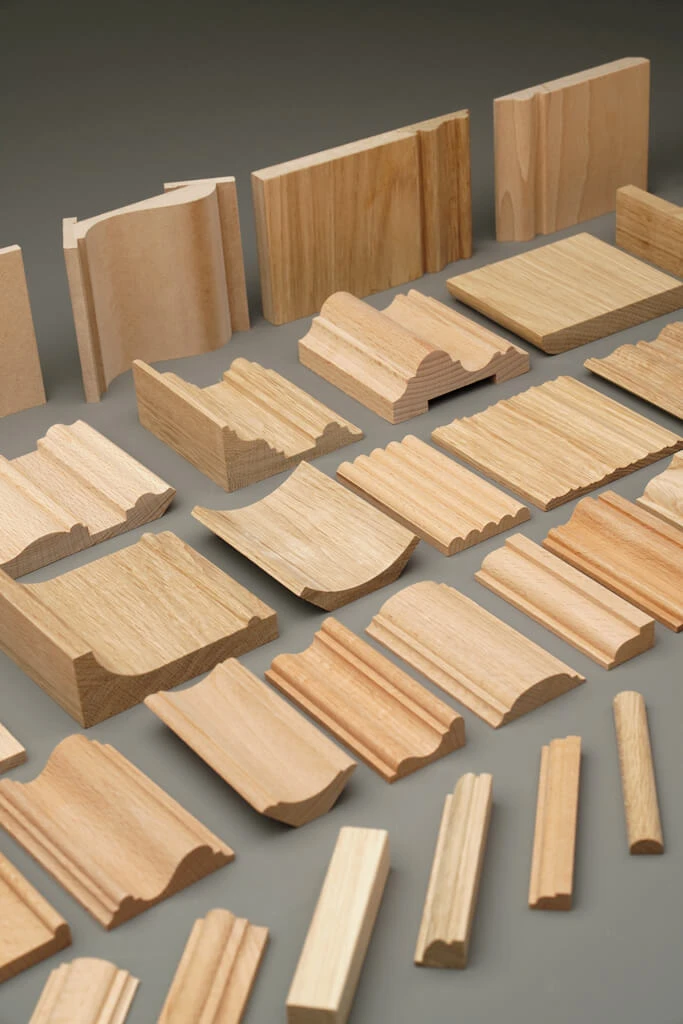
A random profile from the library is suitable for a preliminary search of the composition. To approve the actual product, it needs confirmed dimensions and a product code. A silhouette match in a small image is not enough: similar moldings can have different projection, light and shadow, and corner joints.
Select several candidates in the catalog moldings from polyurethane, save the links, and separate them in the scene by option. Assign a project code to each profile, for example "ML-01". It links the object to the documentation, while the manufacturer's product code determines the model to purchase.
If, after viewing the interior, a wider molding is required, return to product selection. A section modified on your own can be used as a design idea, but it must not continue to be presented as the former serial product code.
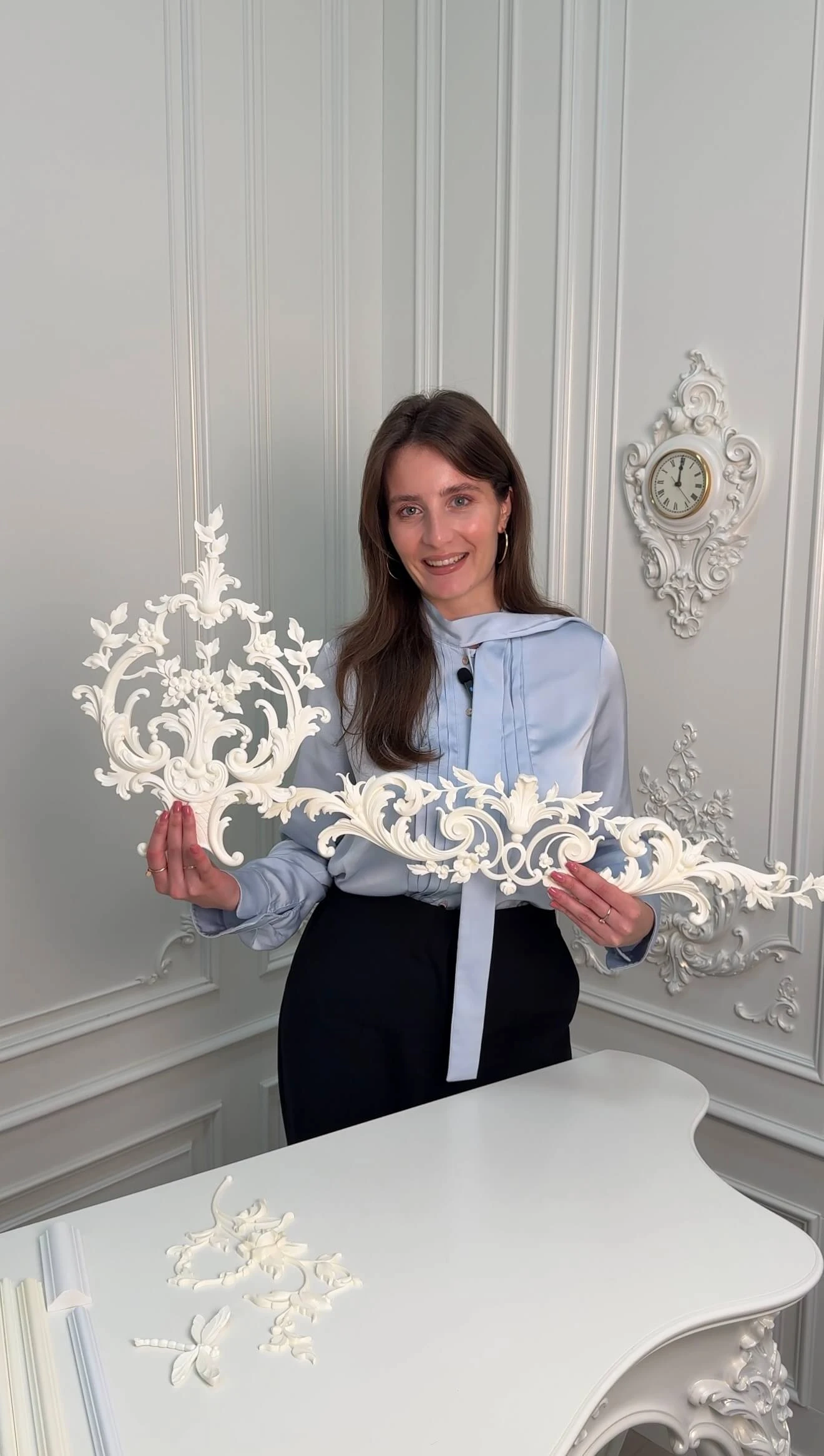

What data to take from the product card before modeling
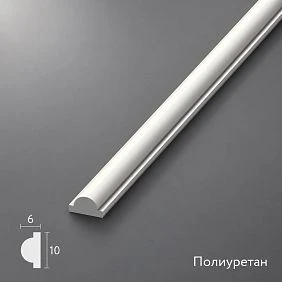
In the product card molding MLDPU-003 dimensions A × C × L are specified: 35 × 12 × 2600 mm, and the material is polyurethane. Links to the drawing and 3D model are also provided. This information allows you to set a verifiable initial position.
| Data | Why they are needed in the scene and documentation |
|---|---|
| Manufacturer and item code | Unambiguously identify the selected product |
| Section width and depth | Check the scale and profile offset |
| commercial length | Then calculate the whole planks |
| Material | Save the selected variant |
| Mounting side | Position the profile correctly against the wall |
| Drawing and model | Match the digital geometry with the product |
| Link to the product card | Return to the position during approval and ordering |
For the meaning of the dimension letters, refer to the diagram for the specific product. Overall dimensions alone do not describe all the curves of the cross-section: a 35 × 12 mm rectangle does not yet become an accurate model of a decorative molding.
Our factory also produces:

System units and display units are different settings
In 3ds Max, display units determine how dimensions are written in the interface. System units set the internal scale of the scene. Switching the display from centimeters to millimeters does not change the physical size of the geometry. This distinction is covered in Autodesk documentation on units of measurement.
Before creating a new scene, set a consistent scale. For working with profile dimensions, displaying in millimeters is convenient, but this does not mean that any finished interior scene needs to be converted to a different system unit.
In the standard menu unit settings are located in Customize → Units Setup; a separate System Unit Setup button opens the system settings. Autodesk recommends defining them before creating or importing geometry, rather than switching them arbitrarily within a finished project. The names of interface elements below are given in English to make them easier to find.
Get Consultation
After importing, measure a known dimension
Import the profile first into a test scene or a separate working copy of the project. Measure the width and depth of the cross-section in a suitable orthographic projection. For a long strip, also check the length. The size of a rotated object along the world axes is not always equal to the size of its own cross-section.
If you get 350 mm instead of 35 mm, determine which units were used in the source file and during import. A unit error is characterized by the same ratio across all corresponding dimensions. If the width differs by a factor of ten while the depth differs by another proportion, a single unit conversion cannot explain the problem.
Correct the scale using the confirmed factor, preferably by re-importing with the correct parameters. For controlled rescaling, Autodesk also provides Rescale World Units, where the factor and scope are selected: selection or scene. After any correction, repeat the measurements before duplicating objects.
Why Scale and Reset XForm do not confirm compliance with the product
When a 35 × 12 mm section is stretched to a nominal 48 × 17 mm for visual impact, the product's characteristics change. Non-uniform scaling further distorts the proportions. Even uniform enlargement creates a different size if such a variant is not offered by the manufacturer.
The command Reset XForm moves rotation and scale transformations into an XForm modifier. It does not verify the model against the product card and by itself does not restore the original section. A scale value of 100% after reset also does not prove that the dimensions are correct.
Before making adjustments, save the original model. After changing the path, transformations, or stack, verify the result by measuring. If a different frame width is required, change the dimensions of its contour; if a different section is required, choose the appropriate product.
A finished model and section extrusion solve different tasks
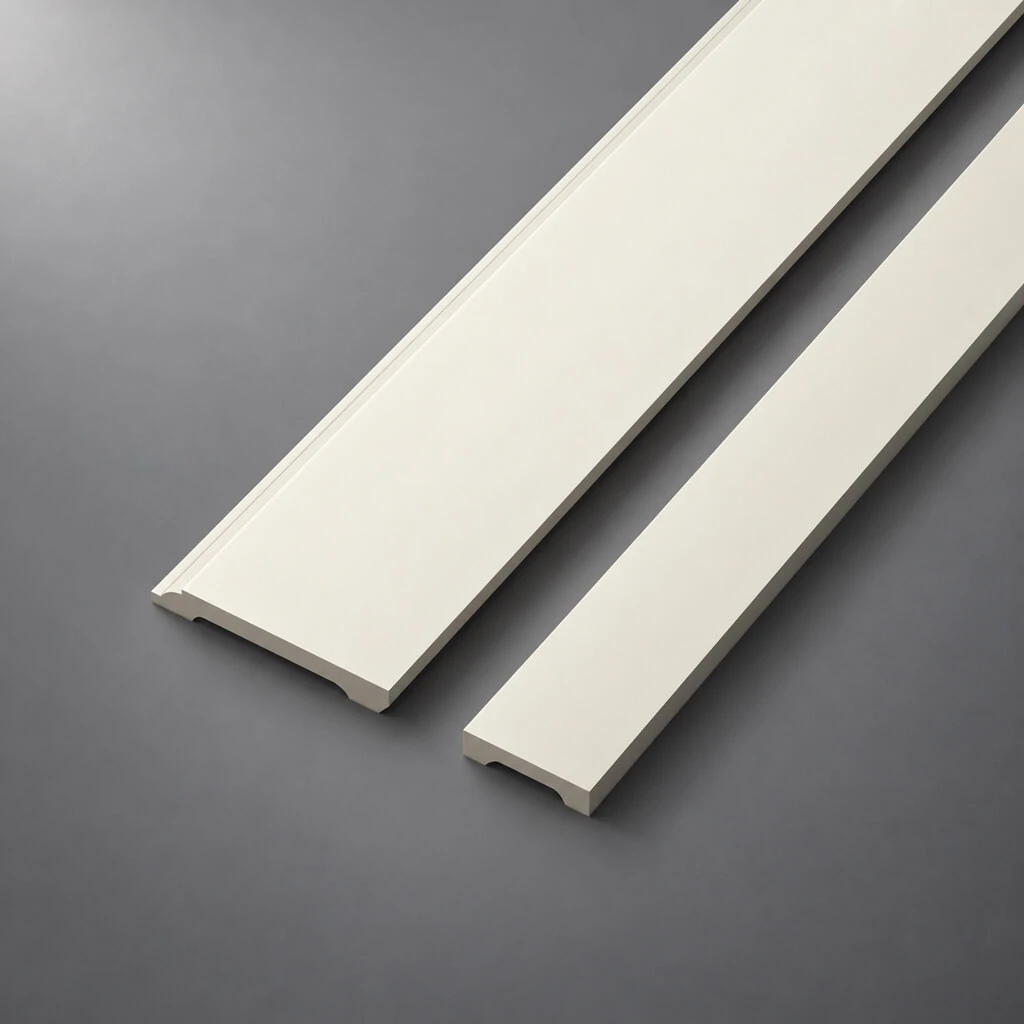
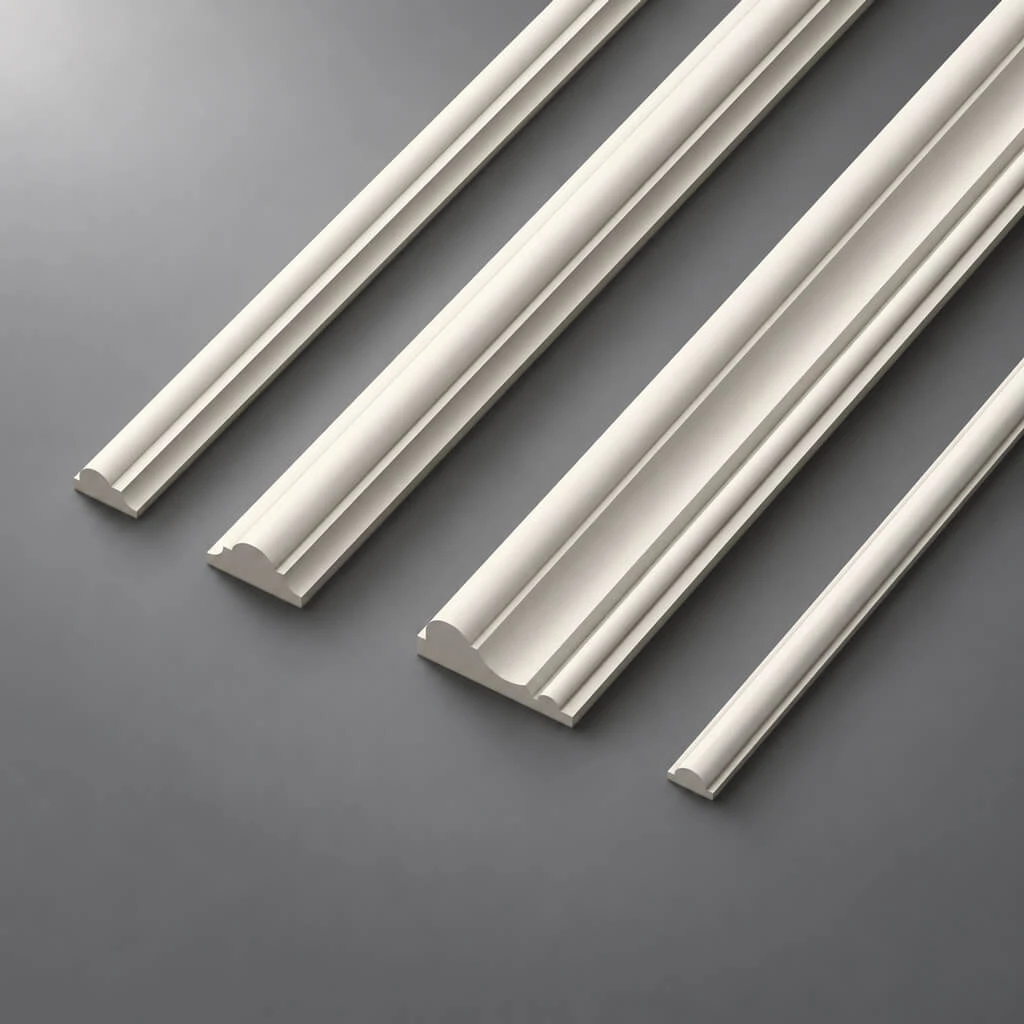
A finished model is convenient for one-off decor, complex corners, and ornamentation that varies along the product. For smooth linear trim with a constant section, another method is practical: the profile is extruded along a path using the Sweep modifier.
Here it is important to distinguish between the cross-section shape and the length of the segment. A stock bar may be 2600 mm long, while the frame will require separate horizontals and verticals of other dimensions. Changing the path allows you to obtain the required segment while preserving the cross-section.
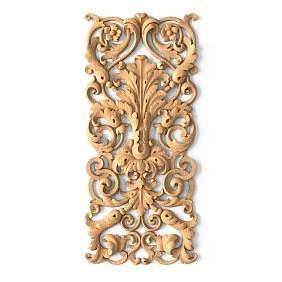
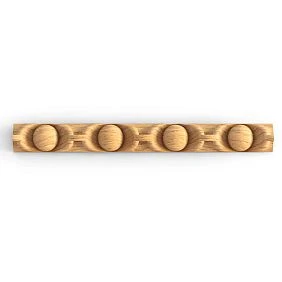
A regular Sweep of a single unchanging cross-section does not create a longitudinal floral ornament or a sequence of individual beads. Such products require the geometry of a repeating motif or a ready-made model. The choice of modeling method is determined by the structure of the profile, not just by the convenience of editing the scene.
Prepare the cross-section at a one-to-one scale
Take the contour from a reliable drawing or prepare it from verified manufacturer data. If only a photograph and two overall dimensions are available, the exact shape of the grooves and ridges cannot be unambiguously reconstructed. Such a blank is left as preliminary until clarified.
A regular solid profile requires a clean, flat, closed contour. Check the vertices, extra duplicate lines, self-intersections, and the position of the mounting side. Save the original cross-section separately, with the article name.
Archives 3D models and DWG STAVROS help to obtain the initial geometry. But the file of a specific product still needs to be opened and matched with the selected version. The presence of a common archive does not mean that any contour from it can be assigned to any similar molding.
Include decor models for 3ds Max in the working library after this check. Along with the geometry, save the source file and the date of verification against the product card. If the resulting model does not contain a separate cross-section, preparing the contour becomes an independent operation: a random cross-section of a complex ornament cannot be considered the constant profile of the entire product.
How to build a rectangular frame using Sweep
First determine what the rectangle represents: the inner boundary, the outer boundary, or the selected profile alignment line. Then create the path. Otherwise, a numerically precise Rectangle may produce an incorrect overall dimension for the finished frame.
Work sequence:
- Create a Rectangle in the plane of the wall and set the dimensions of the chosen path.
- For a frame with right angles, leave the corner radius at zero. If you need to edit the contour, use an Editable Spline.
- Apply Sweep to the path.
- Enable Use Custom Section and use Pick to select the prepared section.
- Adjust the position of the profile relative to the line and the wall.
- Measure the inner and outer dimensions of the resulting object.
Selecting a custom contour is described in Autodesk's instructions on custom Sweep section. For a frame, it is important to check the geometry that has already been built: the dimensions of the original rectangle do not replace checking the result.
When changing the composition, return to the path below Sweep: set new Rectangle dimensions or move the necessary Editable Spline vertices. Resizing a finished object via Scale also affects the section. You can check the order of operations in modifier stack. Until approval is complete, it is useful to keep an editable path and a separate source profile, even if a copy in the form of a polygon mesh has been prepared for transfer.
Profile alignment determines the position of the frame on the wall
In Sweep, the Pivot Alignment, X Offset, Y Offset, and Angle parameters control the anchoring, offset, and rotation of the section. Their purpose is explained in the documentation on Sweep settings. There is no universal position for all imported profiles.
Check the side view: the mounting side should occupy the position specified by the design, and the front part should protrude into the room. Then look at the inner and outer edges of the frame. An asymmetric section rotated the other way creates a different composition even with the correct dimensions.
It is convenient to save a short control section next to the original profile and compare new frames with it. Accidental displacement should not be compensated for by changing the product width or sinking a significant part of the relief into the wall.
Internal dimension, anchor line, and external dimension
Let's consider a conventional rectangular frame with an inner field of 1200 × 1800 mm and a profile width in the wall plane of 40 mm. The corners are right angles, and the section is located entirely outside the inner field. The outer dimension will be 1280 × 1880 mm.
| What is measured | Width × height in the example |
|---|---|
| Inner field | 1200 × 1800 mm |
| Line in the middle of the profile width | 1240 × 1840 mm |
| External dimension | 1280 × 1880 mm |
The center line here runs at a distance of 20 mm from each edge of the strip. This is a geometric condition of the example, not the automatic position of the Sweep reference point. For a shaped corner or another snap, dimensions are determined by the actual contour.
The difference affects the distance to the trim, switch, furniture, and adjacent frame. Therefore, offsets are set from a pre-named boundary that is the same in the scene and on the layout.
The angle in the model must match the assembly method
A continuous frame after Sweep may look seamless. On site, it is assembled from separate sections or joined through the provided decorative elements. The assembly method must be determined before final approval.
For a flat rectangular frame made of the same profile, a typical symmetrical joint is mitered. But the 45° designation does not become a universal tool setting for any cornice or spatial corner. The position of the section and the installation planes change the task.
Check the angle up close: whether there are intersections, breaks in the relief, accidental flipping of a side, or excessively stretched sections. If the geometry does not come together well, first check the source contour and trajectory. Hiding the problem with smoothing or filling it with an arbitrary shape is dangerous for the subsequent working drawing.
Ornamental moldings are modeled while preserving the repeat
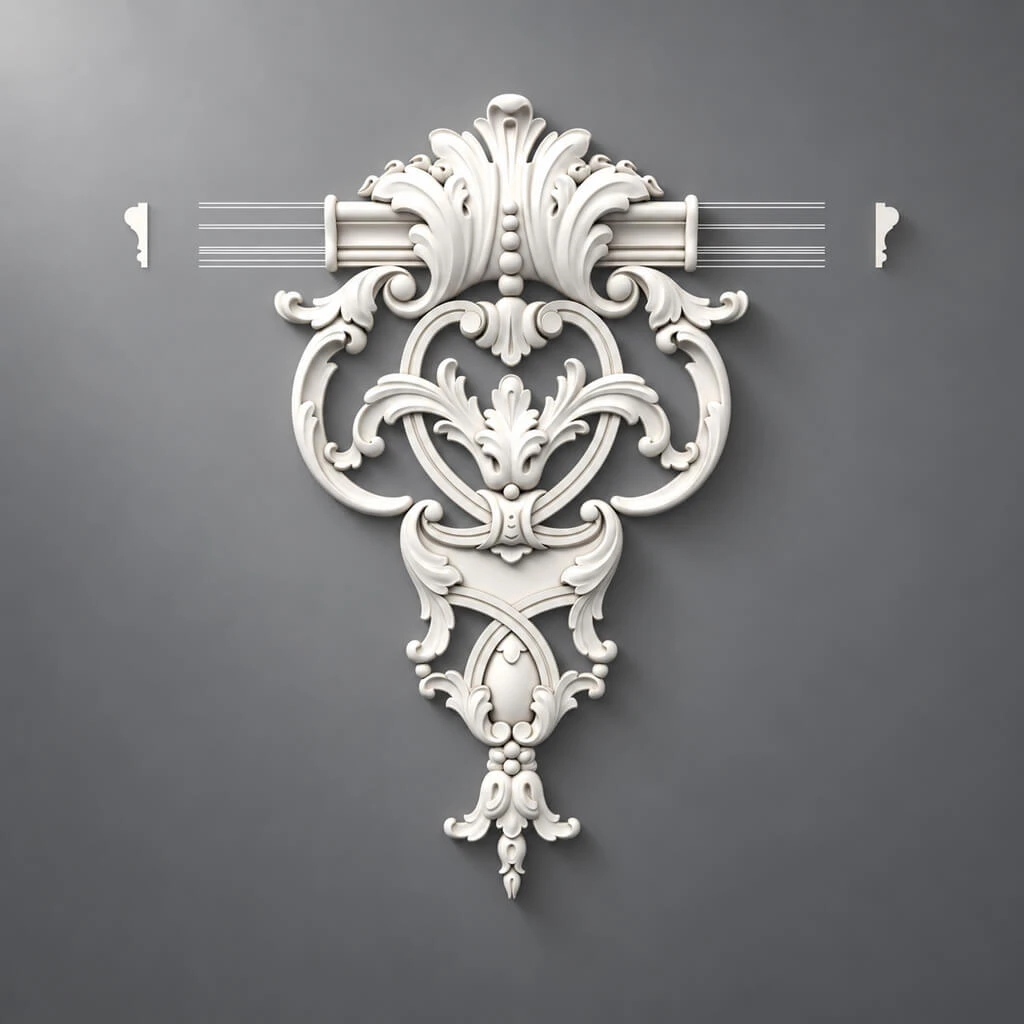
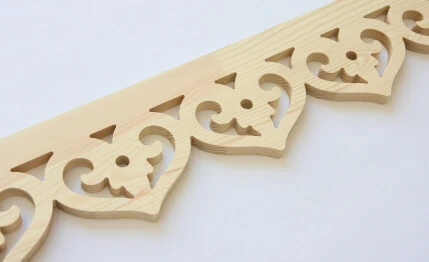
A repeating pattern has its own step — the repeat. When the model is stretched along the wall, the length of the motif changes. The visualization no longer matches the product, even if the width and depth remain the same.
for polyurethane molding with an ornament, first establish the actual repeat from the model, drawing, or sample. Then determine the start of the pattern, the central axis, and the cut location. If necessary, change the composition or position of the motif while preserving its dimensions.
At the corners, check which parts of the design meet. A beautiful mirrored continuation in the scene should result from real details and acceptable trims. Arbitrarily shrinking the last scroll to fill the remaining length is not allowed while keeping the same product code.
Identical frames are convenient to duplicate as instances
In 3ds Max, the Copy mode creates an independent copy, while Instance creates an instance with shared geometry and modifiers. However, the position and other transforms of instances can differ. These relationships are described in Autodesk's guide to cloning objects.
For several identical frames, first check one: dimensions, section, corners, and alignment. After that, create instances and place them along the project axes. Fixing the shared geometry will propagate to the linked objects.
However, an instance can be scaled separately at the object level. Therefore, the mere fact of using Instance does not guarantee that the section is preserved. Before releasing the scene, check the actual dimensions of all frame types and make sure there is no accidental scaling of individual placements.
Frames of different sizes need a common profile and different paths
If a room contains both narrow and wide frames, do not create them by stretching a single finished instance. Create independent paths with their own dimensions while keeping the same cross-section.
The settings for a custom Sweep section include an Instance mode. It allows you to use a linked source shape: editing it is reflected in the built geometry. The behavior of the modes is described in the Sweep profile selection description.
Check the connection on two test frames before filling the entire room. Then restore the reference geometry and save the verified version. When replacing an SKU, not only the section is updated, but also labels, linked elements, field dimensions, and specification data: the software link does not perform this design check automatically.
The object name must retain the SKU
Names like "new frame" and "final profile" do not help find the product a month later. It is more practical to record the design code, manufacturer, SKU, and location: for example, "ML-01_STAVROS_MLDPU-003_Living Room_Wall-A".
Store the cross-section dimensions, commercial length, link, and finish in a linked schedule or in the object properties. Separate the source profiles from the placed frames so that the reference geometry sample is not included in the project quantity count.
It is convenient to keep statuses separate: "geometry checked", "visualization approved", "nodes checked", "approved for order". Client approval of the image does not automatically confirm cutting and component compatibility. When changing a product, create a new revision of the scene and documentation, preserving the selection history.
Check the relief under frontal and side lighting
Soft frontal lighting can make the profile appear almost flat. Light along the wall reveals the depth of recesses, protrusions, and the character of highlights. For comparison, use the same camera, exposure, and finish, changing only the condition being tested.
Capture an overall view of the wall and a close-up of the corner. The overall view is used to assess the scale of the composition, while the close-up shows the continuity of form, undercuts, and surface character. An excessively harsh shadow in a single test does not yet mean the profile is unsuitable: it needs to be compared with the design lighting.
If the molding looks faceted, check the detail of the curved section and smoothing. The number of segments should be increased where it improves the visible shape. Smoothing must not turn the intended facets and steps into a rounded surface.
Texture helps the finish but does not replace form
Simulating a fine texture is appropriate for the surface material. However, a flat strip with a bump map does not reproduce the real silhouette of a deep profile. At a close angle, this is especially noticeable along the contour and the junction with the wall.
For key angles, preserve the geometry that determines size, projection, and relief. Check the material after assigning texture coordinates: the image should not stretch unexpectedly as the frame length changes.
Lightweight display and proxies are not an error in themselves. The error is agreeing to a conditional substitute instead of the selected product. Before the final image calculation, make sure the scene uses the correct geometry, external files are available, and the result matches the verified profile.
Compare narrow and wide molding as different products
For two interior options, select two real product codes. Build frames for each section and keep the comparison conditions identical. If the inner field is fixed, the outer dimensions will change; if the outer dimension is fixed, the inner field will change.
This allows you to make a meaningful choice of a wide polyurethane wall molding: see how much space it takes up next to furniture, how it looks from the passage, and whether it reduces the frame field excessively.
Each option must retain its own product codes and dimensions. After selection, remove the rejected options from the active project composition or explicitly exclude them from the calculation. Otherwise, a polished visualization may be accompanied by a schedule that mixes both versions.
Check the frame together with the casing, baseboard, and cornice
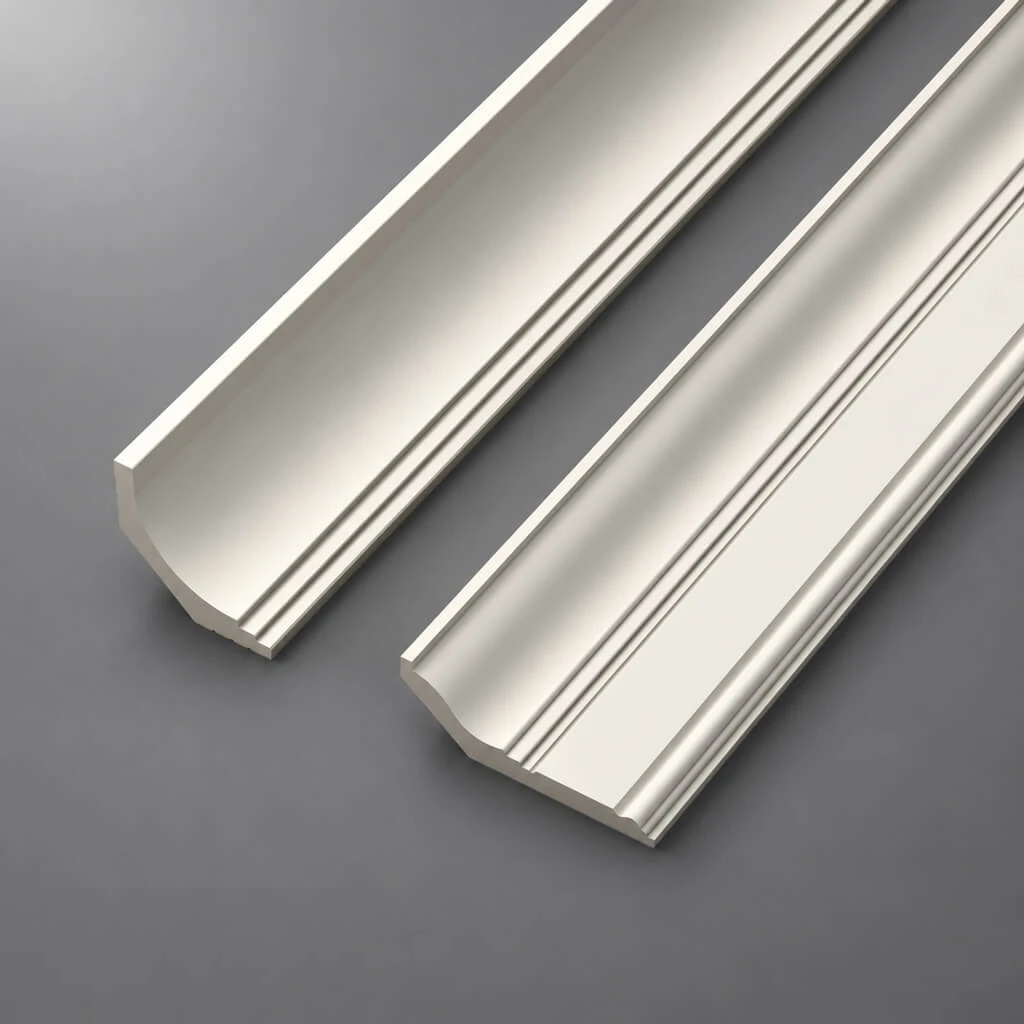
Molding works within the overall wall architecture. Add the real dimensions of the door casing, baseboard, ceiling cornice, and nearby furniture to the scene. Conditional thin strips instead of these elements hide possible conflicts.
For the casing, check the distance to the outer edge of the frame, the protrusion depth, and the alignment of the top lines. At the bottom of the wall — the offset from the baseboard, the visibility of the frame behind furniture, and access to switches or outlets. Under the ceiling — the clear space and the cornice projection.
A universal ratio of cornice width to wall molding does not help here. Evaluate the system on the overall visualization and confirm the dimensions on the elevation drawing. Pay especially close attention to places where parts come close together: perspective can hide a small gap or overlap.
A curved trajectory requires a suitable product
Building an arc in 3ds Max is easier than implementing it with the selected molding. Bending a digital model does not confirm the ability of the real molding to accept the same radius.
If the project requires flexible polyurethane molding, verify the availability of the appropriate version, the permissible bending direction, and the radius requirements. Bending along the wall plane and wrapping around a curved wall are different conditions for the profile.
Until confirmed, mark the curved section as requiring verification. For some compositions, a ready-made shaped element is possible; for others, a different product or a change in geometry will be required. Flexible molding should be purchased after verifying the specific model against the project radius, not based on its name resembling that of a straight molding.
Place corner decor as separate product objects
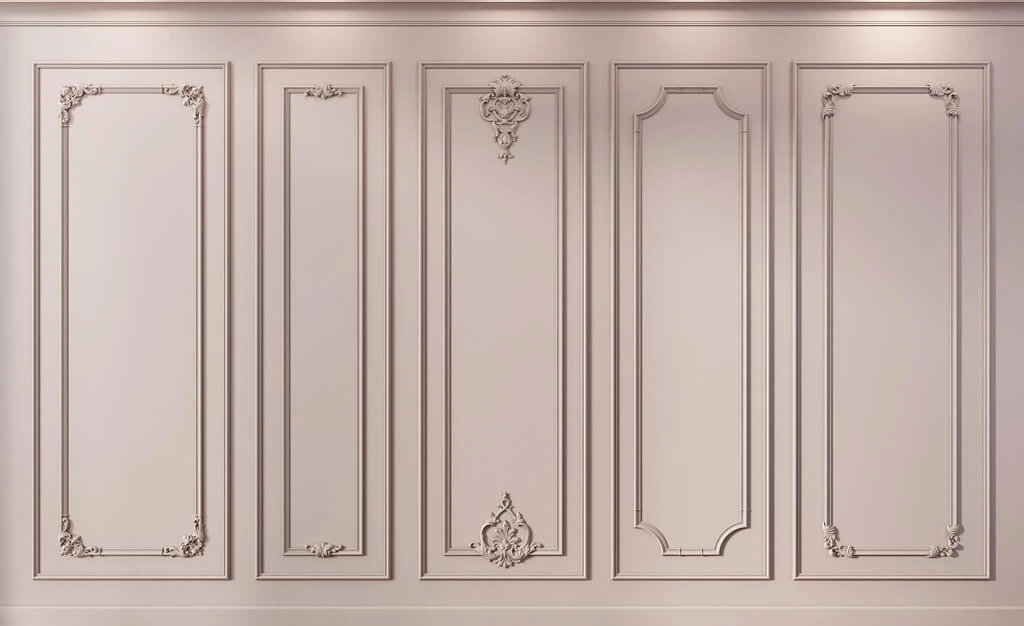
The frame may include straight molding, shaped corners, and a center overlay. Select them via Decor for Molding, checking the compatibility of specific models.
For example, in the product page MLDPU-003U the size is specified as 218 × 218 × 15 mm and use with MLDPU-003. Such an element gets its own object and SKU. It should not appear in the scene by simply deforming a straight molding.
The position of the joints is determined by the mating geometry. The entire overall dimension of the corner piece cannot be automatically subtracted from the outer size of the frame: the actual abutment boundaries matter. Left and right elements, if provided, are accounted for separately and their orientation is preserved.
Mirroring an object in the program also requires verifying product correspondence. If a separate right-hand model is needed for a symmetrical composition, the mirrored left-hand geometry must not retain the article number of the left-hand product. In the scene, you can get the correct silhouette while simultaneously making an error in the purchasing designation. After mirroring, verify the relief, the mounting side, and the specific article number of the paired piece.
Complete render approval with a sample check
The image helps choose the scale and composition, but it does not convey the material and finish the same way as a physical piece. After the preliminary selection, use samples and stucco catalogs, after confirming the available format for the required item.
Compare the sample with the saved section, evaluate the relief under lighting close to the project lighting, and apply the approved paint color. If a complex corner is planned, it is useful to check the joint itself, not just the straight segment.
Link the result to the SKU, finish, and project revision. After replacing the profile, the previous approval is not carried over automatically. A new model may change the internal fields, angles, and color perception even with similar dimensions.
How to convert frames from 3ds Max into calculations
For each frame type, save the dimensions, repeat count, SKU, and assembly method. For a rectangular path, the perimeter equals 2 × width + 2 × height. But first specify along which line the sides were measured.
For the midline in the example 1240 × 1840 mm, the perimeter is 6160 mm. For the outer contour 1280 × 1880 mm, it is 6320 mm. Both results are correct for their respective lines, but neither by itself determines the number of commercial strips.
For purchasing, you need the actual part lengths with the accepted measurement basis, cuts, and technological allowances. Then they are distributed across commercial strips, taking into account the suitability of offcuts and the ornament. Piece corners and overlays go into separate lines.
Do not automatically count all scene objects: reference profiles, hidden variants, and duplicates for comparison must be excluded. The final bill of materials is checked against the working drawings of the current revision.
Check before releasing the scene and ordering
Before handing over the project, check sequentially:
- the SKU and finish of each selected profile;
- the cross-section dimensions after import and all transformations;
- alignment of the binding line with the dimensions on the layout;
- the profile orientation and the position of the mounting side;
- the ability to form corners from the selected products;
- pattern repeat and trimming of the ornament;
- instance links and the absence of random scaling;
- compliance of the final geometry with the approved image;
- exclusion of rejected options from the quantity;
- cutting and separate accounting of piece decor.
Comments are corrected in the scene and documentation simultaneously. If only the render was changed, while the schedule still contains the old dimensions and SKUs, the project is not yet ready for procurement.
How to buy moldings that are approved in 3ds Max
After the profile is approved and the calculation is complete, you can buy polyurethane moldings for specific project items. To order polyurethane wall moldings according to the approved composition, provide the article number, size, finish, quantity of whole strips and related decorative elements. The approved finish and important procurement conditions are specified separately.
In the section for designers and architects STAVROS professional collaboration options are available. For selected products, confirm current delivery terms before purchase. If a replacement is required, first return it to the project and check it against the same nodes.
Start with one frame: a real item code, a verified section, an accurate path, and a clear angle. After verification, use it as the basis for the remaining compositions. Then moldings in 3ds Max will remain recognizable product items at every stage — from the first approved image to delivery of the parts to the site.