































Article Contents:
- Why an architect needs a DWG of a wall panel
- What exactly should be in a panel DWG
- The SKU must exist before the final elevation
- How to check DWG units
- You cannot scale a panel “for looks”
- How to name a DWG block
- Project Code separate from SKU
- The wall elevation is the main document
- Where to start the layout
- Central layout
- Layout from the doorway
- First panel
- Last panel
- Why you shouldn't hide the edge cut behind the overall wall dimension
- Whole and cut panel
- Vertical Layout
- Horizontal Layout
- Doorway
- Section through the door
- Inside corner
- Outside corner
- Panel and skirting board
- Panel and ceiling
- Sockets and Switches
- If an electrical point falls on a batten or relief
- Built-in furniture
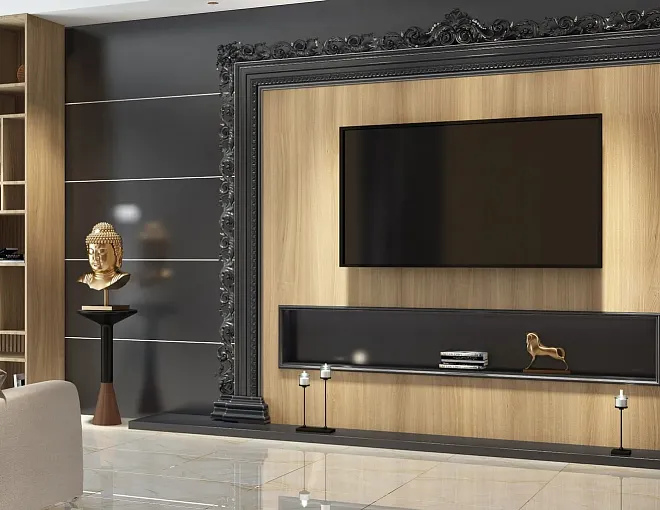
- TV Area
- Panel in the niche
- Column and wall projection
- Radius surface
- MDF and wood must have different designations
- How to mark the finish
- DWG and 3D must match
- How to use XREF in a large project
- DWG layers
- Centerlines
- Why slat width and spacing are different parameters
- DWG of the finished panel and DWG of individual slats
- Finished panel
- Individual slats
- Use custom module
- Scale panel
- Do not show edge cut
- Do not make a cut at the door
- Electrical wiring shown schematically
- Panel and individual slats mixed
- The radius is calculated from the chord
- DWG and 3D use different SKUs
- Old quantity after new REV
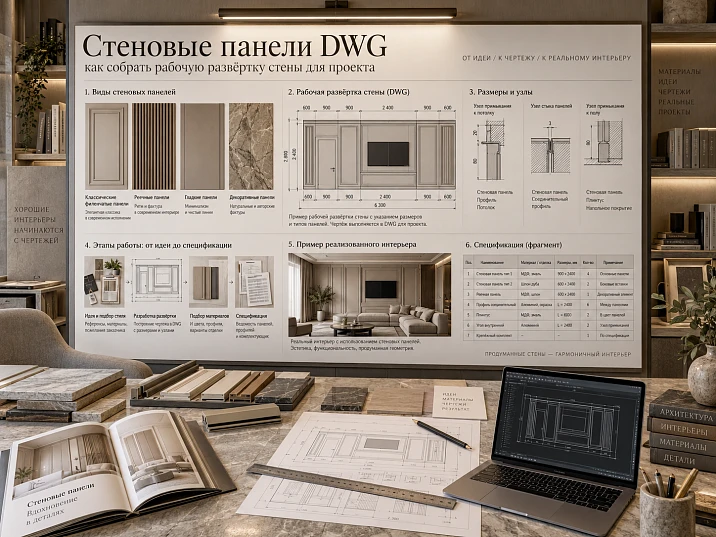
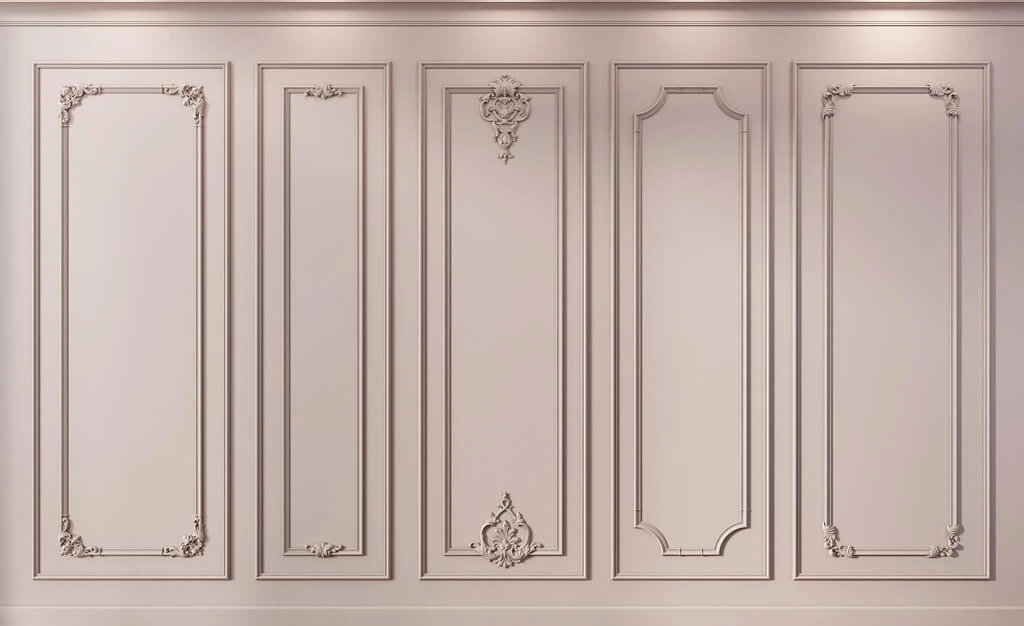
In a visualization, a wall panel may look like a single decorative surface. In a working project, it is no longer a "texture on the wall," but a specific product with real width, thickness, length, installation direction, joints, and SKU. If these parameters are not fixed before releasing the DWG, the beautiful composition has to be translated back into physical geometry already on the construction site.
Therefore, the working logic should begin not with a conventional hatch or an arbitrary rectangle in AutoCAD. First, the real product is selected, then its dimensions become part of the drawing:
SKU → real dimensions → module → DWG → wall elevation → starting axis → layout → end panels → openings → details → codes → quantity → specification → order.
This approach is especially important for slatted and modular systems. An error of a few millimeters within one repeating element on a long wall turns into a noticeable shift of the entire layout. And replacing a panel after documentation is released can change not only the color or texture, but also the position of sockets, end elements, joints, and the quantity of goods.
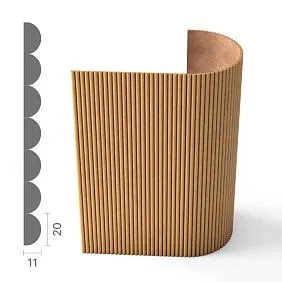
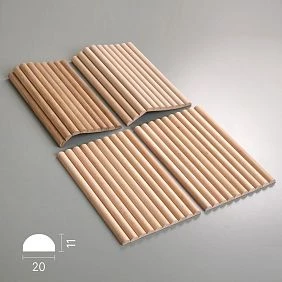
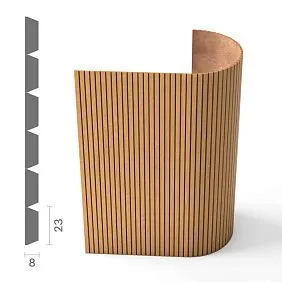
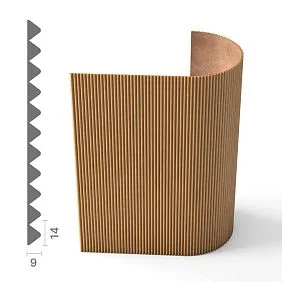
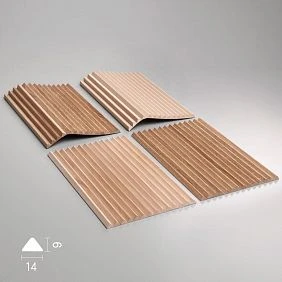
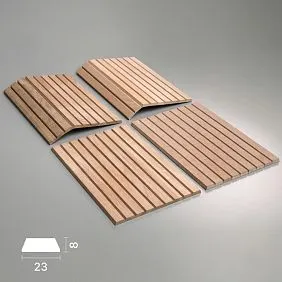
Why an architect needs a wall panel DWG
3D answers the question: what does it look like?
DWG — how to build?
For the working panel, the following must be known:
- width;
- thickness;
- length;
- module;
- mounting plane;
- direction;
- joint;
- a specific SKU.
Therefore, a DWG file is not useful on its own. Its value lies in the fact that it links a real product to working geometry.
Section DWG wall panels should be used as a source of real geometry, not as a library of decorative images.
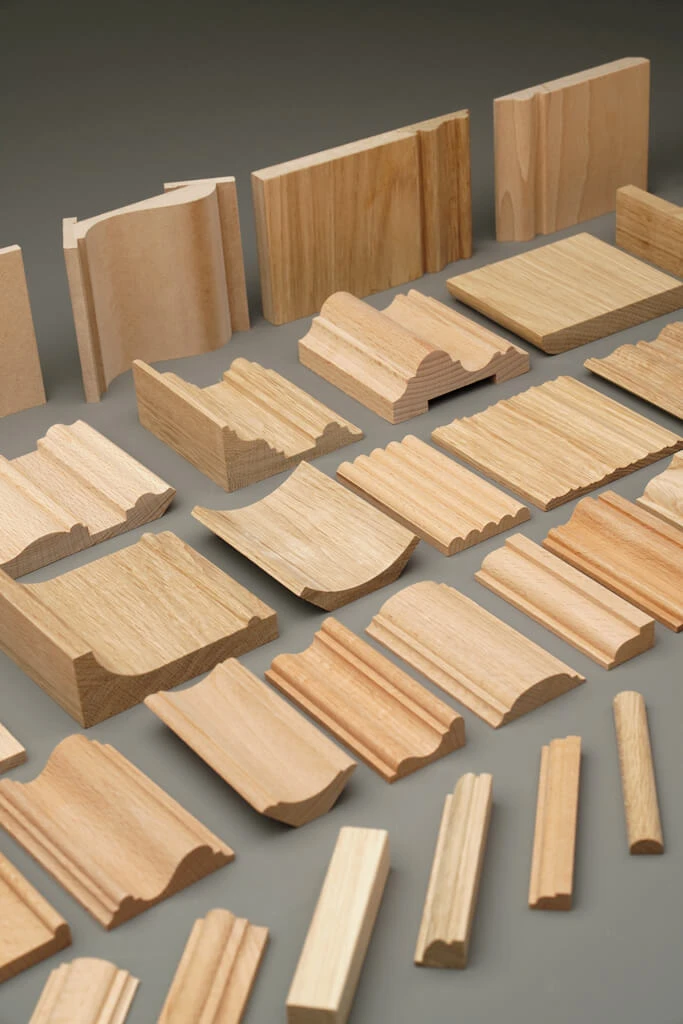



What exactly should be in a panel DWG
A minimally useful file should contain:
- frontal geometry;
- actual dimensions;
- cross-section;
- thickness;
- the mounting plane;
- the real scale;
- SKU or an unambiguous link to the product.
If the file only contains a nice outline, but it's unclear what size it is and which product it belongs to, such a DWG is weak as a working resource.
Two types are especially useful for a wall system:
facade / front — shows the pattern and module;
section — shows the thickness and behavior of the panel relative to neighboring elements.
Our factory also produces:
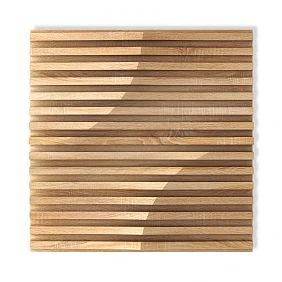
The SKU must exist before the final layout
Correct sequence:
catalog → SKU → dimensions → DWG → working wall.
Bad:
draw an arbitrary module → approve the visualization → then look for a similar product.
Why is the second path dangerous?
The actual panel may differ in:
- width;
- pitch;
- thickness;
- length;
- pattern;
- joining module.
Then the finished layout no longer matches the product.
To select the actual product, you can use the section Wall Panels, and for slatted systems — slatted wall panels.
Get Consultation
How to check DWG units
After import, measure a known dimension.
If the panel has a width of 600 mm, in AutoCAD it should be measured as:
600
when working in millimeters.
It must not suddenly become:
6000
Or:
0,6.
The danger of a scale error is that visually the object may look "normal," especially if the entire scene was imported with the wrong factor.
Therefore, the first step after inserting a DWG is to verify a known dimension.
Do not trust the scale by eye.
You must not scale a panel "for appearance"
If the finished product has a fixed size, the Scale command creates a nonexistent item.
You can change:
- number of modules;
- position;
- starting axis;
- direction;
- composition.
You cannot arbitrarily change the physical size and continue to consider it the same SKU.
If the scaled version visually fits better, you need to:
- find another real product;
- change the layout;
- switch to a custom solution.
But do not leave the old SKU in the specification.
How to name a DWG block
Six months later, names like:
panel_final
wallpanel_new
panel_03_ok
explain nothing.
It is much more reliable:
STAVROS_[SKU]_PANEL
Or:
SP-01_[SKU]
This makes the file easier to match with the project.
If five types of panels are used in one object, proper naming saves a lot of time during revisions and when handing over documentation.
Project Code separate from SKU
Project Code is needed for the drawing.
SKU — for purchasing.
For example:
SP-01
— project code.
PAN-003
— product SKU.
Combination:
SP-01 → STAVROS → PAN-003.
On the elevation it is more convenient to write SP-01.
In the specification this code is resolved into the actual product.
This way you can replace the SKU in a new revision without renaming every callout on all sheets.
Wall elevation — the main document
For a panel zone, the elevation must show not only the decorative field.
Minimum:
- overall wall width;
- clear height;
- panel field boundaries;
- Doors;
- windows;
- Furniture;
- Outlets;
- switches;
- the axes;
- modules;
- joints;
- edge panels.
If a sheet only has hatching, the project still doesn't explain how to assemble the wall.
The layout drawing must be readable without a visualization.
Where to start the layout
Not always from the left corner.
The base can be:
- central axis;
- TV axis;
- the axis of the bed;
- door;
- a niche;
- furniture module;
- the architectural axis of the room.
Imagine a 4.5 m wall, but with a built-in wardrobe on the left and a doorway on the right.
The geometric center of the entire wall is of little use here.
A person perceives the free part.
Therefore, it makes more sense to build the layout relative to the visible compositional zone.
Central layout
The central layout is useful where there is a strong axis:
- TV zone;
- headboard;
- fireplace;
- central wall;
- symmetrical wall section.
Algorithm:
wall axis → whole modules → remainder → two edge fields.
But you need to check more than just the geometric center of the panel.
If there is a pronounced rhythm inside the panel, the visual center of the module may be perceived differently.
Therefore, the final check is done on the entire wall.
Layout from the door opening
Sometimes it is more important to achieve a neat junction with the door.
Then the baseline becomes the door casing or the edge of the opening.
This is rational if:
- the door is located in the main visible area;
- the panel ends directly at the door casing;
- the edge must be complete;
- the opposite end is hidden by furniture or a corner.
Here, the symmetry of the entire wall is less important than a clean junction.
First panel
The first panel defines the entire grid.
The elevation drawing separately shows:
- width;
- position;
- the base point;
- trimming;
- direction;
- code.
If it is trimmed, this must be clearly indicated.
Do not leave the installer with the task of "starting roughly from here."
The first module is the starting point of the entire wall geometry.
Last panel
The last element often reveals a layout error.
Check:
- width of the remainder;
- distance to the corner;
- adjacency to furniture;
- the door portal;
- plinth;
- visible end face.
If after all full modules a strip 35 mm wide remains, this may be technically acceptable, but visually it may look accidental.
Then the starting axis must be reconsidered or the trimming distributed across both edges.
Why you shouldn't hide the edge cut behind the overall wall dimension
The overall wall dimension, for example 3860 mm, says nothing about the fact that the edge panel ended up 72 mm wide.
It is precisely the edge element that often:
- is too narrow;
- is inconvenient to install;
- looks visually weak;
- conflicts with the corner;
- requires a separate filler piece.
Therefore, the cut should be shown as a separate dimension.
Full and cut panel
In a working DWG, it is useful to distinguish them by code or graphics.
For example:
SP-01-F
— full panel.
SP-01-C
— cut panel.
This is especially convenient in large projects, where the same system is repeated on dozens of walls.
A single SKU may go into the specification, but the installation list immediately shows where full and cut elements are used.
Vertical layout
For the vertical direction, check:
- product length;
- clear height;
- the top cut;
- lower node;
- the joint along the height, if it is needed.
If the actual panel length is less than the height of the zone, the architect must decide the position of the horizontal joint.
Do not leave it accidentally in the middle of the wall.
Horizontal layout
For a horizontal system, the following become especially important:
- the elevation of the first row;
- number of joints;
- height of each joint;
- matching with the furniture;
- door lintels;
- the light fixtures;
- shelves.
A small error at the start can accumulate in height.
Therefore, checking the marks here is more important than in the vertical option.
Doorway
On the unfolded view, you need to see simultaneously:
- the last panel;
- platband;
- reveal;
- end face;
- plinth;
- the size between the panel and the door.
A front view is not enough.
If the panel protrudes more than the casing, this will only become visible in the section view.
Section through the door
Useful diagram:
wall → panel → casing → door.
The section helps to understand:
- which one protrudes forward;
- whether the open end remains exposed;
- whether an extension is needed;
- whether a shadow gap is needed;
- how the finish terminates.
If the panel and the casing have the same thickness, the detail is simpler.
If they differ, it is a separate architectural decision.
Internal corner
You cannot simply merge two hatches.
You need to determine:
- which panel comes first;
- where the trimming is;
- whether the end face is visible;
- whether the module continues;
- whether both walls are slatted or only one.
If the panels run along both walls, you need to decide whether the grid should visually continue through the corner.
Sometimes each wall has its own independent layout.
Sometimes continuity is required.
External corner
At an external corner, both planes are visible at the same time.
Show:
- the visible end face;
- junction;
- trimming;
- extension element;
- size;
- panel direction.
A poor outer corner immediately gives away the finish as a "cut-off module."
A good one looks as if it had been part of the system from the very beginning.
Panel and skirting board
Working section:
wall → panel → skirting board → floor.
You need to decide:
- the panel goes all the way to the floor;
- starts above the skirting board;
- skirting board runs over the panel;
- the baseboard is interrupted;
- a bottom profile is used.
Different solutions change both the visual result and the amount of material.
Panel and ceiling
Check:
- clear height;
- ceiling profile;
- cornice;
- shadow gap;
- the top cut;
- the installation sequence.
If the panel is installed under the cornice, the depth of the cornice and the panel must be coordinated.
If a shadow profile is used, the gap size must be shown on the section.
Sockets and switches
Electrical layout must be shown on the elevation before the final release.
The socket frame has a real size.
It can:
- fall entirely onto the surface;
- cross the groove;
- land on the rail;
- end up at the junction of two modules.
The electrical point symbol does not show this problem.
Therefore, it is useful to use the real dimensions of the frame.
If an electrical point falls on a rail or relief
The solution must be design-based.
Options:
- shift the electrical point;
- shift the module;
- provide a mounting pad;
- locally trim the panel;
- change the zone boundary.
Which option is better depends on the project stage.
But the solution cannot be handed off to the installer.
Built-in Furniture
The elevation must show:
- whether the panel ends at the cabinet;
- whether it continues behind it;
- which end face is visible;
- whether the plane matches;
- whether there is a gap;
- how the skirting board works.
If the panel is completely hidden by furniture, it may be omitted from the finishing.
If a side gap is visible, even a small section may require continuation.
TV area
It is advisable to show on one DWG:
- Panels;
- screen;
- nightstand;
- bracket;
- cable outlet;
- Outlets;
- lighting;
- edges of the panel field.
If the TV mount passes through the panel, the base and access must be provided for in advance.
A beautiful relief must not hide the technical unit.
Panel in a niche
A niche is a separate zone.
A code can be given:
SP-N01
Checked:
- back plane;
- side slopes;
- top;
- internal corners;
- depth;
- transition to the main wall.
The layout of the back plane does not have to automatically continue the grid of the main wall.
This is a separate design decision.
Column and wall projection
A projection cannot be considered an ordinary flat wall.
Separate face unfoldings are needed.
For example:
W-03A
W-03B
W-03C
This shows where the panel ends on each plane and how it transitions across corners.
Radiused surface
If the selected product allows radius work, the actual arc must be shown in plan.
Quantity is calculated by:
arc length, not chord.
The chord is always shorter.
On a large radius, the error may be small.
On a pronounced curve, it is already significant.
Therefore, it is better to take the length directly from the CAD geometry.
MDF and wood must have different designations
Even with identical geometry.
For example:
SP-MDF-01
SP-OAK-01
This is useful when visually similar panels are used in different materials within a project.
The material affects:
- color;
- the texture;
- finish;
- delivery;
- specification.
For slatted systems, you can separately check MDF wall panels and natural wood versions in the same product group.
How to designate the finish
Do not mix SKU and color.
Correct:
Material: MDF
Finish: RAL 9010
Or:
Material: oak
Finish: stain + lacquer
If one SKU is used with different finishes, these may be different project items.
For example:
SP-01A
SP-01B
The product is the same.
The finish is different.
DWG and 3D must match
Minimum parameters:
SKU → direction → scale → module → panel field boundary.
If one product is used in 3D but the DWG is built on another, these are already two versions of the project.
Such a discrepancy cannot be dismissed with the phrase “roughly the same.”
A revision must be issued.
How to use XREF in a large project
For dozens of rooms, it is convenient to separate:
- architecture;
- Furniture;
- electrical wiring;
- finish;
- panel layouts.
XREF allows you to keep the panel system as a separate working layer of the project.
The advantage is obvious when the layout changes: you don't need to manually update each sheet if the architectural base is linked.
But XREF does not replace revision discipline.
If the base geometry has changed, the panel elevations need to be rechecked.
DWG layers
A useful structure:
STAVROS_PANEL
STAVROS_PANEL_CUT
STAVROS_PANEL_AXIS
STAVROS_PANEL_DIM
STAVROS_PANEL_CODE
This is not a mandatory standard, but a convenient working logic.
It allows you to quickly:
- turn off dimensions;
- view only the axes;
- highlight the trimmed panels;
- check the codes;
- pass some of the information to the installer.
Axes
For slatted systems, the axis is often more important than the boundary itself.
One must distinguish:
panel boundary
and:
slat axis.
If the panel has a complex internal module, these lines may not coincide.
Therefore, on the layout it is better not to use the same graphic for both meanings.
Why slat width and pitch are different parameters
If the system is built from individual slats:
pitch = slat width + gap
with uniform layout.
But a finished panel already has its own internal geometry.
There the architect works with a finished module.
Therefore, the formula for an individual slat cannot be applied to any slatted panel.
DWG of the finished panel and DWG of individual slats
Finished panel
The main object is the module.
Need to know:
- panel width;
- thickness;
- joint;
- internal pattern.
Individual rails
The main object is the section and spacing.
The architect creates the rhythm themselves.
These are fundamentally different files.
Dimension chains
It is convenient to keep several levels on the worksheet:
- overall wall dimension;
- panel field boundaries;
- starting axis;
- module dimension;
- end elements;
- exceptions.
This way the drawing remains readable.
If you dimension every identical panel separately, the sheet quickly turns into a grid of numbers.
Why you don't need to dimension every identical panel
For a repeating system, it's better to use:
a standard module + the number of repetitions.
For example:
Module 600 × 5
And separately:
Edge cut = 180
This reads faster than five identical dimensions 600.
Dimension chains should explain the logic, not just repeat obvious geometry.
Which panels to consider exceptions
Marked separately:
- trimmed;
- corner;
- near the door;
- near the outlet;
- near the furniture;
- non-standard height;
- radius;
- add-on.
It is exceptions that most often require additional components and the installer's attention.
A standard average module is usually not a problem.
How to link DWG with quantity
After layout approval:
DWG REV → quantity REV.
If the following have changed:
- boundaries;
- SKU;
- module;
- door;
- Furniture;
- Outlets;
- radius,
the quantity needs to be recalculated.
The old table cannot be used after a new DWG revision.
How to transfer panels to the specification
For each item:
| Field | Value |
|---|---|
| Code | SP-01 |
| Manufacturer | STAVROS |
| SKU | specific |
| Material | MDF / oak |
| Size | actual |
| Direction | vertical |
| Wall | W-03 |
| Calculated Qty | calculated |
| Order Qty | purchasing |
| DWG | REV03 |
| Status | APPROVED |
| URL | Product |
Project Code links the drawing to the table.
SKU — the procurement table.
Calculated Qty and Order Qty
Do not mix.
Calculated Qty — how many are actually shown on the drawing.
Order Qty — how many physical items need to be purchased.
The difference arises from:
- offcuts;
- modules;
- leftovers;
- the reserve;
- packaging;
- reuse of offcuts.
For a simple wall, they may coincide.
For a complex one, they do not.
Common mistakes in DWG wall panels
Using an arbitrary module
Then they look for a similar panel to fit it.
Consequence: the actual SKU does not match the drawing.
Scale panel
The result is a non-existent product.
Do not show end cut
The installer resolves it on site.
Do not cut at the door
Panel thickness conflicts with the casing.
Electrical wiring shown schematically
The socket falls on a relief or joint.
Panel and individual slats are mixed
The calculation uses incorrect logic.
Radius is calculated by chord
There is not enough material.
DWG and 3D use different SKUs
The approved visualization does not match the working design.
Old quantity after new REV
The purchase quantity is no longer reliable.
Final checklist before releasing the DWG
Check:
- a real SKU is selected;
- dimensions confirmed;
- DWG units checked;
- scale 1:1;
- block named unambiguously;
- Project Code assigned;
- panel zone boundaries defined;
- starting axis specified;
- module shown;
- first panel defined;
- last panel defined;
- cuts marked out;
- doors approved;
- architraves checked in section;
- internal corners resolved;
- external corners resolved;
- sockets and switches marked;
- furniture accounted for;
- TV zone checked;
- ceiling assembly defined;
- skirting defined;
- niches are detailed separately;
- radii are calculated along the arc;
- Material and Finish are separated;
- DWG matches the 3D;
- Calculated Qty is recalculated;
- Order Qty is determined;
- REV is up to date.
If after this the question remains “where is the best place to start the first panel?”, the working layout is not finished yet.
How to buy panels after the DWG is issued
The commercial stage should begin after the working geometry is approved.
First:
real SKU → DWG → shop drawing → assemblies → quantity → APPROVED.
Then — the order.
For selection and purchasing, you can use Wall Panels и Rafter panels.
If color and texture are critical for the material, before final release it is useful to order Product samples.
For professional project work — the section STAVROS for designers and architects.
The main principle remains simple:
the specification and order must include the exact SKU used to build the working shop drawing.
Not a “similar panel.”
Not an arbitrarily scaled block.
Not a decorative texture from the render.
A specific modular system for which dimensions, end panels, openings, junctions, quantities, and the current revision have already been verified.